
OpenClaw mobile nodes are the bridge between your AI Gateway and the device that is already in your pocket. They let an agent ask for phone-side context such as camera devices, location, device state, photos, notifications, calendar items, reminders, motion, and in some Android cases mobile UI state. That sounds powerful because it is. It also has limits, and those limits are the whole point.
A mobile node is not a tiny Gateway running on your phone. It is a companion device. The Gateway still owns sessions, channels, models, auth, and routing. Telegram, WhatsApp, Signal, Slack, and other channel messages land on the Gateway, not on the phone node. The node gives the Gateway a carefully approved command surface on a paired device.
That distinction saves people from a lot of bad assumptions. If your agent cannot read a notification, snap a photo, or fetch location, the answer is not always “the node is broken.” More often, one of the gates is doing its job: pairing, Gateway command policy, local app setting, foreground state, or OS permission.
OpenClaw mobile nodes in plain English
OpenClaw defines a node as a companion device that connects to the Gateway with role: "node". The device exposes commands through node.invoke. On mobile, those commands map to things a phone can reasonably provide: device status, camera listing, notifications, location, contacts search, calendar events, reminders, recent photos, motion activity, pedometer data, and platform-specific extras.
The Gateway remains the control plane. It receives messages, runs the model, decides what tool call is needed, and forwards an approved node command to the paired device. The phone runs only the node side of that exchange. In practice, that means the phone can become the agent’s eyes, ears, or local notification surface without becoming the system of record.
This is the right split. Phones are personal devices with strong OS permission models and lots of sensitive state. A good agent platform should not treat that state as a shared bucket. OpenClaw’s node model keeps the phone behind a pairing contract and lets the Gateway filter what the agent can ask for.
What a mobile node can do
The exact command list depends on platform, app version, local settings, and what the node declares when it connects. The OpenClaw docs publish the default Gateway policy ceiling by platform, which is a useful starting point.
On iOS, the default ceiling includes commands such as camera.list, location.get, device.info, device.status, contacts.search, calendar.events, reminders.list, photos.latest, motion.activity, motion.pedometer, and system.notify.
Android has a wider default ceiling. Along with camera, location, device info, contacts, calendar, reminders, photos, motion, and notifications, Android can declare commands such as notifications.list, notifications.actions, device.permissions, device.health, device.apps, callLog.search, mobile.ui.observe, and mobile.ui.act. The mobile UI commands depend on Accessibility Control being enabled.
Do not read those lists as a promise that every phone can run every command immediately. The docs are clear: a command is usable only when the connected node declares it and the Gateway policy allows it. Some commands also require an explicit operator opt-in because they touch sensitive data or active device control.
The sensitive-command line
OpenClaw treats several mobile commands as privacy-heavy or dangerous by default. camera.snap, camera.clip, screen.record, sms.send, sms.search, contacts writes, calendar writes, reminders writes, and health summaries require explicit gateway.nodes.commands.allow entries before the Gateway will forward them.
That can feel fussy the first time a photo capture fails. It is also the correct default. Listing available cameras is low risk. Taking a picture from a personal phone is a different act. Reading notification metadata is one thing. Sending SMS is another. OpenClaw makes the operator cross that line on purpose.
Pairing is the first security boundary
Mobile nodes use device pairing. A node presents a signed device identity during connection, and the Gateway creates a pairing request for role: node. Operators can approve or reject the request from the devices CLI or the UI.
The CLI flow is deliberately simple:
openclaw devices list
openclaw devices approve <requestId>
openclaw devices reject <requestId>
openclaw nodes status
openclaw nodes describe --node <idOrNameOrIp>
Pairing requests expire 5 minutes after the device’s last retry. A node that keeps reconnecting keeps one pending request alive instead of creating fresh approval prompts over and over. If the node retries with changed auth details, such as a different role, scope, or public key, the old pending request is superseded and a new request ID is created. The boring advice is the right advice: re-run openclaw devices list before approving.
There is a second layer too. The pairing docs split the model into device pairing and node capability approval. Device pairing gates whether the node can connect. Capability approval gates which declared commands can become visible. Since OpenClaw 2026.3.31, node commands stay disabled until node pairing is approved. Device pairing alone is no longer enough.
That change matters for mobile devices. A phone can be yours and still not have permission to expose every phone-side command to an agent. Identity is one gate. Capability is another.
Why commands still fail after pairing
When a node is visible but a command fails, troubleshoot it as a ladder rather than a mystery. The OpenClaw troubleshooting docs name three separate gates: device pairing, Gateway node command policy, and exec approvals. For mobile commands, OS permission and foreground state add two more practical checks.
Start with connection state:
openclaw nodes status
openclaw nodes describe --node <idOrNameOrIp>
If the node is not paired for role node, fix pairing first. If nodes describe does not include the command you expect, check whether the node app declared it and whether Gateway policy permits it. If the command appears but still fails, check the app setting and OS permission.
Foreground requirements
Camera and screen capture are foreground-only on iOS and Android nodes. If the phone app is backgrounded, OpenClaw returns NODE_BACKGROUND_UNAVAILABLE. That is not a random failure. It is the app and OS refusing a sensitive action while the phone is not visibly participating.
This is easy to forget during testing. You approve the node on a laptop, put the phone down, switch apps, and then wonder why capture failed. Bring the OpenClaw app to the foreground and retry before changing Gateway config.
OS permissions
Camera capture has both an OpenClaw app setting and an operating-system permission. On iOS, the Camera setting is on by default unless changed. On Android, fresh installs default camera access to off. Android also needs the CAMERA runtime permission for photos and clips, and RECORD_AUDIO when a video clip includes audio.
Location is stricter by design. The location.get command is off by default. Android third-party builds can expose Off, While Using, and Always modes. Play builds stay with Off and While Using. Precise Location is separate from the general location setting. If the OS denies the requested level, the app reports the highest granted level or returns a stable error such as LOCATION_PERMISSION_REQUIRED or LOCATION_BACKGROUND_UNAVAILABLE.
iOS vs Android nodes
The iOS story is narrower and cleaner. iOS nodes can expose camera listing, location, device status, contacts search, calendar events, reminders, recent photos, motion, pedometer, and notifications. Camera capture requires the app to be foregrounded, and phone permissions still rule the final outcome.
Android has more room because the platform exposes different surfaces. Notifications, call logs, device app inventory, mobile UI observation, and mobile UI action are Android-specific or Android-heavy parts of the model. But that extra reach comes with more switches. Accessibility Control has to be enabled for mobile UI commands. SMS commands require phone support, Android permission, and explicit Gateway opt-in. Background location depends on build type and the user’s selected mode.
The practical difference is this: iOS is a good personal context node; Android can become a deeper automation node when the operator deliberately enables the heavier permissions. Neither should be treated as a silent data pipe.
Practical setup flow
A good mobile-node setup starts on the Gateway, not in a random tool call. Make sure the Gateway is healthy, pair the phone, inspect what it declared, then test one low-risk command before moving to sensitive actions.
Use this flow:
- Install or open the OpenClaw mobile node app on the iOS or Android device.
- Connect it to the Gateway so it presents a node-role pairing request.
- Run
openclaw devices listand approve the current request ID. - Run
openclaw nodes statusto confirm the device appears as paired and connected. - Run
openclaw nodes describe --node <id>to see the declared capabilities. - Test a low-risk command such as device status or camera listing.
- Enable app settings and OS permissions only for the features you actually want.
- Add explicit Gateway allow entries only for commands you are comfortable exposing.
The order matters because it tells you where the failure lives. If the phone is not paired, permissions are irrelevant. If the Gateway blocks a command, tapping Allow inside Android will not fix it. If the app is backgrounded, widening Gateway policy will not make camera capture work.
Where mobile nodes fit with channels and remote execution
Mobile nodes are easy to confuse with channels. A WhatsApp channel lets a human message the agent through WhatsApp. A mobile node lets the agent ask an approved phone for local device context. Those are different jobs. You can have one without the other.
They are also different from remote node hosts for shell execution. A desktop or headless node host can run system.run when the operator has approved that surface and configured exec approvals. iOS and Android are not general shell-execution nodes. Their value is phone-native context and phone-side actions, not pretending a handset is a build server.
The clean mental model is: channels carry conversations, the Gateway runs the agent, and nodes provide local device capabilities. Once you keep those boxes separate, OpenClaw’s permission model makes more sense.
Troubleshooting checklist
When a mobile node behaves oddly, start with the visible facts before changing config. The fastest loop is:
openclaw status
openclaw gateway status
openclaw nodes status
openclaw nodes describe --node <idOrNameOrIp>
openclaw logs --follow
Then map the error to the right layer:
NODE_BACKGROUND_UNAVAILABLE: bring the mobile app to the foreground.CAMERA_DISABLED: enable Camera inside the node app settings.CAMERA_PERMISSION_REQUIRED: grant the OS camera permission.MIC_PERMISSION_REQUIRED: grant microphone permission or request video without audio.LOCATION_DISABLED: turn on location sharing in the node app.LOCATION_PERMISSION_REQUIRED: grant the needed OS location mode.- Command missing from
nodes describe: check the node app version, local feature toggle, and Gateway command policy. - Privacy-heavy command blocked: add an explicit
gateway.nodes.commands.allowentry only if you really want that surface.
For mobile nodes, most failures are healthy friction. A personal device should make the operator prove intent before an agent can touch camera, location, SMS, or screen state.
FAQ
Are OpenClaw mobile nodes the same as running the Gateway on my phone?
No. A mobile node is a companion device. The Gateway still runs elsewhere and owns sessions, channels, auth, models, and routing. The phone exposes approved device commands to that Gateway.
Can an OpenClaw agent take photos from my phone?
Only after the right gates are open. The node must be paired, the command must be declared and allowed, the app setting and OS camera permission must permit it, and on iOS or Android the app must be in the foreground.
Why does my Android node expose more commands than iOS?
Android has platform surfaces such as notification actions, call logs, app inventory, SMS, and Accessibility-backed mobile UI control. OpenClaw still filters those through node declaration, Gateway policy, app settings, and OS permissions.
Does pairing approve every mobile command?
No. Pairing proves and approves the device relationship. Capability approval and Gateway command policy still decide what commands can be exposed. Sensitive commands need explicit opt-in.
Should I enable every mobile-node permission?
No. Start with the smallest useful surface. Enable camera, location, notifications, SMS, or mobile UI control only when the workflow actually needs them.
Final take
OpenClaw mobile nodes are useful because they make an agent less trapped inside a server. The agent can see the state of a real device, ask for location when allowed, list cameras, surface notifications, or use Android-specific phone context. That turns a self-hosted AI setup into something that can participate in daily life instead of waiting behind a web dashboard.
But the win is not raw access. The win is controlled access. Keep the Gateway as the brain, treat iOS and Android devices as permissioned peripherals, and open only the command surfaces you understand. That is how mobile nodes stay helpful without turning a personal phone into an unbounded agent target.
For the next step, pair one test phone, run openclaw nodes describe, and verify the low-risk commands before enabling camera, location, SMS, or mobile UI control. The describe output tells you what the agent can actually ask for.
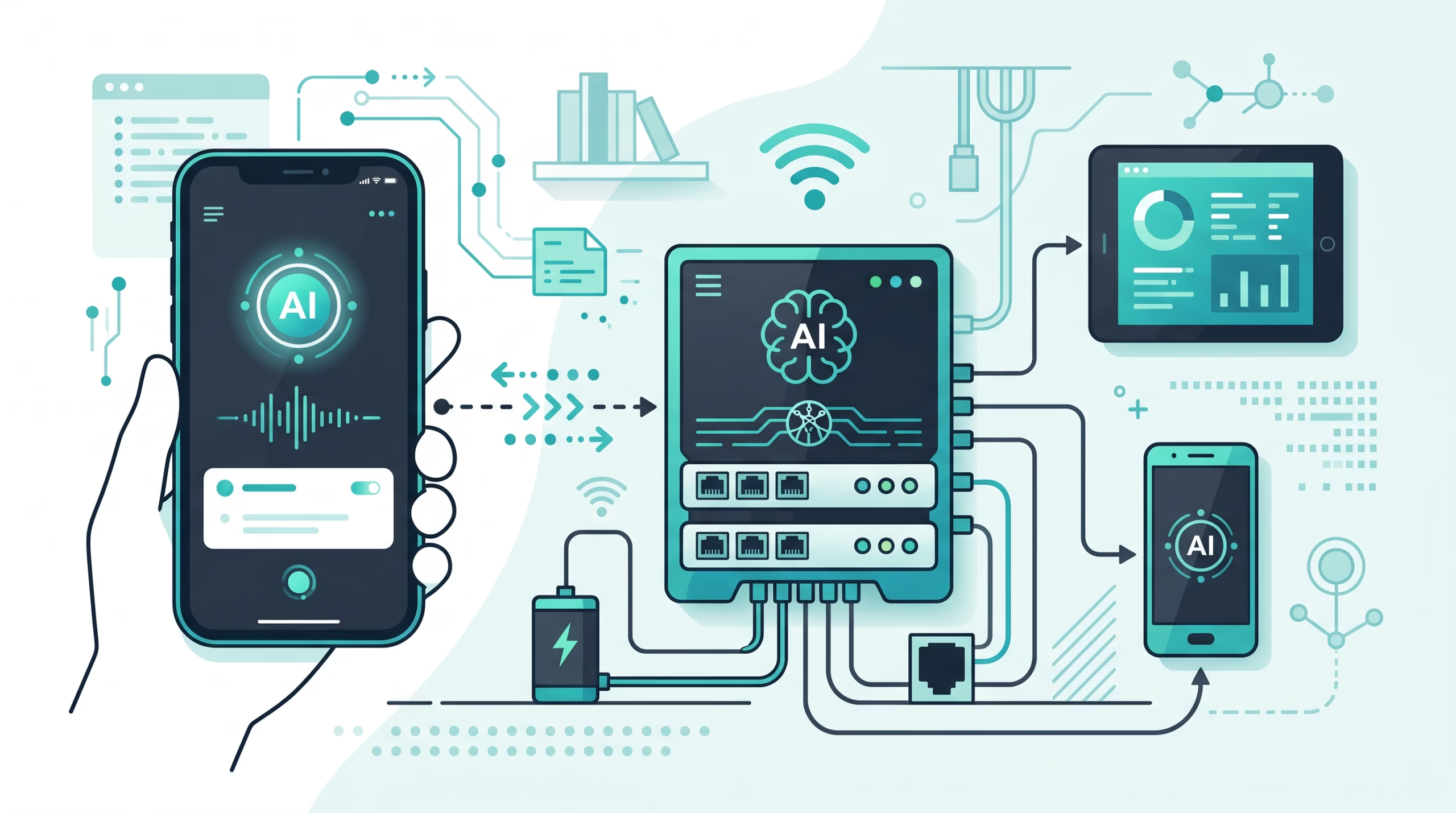
AI visual disclosure: the featured image for this post was generated with an AI image model and reviewed before upload.