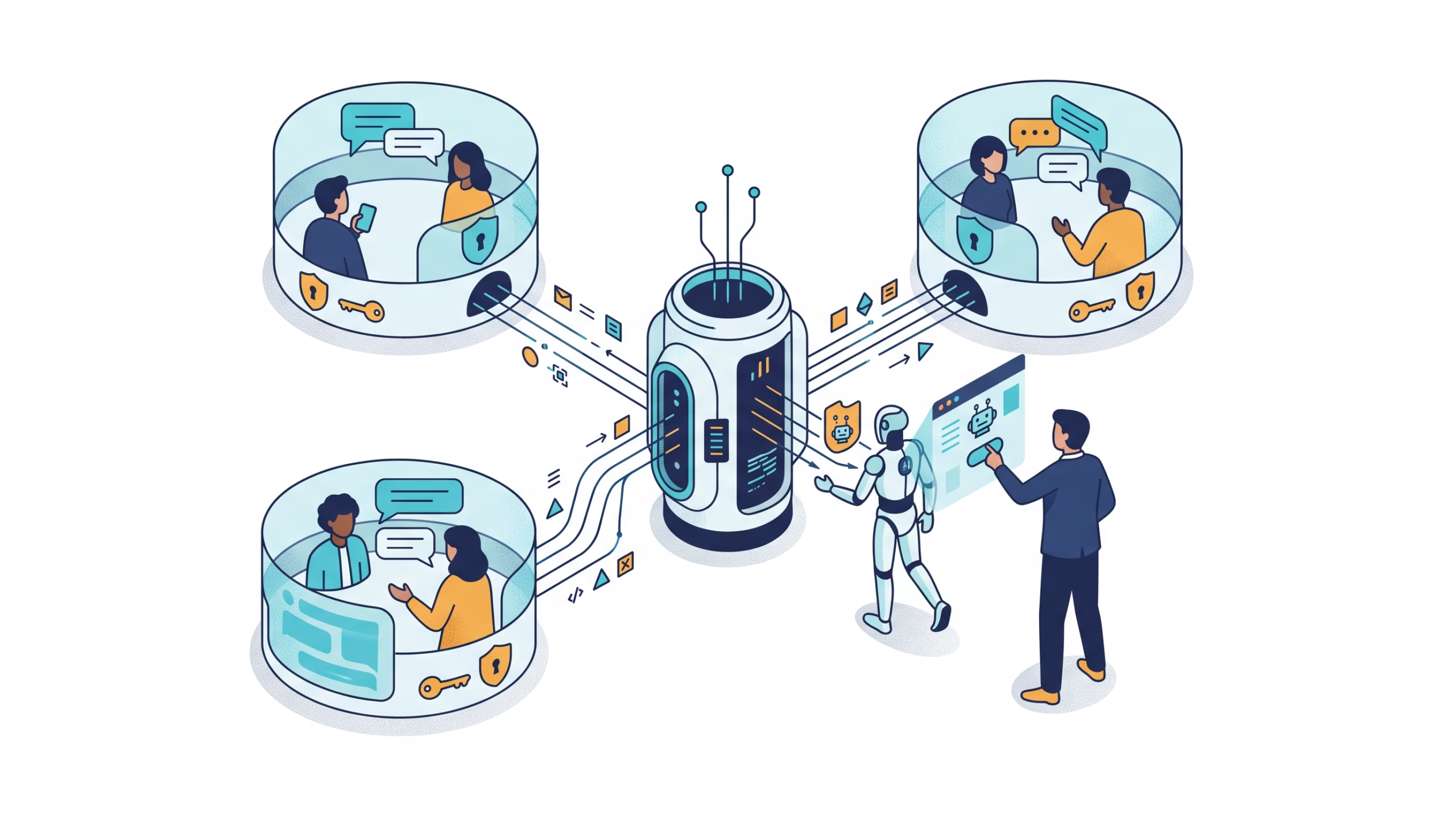

An agent that joins a team room needs more than a working WebSocket. Someone must approve its identity, the room must admit it as a bot, and OpenClaw must decide which messages should start a run. The OpenClaw Buzz channel brings those pieces together for Buzz team rooms. This guide walks through the setup and the checks that prove it works. It is written for operators who already have an OpenClaw Gateway and a Buzz workspace, not for someone looking for a public chatbot link.
My advice: get one room working end to end before adding more rooms or agents. A successful connection check is useful, but it cannot tell you whether the right person can trigger the right agent and get a reply in the right thread.
What the OpenClaw Buzz channel does
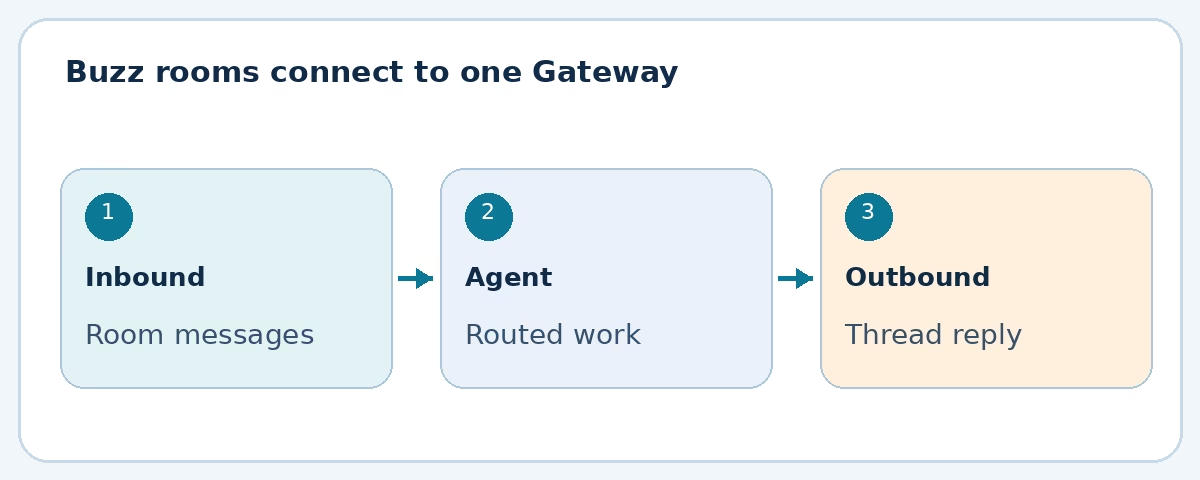
Buzz is an official OpenClaw channel plugin for team rooms on a hosted or self-hosted Buzz workspace. It receives ordinary room messages, rich-content messages, and structured diffs. An agent can reply in the originating room or thread, send Markdown, show typing while an accepted turn runs, and mention current room members. The plugin also gives OpenClaw directory access to room names, members, and profiles. These are current capabilities in the OpenClaw Buzz documentation, not a promise that every Buzz feature is available through the agent.
The connector does not add a special tool that gives an agent control of the workspace. It registers Buzz as a destination for OpenClaw’s normal message tool and reply delivery. One Gateway and one bot identity can serve several selected rooms. You can then bind those rooms to different agents if support and engineering should have different instructions, workspaces, or tools.
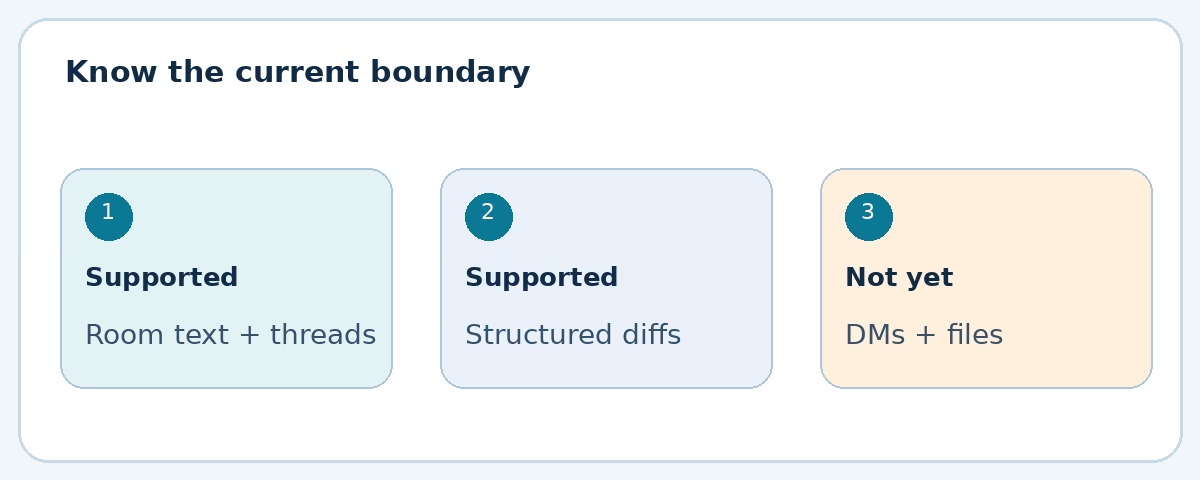
There are limits worth knowing up front. The current plugin supports group rooms, not direct messages. It does not upload or download media and files, create rooms, add native reactions, or approve itself as a bot. If your intended workflow depends on any of those actions, do not treat a successful text-message test as proof that the whole workflow is covered.
Before setup: two approvals, two different jobs
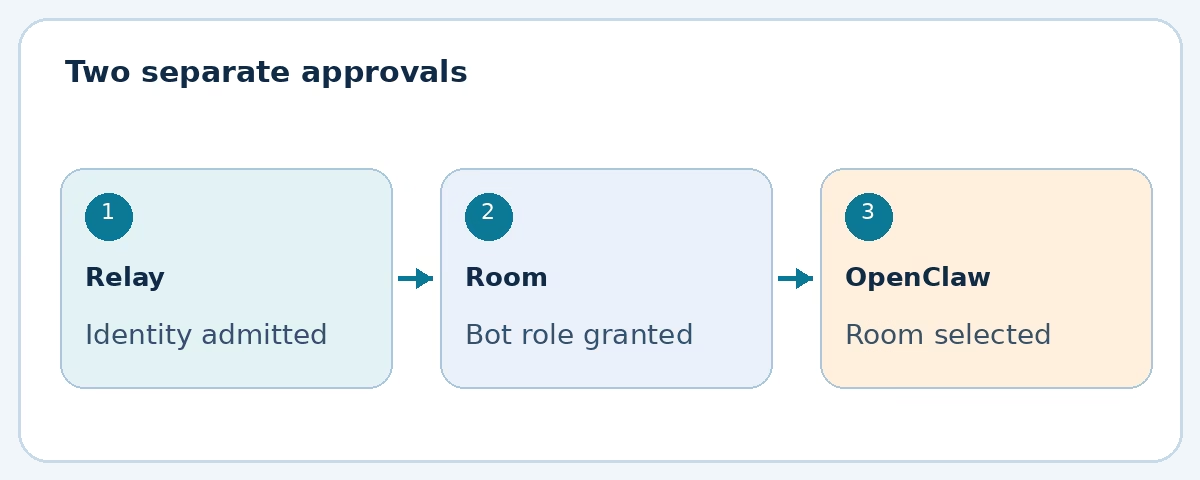
Buzz uses a Nostr keypair for the bot identity. The private key authenticates and signs its messages; it stays with the Gateway. The public key is what a human owner or admin uses to approve that identity. Give OpenClaw a dedicated bot identity. Never paste a human owner’s private key into its config.
You need a wss:// relay URL, a Buzz owner or admin who can grant access, and at least one target room. On a hosted or closed relay, the bot may first need workspace community membership. That gets the identity through the relay. It does not give the bot permission to operate in a room. Every selected room must contain that same public key with the Bot role. Ordinary membership is not enough. This distinction explains many “connected, but no rooms” reports.
For an externally managed OpenClaw identity, the docs recommend that the existing human room owner or admin use the Buzz CLI to grant the role:
buzz channels add-member \
  --channel <ROOM_UUID> \
  --pubkey <BOT_PUBLIC_KEY> \
  --role bot
That command runs in the human admin’s Buzz environment. OpenClaw displays the public key for them; it cannot grant itself a role. If a closed relay separately requires community membership, the workspace operator handles that approval too. Keeping the two approvals separate makes troubleshooting far less mysterious.
Install and connect the OpenClaw Buzz channel
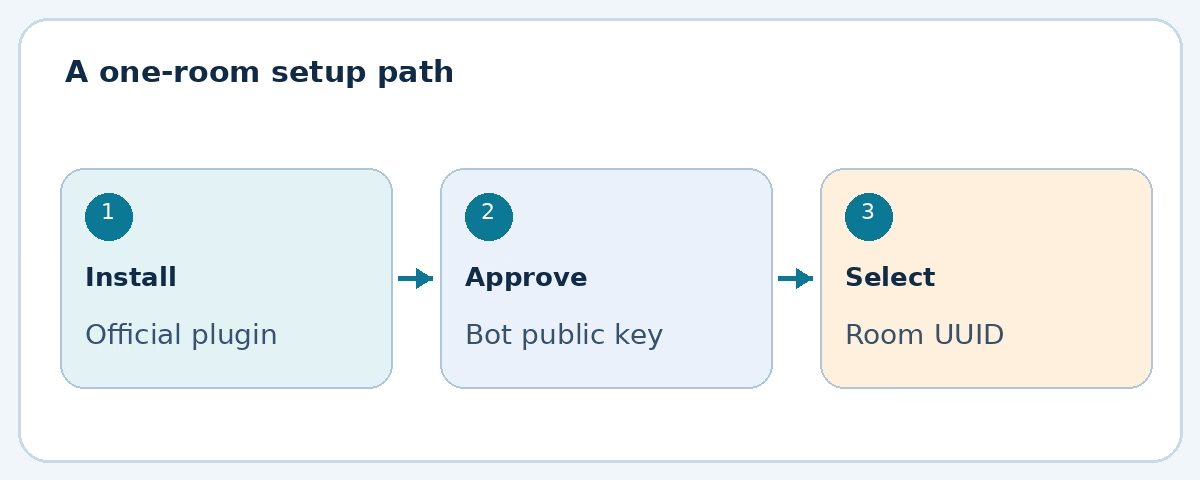
Install the official plugin, then run the guided channel setup:
openclaw plugins install @openclaw/buzz
openclaw channels add --channel buzz
In setup, choose an existing Buzz account or add a named one. Enter the relay URL, and let OpenClaw reuse or generate a dedicated bot identity. If the room has not approved that identity, give its displayed public key to the owner or admin. Once Buzz reports the Bot role, setup discovers eligible rooms. Select the rooms that this account should receive from and choose a default outbound room if more than one is available.
Do not create a second identity just because the approval wait expires. The guided flow offers Retry and Back; Retry uses the same relay and public key. A fresh key would need a fresh approval and could leave an unused identity behind. Setup also preserves existing explicit mention and sender-allowlist settings when you rerun it, so check the effective policy after changing a room selection.
A selected room is an important boundary. Buzz may know about more rooms, but OpenClaw listens only to the UUIDs configured under that account’s groups. The root identity uses channels.buzz.groups; a named identity uses channels.buzz.accounts.<id>.groups. Do not confuse directory visibility with an active subscription.
Manual configuration and bot keys
The guided path is the sensible default. If you manage configuration as code, the official docs show relayUrl, privateKey, groups, and defaultTo as the core fields. A room UUID is a stable key; a friendly name can change or collide with another room. Use the canonical buzz:<ROOM_UUID> target in automations.
For an existing key, OpenClaw can read an environment, file, or exec SecretRef. The guided path can also generate and save a new key under the account’s privateKey setting. Pick a storage method appropriate to your deployment, and keep bot private keys and any relay authTag out of chat, screenshots, and source control. If you are new to the site’s security guides, see our OpenClaw secrets management guide for the wider Gateway credential model.
Set who may wake the agent
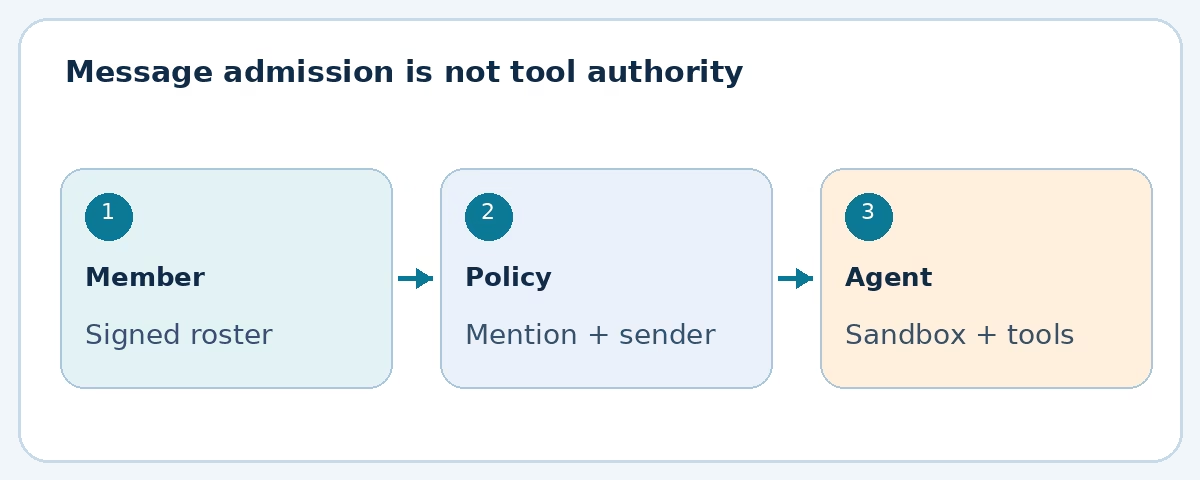
Fresh guided setup accepts ordinary messages from current members of the selected rooms without requiring a composer mention. That is convenient for a small, intentionally agent-focused room. In a busy team room it can be too chatty. Set requireMention: true when people should address the bot deliberately, and make sure their Buzz client can mention that identity. A room can also allow unmentioned replies in threads started by this bot with requireMentionInBotThreads: false, while keeping mentions required elsewhere.
Sender policy is a separate question. An open room policy lets current members activate the agent. An allowlist policy narrows that set to specified public keys; manual groupAllowFrom entries use the sender’s 64-character hexadecimal public key, not a display name. A room can override account-wide policy. An empty allowlist under an effective allowlist policy admits nobody, which is useful to remember when a bot suddenly goes quiet after a config edit.
Room membership itself is checked against Buzz’s relay-signed roster. OpenClaw checks it before queuing a message and again after asynchronous admission, and it reacts to membership changes. That is stronger than trusting a name typed in a message. But admission answers only who may start a turn. It does not decide what the routed agent can do after the turn starts. Set the agent’s sandbox and tool policy for the trust level of the room. Our agent sandboxing guide explains the separate execution boundary.
Buzz can also admit room members with the Bot role under the same mention and sender rules. OpenClaw has a per-bot-pair loop guard for rapid exchanges; the Buzz docs describe a default budget of 20 accepted messages in 60 seconds and a 60-second cooldown. That is a guard against a reply storm, not a substitute for choosing which bots should be allowed to trigger one another. Leave the protection on unless you have a deliberate reason to change it. The official bot-conversation section has the current knobs.
Route rooms to the right agent
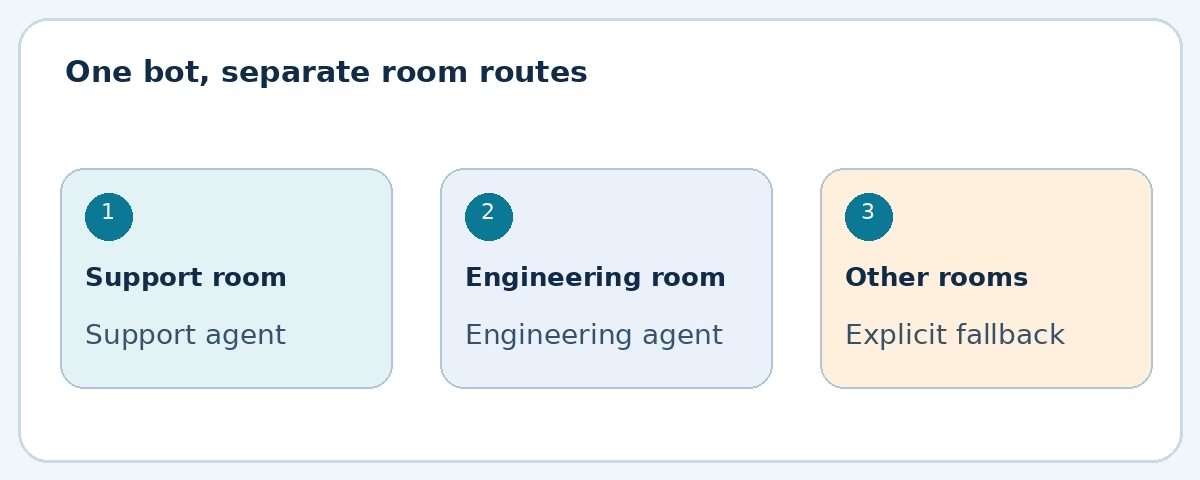
Once one room works, you can put more than one team on the same Gateway without giving every room the same agent. OpenClaw’s bindings can match a Buzz peer with channel: "buzz" and peer: { kind: "group", id: "buzz:<ROOM_UUID>" }. A support room can go to a support agent, while an engineering room goes to an engineering agent with a different workspace and allowed tools.
This is ordinary OpenClaw routing, not a separate Buzz-specific model. The channel-routing reference says an exact peer match wins before broader account or channel matches. The matched agent owns the workspace and session store; replies return to the channel where the message arrived. Use a channel-wide fallback only if you actually want other admitted Buzz rooms to reach it. If a room needs restricted capabilities, route it to an agent whose tool policy reflects that restriction.
One bot identity across several rooms may be operationally simple, but it is not a reason to merge their context. Keep room boundaries clear when planning agent sessions. Our multi-agent routing walkthrough covers the broader binding pattern. A room UUID in the binding also makes a later room rename harmless to the routing rule.
Verify a real round trip
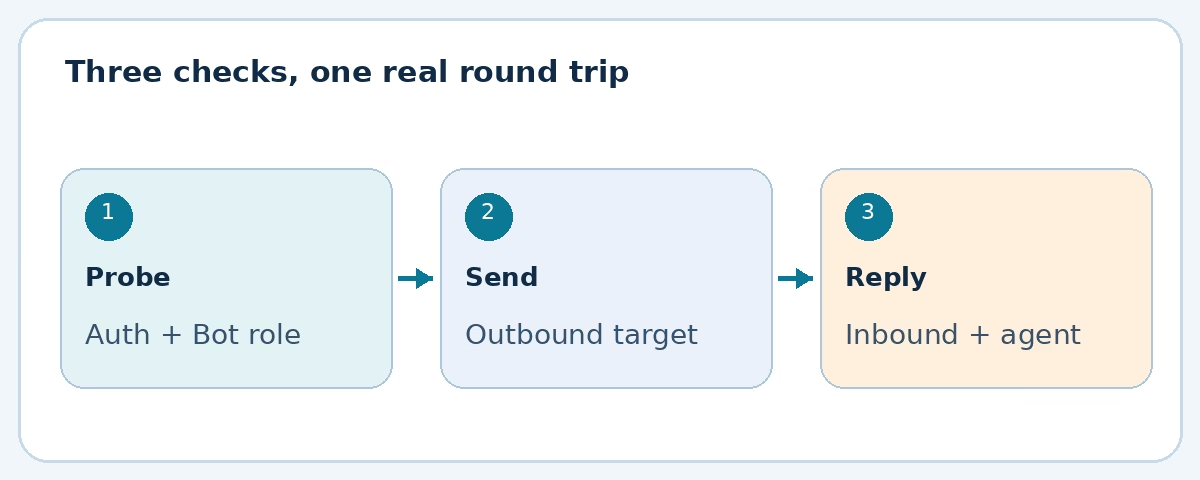
Start with the authenticated probe:
openclaw channels status --channel buzz --probeA successful probe confirms that the bot can authenticate and that Buzz reports the selected room with the Bot role. That is necessary, but it is not the finish line. Send a test to the canonical room target:
openclaw message send \
  --channel buzz \
  --target buzz:<ROOM_UUID> \
  --message "OpenClaw Buzz test"
Now have an allowed room member write to the bot. If mentions are required, mention it. Confirm the response lands in the same room and the expected thread, and check that the intended agent handled it. This last check catches a routing mistake that neither the probe nor the outbound send can see. For multi-account setups, include the intended account on the relevant commands; otherwise a default identity may be chosen.
When you need to check what Buzz currently reports, use directory commands such as openclaw directory groups list --channel buzz and openclaw directory groups members --channel buzz --group-id buzz:<ROOM_UUID>. Display names make the output easier to read, but the public key is the stable identity for authorization and routing. Do not build an allowlist from a person’s editable profile name.
When Buzz is connected but quiet
No rooms appear during setup
Check that the exact public key displayed by this setup run has the Bot role in a target room. If you approved a different key, ordinary membership, or only relay membership, discovery will still fail. Keep the same identity, ask the owner to correct the role, and Retry.
Authentication fails
Check the wss:// URL, the selected bot key, and any operator-issued authTag. A closed relay may also need separate community membership. If one named account fails while another works, inspect that account’s own identity fields. Named accounts do not inherit the root relayUrl, privateKey, authTag, groups, or defaultTo.
Messages arrive, but the agent does not answer
First confirm the room UUID is selected under this account’s groups. Then check the sender’s current room membership, groupPolicy, groupAllowFrom, and requireMention. If the sender is another bot, inspect the loop-suppression log before increasing the budget. If you see “owner unavailable” in Buzz, that refers to owner attestation and does not, by itself, prove the room connection failed.
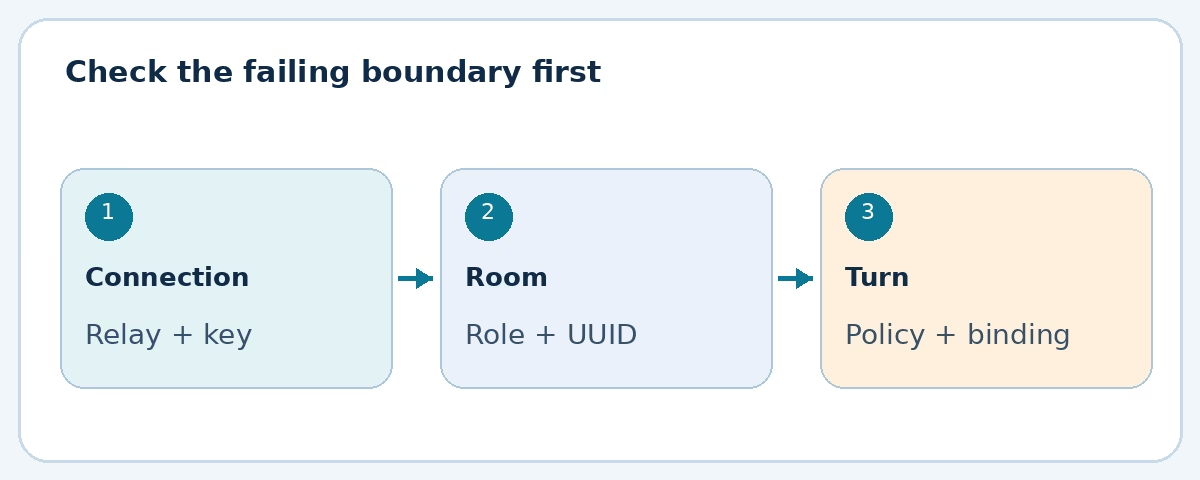
One more easy miss: a probe can be healthy even when a downstream model or tool policy prevents a useful answer. Diagnose the handoff in order: relay authentication, Bot role, selected room, sender admission, agent binding, then agent execution. Change the failing layer, not five settings at once.
OpenClaw Buzz channel FAQ
Can I use Buzz direct messages with OpenClaw?
Not with the current plugin. It supports group rooms. Direct messages are listed as a future area in the official docs.
Does giving the bot relay membership let it read every room?
No. Relay or workspace membership and a room’s Bot role are separate approvals. OpenClaw also subscribes only to rooms explicitly selected in its account configuration.
Can two Buzz rooms use different agents?
Yes. Add exact room-peer bindings for the UUIDs. One Gateway and bot identity can serve multiple rooms while different agents handle their admitted messages.
Can the agent send files or add reactions?
Not through the current Buzz plugin. Text and supported inbound rich content are different from file upload or native reaction support. Check the current limits before designing a workflow around either action.
Start with one room and prove the boundary
The useful milestone is not “plugin installed.” It is one dedicated bot key approved by the relay and room, one selected room, a clear admission rule, a deliberate agent binding, and a real inbound reply. Do that once, document the UUID and owner, then add rooms. If you want the exact commands and current option names beside you during setup, keep the official Buzz channel guide open and compare your configuration against it.
Visual note: the featured illustration was AI-generated; the diagrams were drawn for this article. Commands remain selectable text.