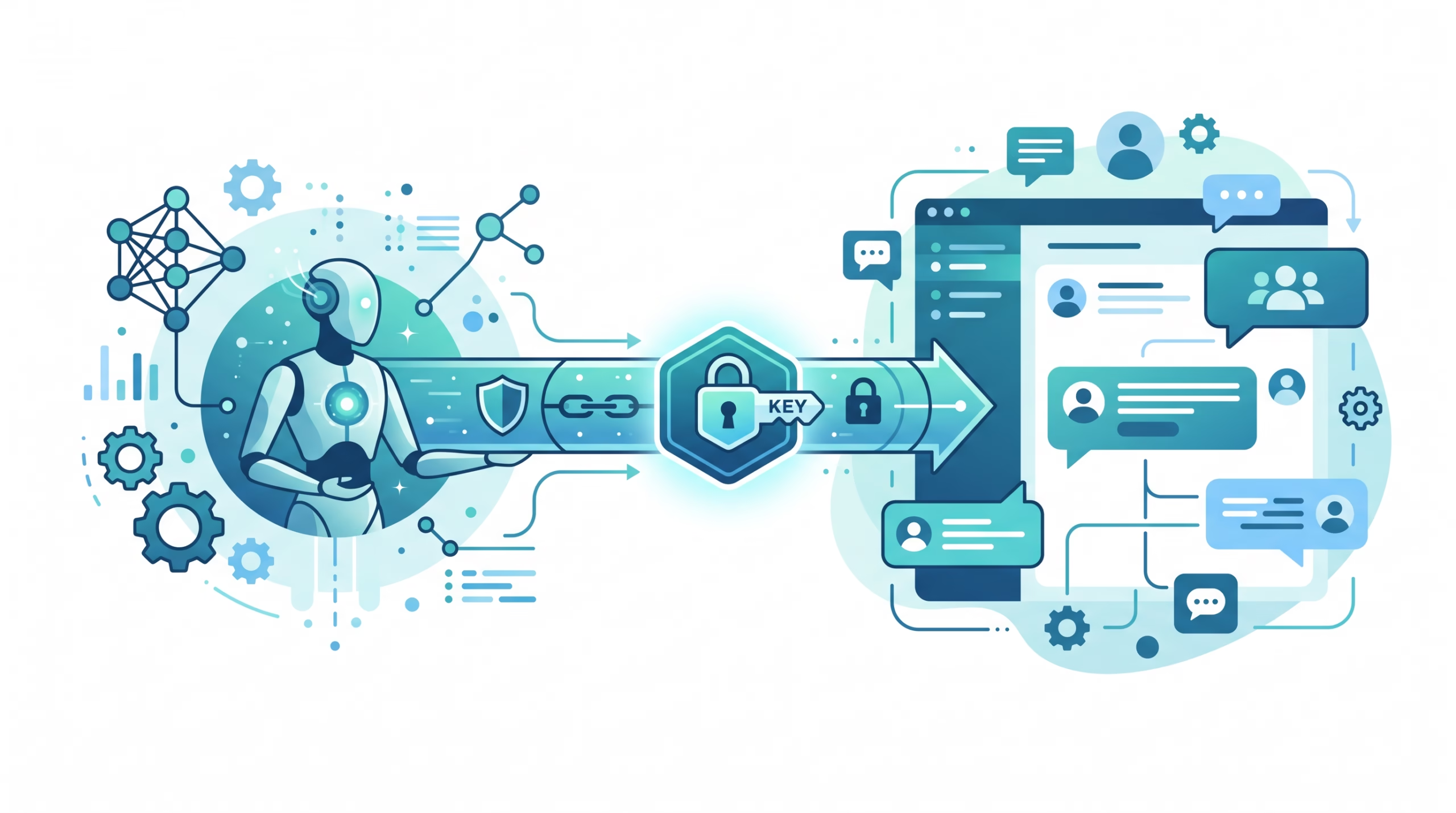

The OpenClaw Google Chat channel lets an agent answer direct messages and messages in Google Chat spaces. The catch is the connection: unlike channels that can keep an outbound socket open, Google Chat sends events to a public HTTPS webhook. You need a Google Chat app, a service account, and one carefully exposed Gateway path. Once those pieces work, the usual OpenClaw questions still apply: who may DM the bot, which spaces may call it, and whether a message needs an @mention. This guide follows the current OpenClaw Google Chat documentation.
What the OpenClaw Google Chat channel can do
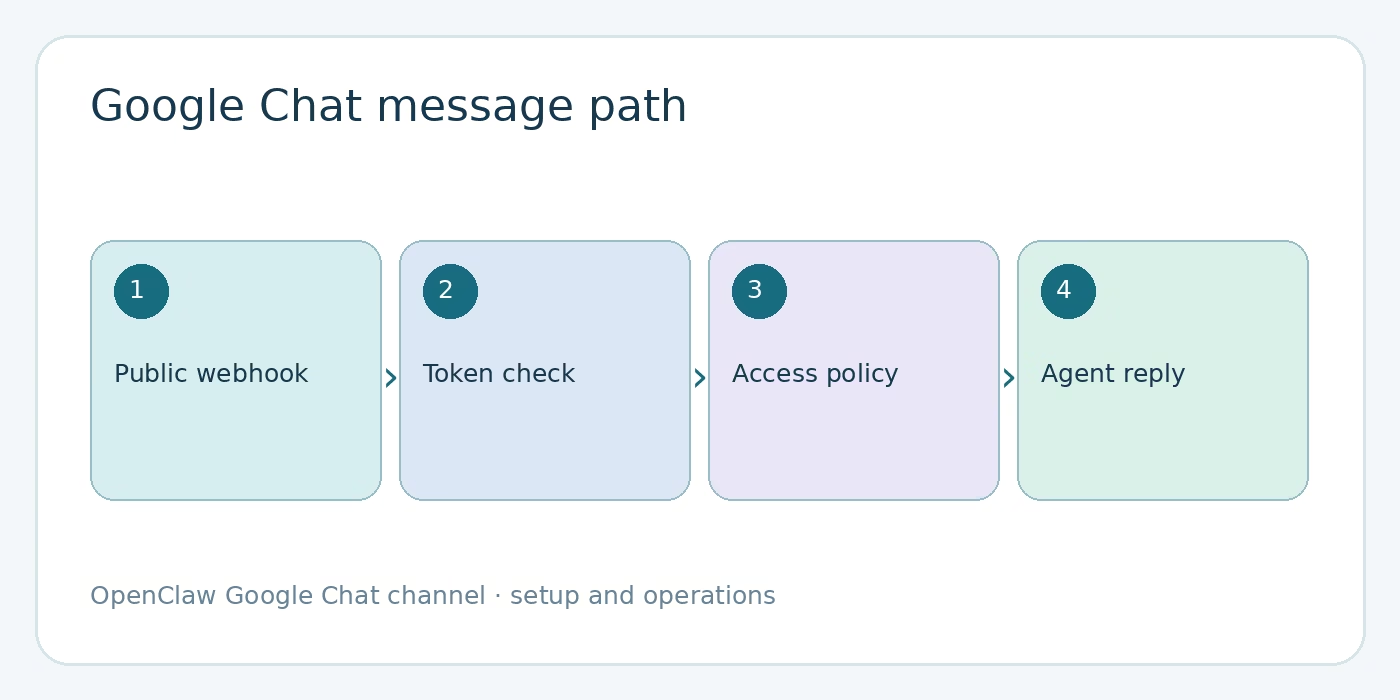
The official @openclaw/googlechat plugin handles DMs and spaces through Google Chat API webhooks. It is an HTTP endpoint integration, not a Pub/Sub integration. Google Chat posts an event to the Gateway; OpenClaw authenticates it, applies access rules, routes the admitted message to an agent, and sends a reply through the Chat API. A status probe checks part of this setup. A conversation with the bot checks much more.
Google Chat is a good fit when your team already works in Google Workspace and wants its agent in the same spaces. It is less convenient if you cannot host a public HTTPS callback. OpenClaw’s Slack channel, for example, supports Socket Mode, while this Google Chat plugin does not offer an equivalent inbound mode. Pick the surface your team uses, but include the required network path in the decision.
The plugin can post text and interactive approval cards in documented situations. Do not infer that every Google Chat API action is available. This integration authenticates as a service account, which imposes specific limits on file uploads and reactions discussed below.
Set up the OpenClaw Google Chat channel
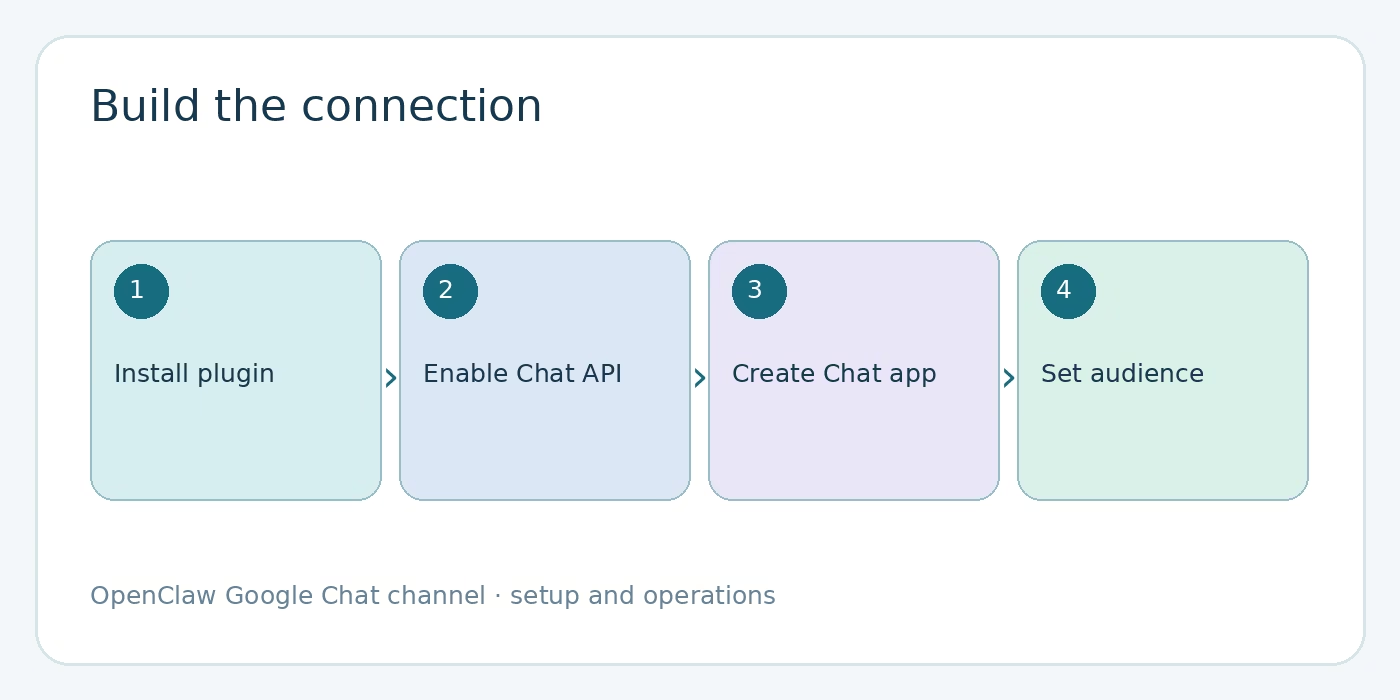
Install the official plugin on the Gateway host:
openclaw plugins install @openclaw/googlechatIn Google Cloud, create or select a project and enable the Google Chat API. Create a service account, then download its JSON key. Put the key on the Gateway host where the Gateway process can read it. The OpenClaw secrets guide explains credential options if you would rather use a SecretRef than leave a path in plain configuration. Treat the key as a credential; do not paste its contents into a blog comment or support ticket.
In the Google Cloud Console’s Chat Configuration page, create the Chat app. Fill in its application information, enable interactive features, and choose the option to join spaces and group conversations. For its connection, choose HTTP endpoint URL. Under triggers, use one common HTTP endpoint URL for all triggers, such as https://gateway.example.com/googlechat. Add a test account to the app’s visibility list. Save, refresh the page, then set App status to Live – available to users and save again. A private app is found by searching for its app name in Google Chat; it need not appear in the Marketplace browse list.
The service-account file and audience must then be set in OpenClaw. A minimal example, with placeholders you must replace, is:
{
  channels: {
    googlechat: {
      enabled: true,
      serviceAccountFile: "/path/to/service-account.json",
      audienceType: "app-url",
      audience: "https://gateway.example.com/googlechat",
      webhookPath: "/googlechat",
      dmPolicy: "pairing",
      groupPolicy: "allowlist"
    }
  }
}
For audienceType: "app-url", the audience is the public HTTPS webhook URL. It must match what the Chat app uses. The channel CLI also accepts --audience-type, --audience, --webhook-path and --webhook-url when adding Google Chat. The environment variable GOOGLE_CHAT_SERVICE_ACCOUNT_FILE is another credential path for the default account only. Named accounts need their own account configuration; do not assume the default account’s environment variable applies to all of them.
Expose only the webhook path
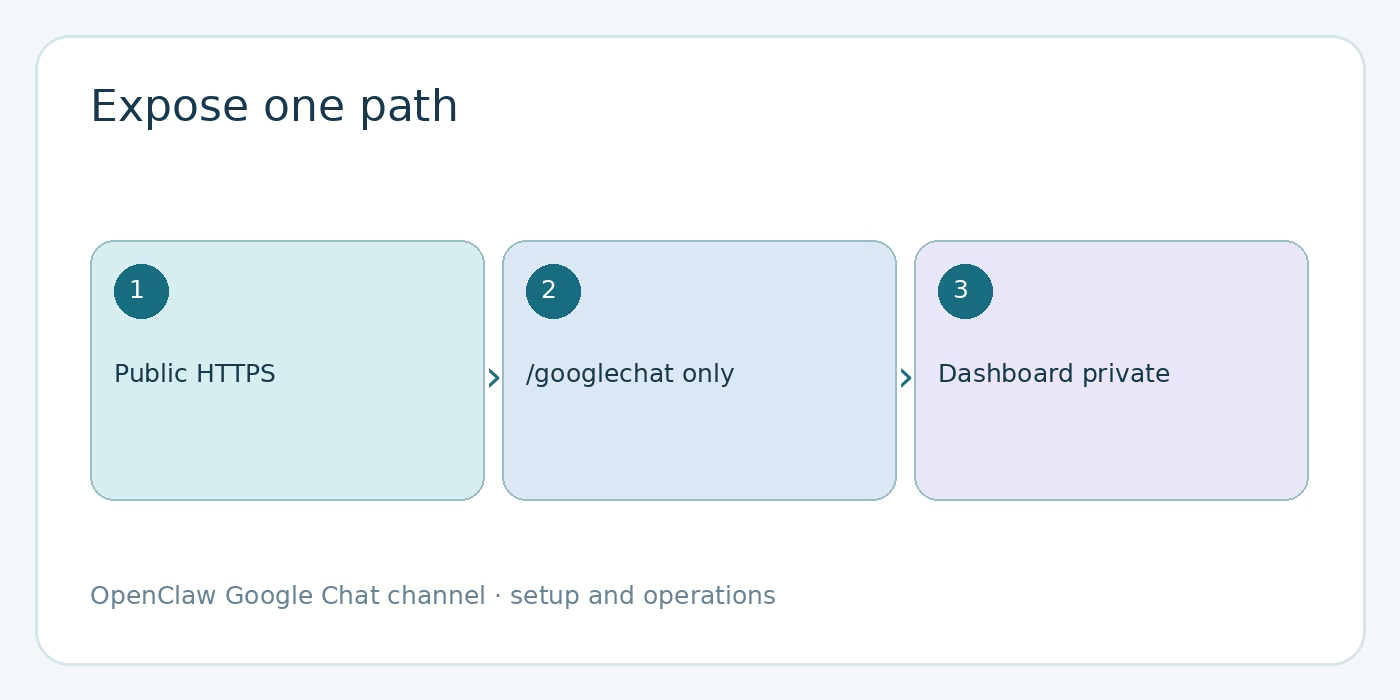
Google Chat needs to reach the webhook over public HTTPS. It does not need access to your dashboard. The OpenClaw guide explicitly recommends exposing only /googlechat and keeping other Gateway endpoints private. That narrow path matters: the webhook is a necessary public entry point, not a reason to publish the whole operator interface.
The official guide shows Tailscale Serve for private dashboard access and Tailscale Funnel for the public webhook path. It also documents a reverse proxy and Cloudflare Tunnel. With a reverse proxy such as Caddy, a route can forward just the Chat path to the Gateway:
your-domain.com {
    reverse_proxy /googlechat* localhost:18789
}
Adapt that example to your actual listener and proxy. With a tunnel, route /googlechat to the Gateway and return 404 for other public paths. For Tailscale, use the exact Serve and Funnel commands in the official public-URL section; the correct upstream address depends on where your Gateway listens. Our Tailscale remote-access guide covers the wider Gateway access model.
A public route is only half of webhook security. OpenClaw checks the incoming Google identity token against the configured audience before dispatch. Chat app events carry a bearer token in the Authorization header; Workspace Add-on events use a token in the body and have a tighter pre-auth read budget. If you use an Add-on with an app URL audience, the docs also require appPrincipal to be the app’s numeric OAuth client ID. Do not set it to a service-account email. If you are building only the ordinary Chat app described above, keep the Add-on-specific setting out of your minimal configuration.
Configure authentication and access
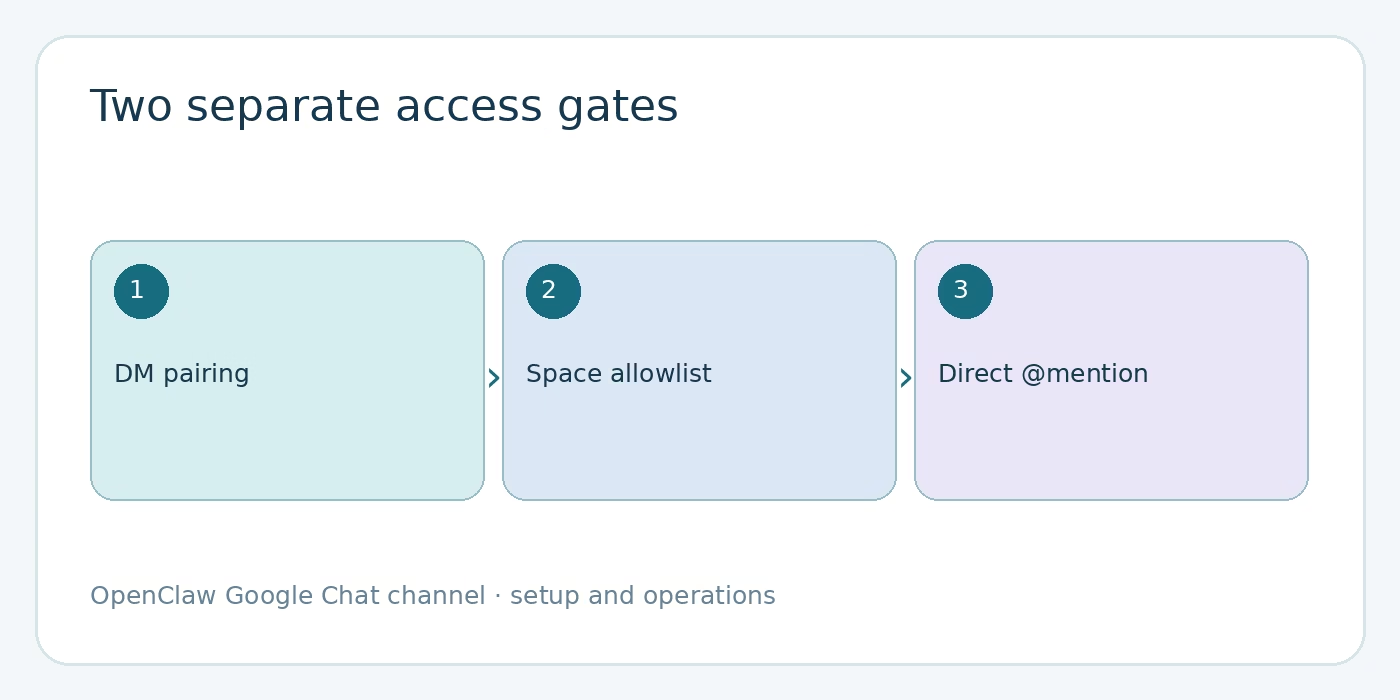
Webhook authentication asks whether the request came from the expected Google app. Access policy asks whether the sender or space may trigger your agent. Both checks must pass. The default DM policy is pairing. An unknown sender gets a code; approve it after checking who sent it:
openclaw pairing approve googlechat <code>That approval grants DM access, not space access. The OpenClaw pairing reference is explicit about the split. A Google Chat space has its own allowlist policy and, by default, requires an @mention. Admit a specific space using its stable resource name under groups, and keep the mention requirement while you test:
{
  channels: {
    googlechat: {
      groupPolicy: "allowlist",
      groups: {
        "spaces/AAAA": {
          enabled: true,
          requireMention: true
        }
      }
    }
  }
}
Use spaces/<spaceId> for spaces and users/<userId> for people. Email addresses can change and are only accepted for allowlist matching if the explicitly risky dangerouslyAllowNameMatching compatibility option is enabled. A string shaped like users/name@example.com is treated as a user ID, not an email allowlist entry. Stable IDs spare you a brittle configuration.
If a message reaches the Gateway but the bot stays quiet in a space, check its space entry and the mention. Google Chat mentions are detected from USER_MENTION annotations aimed at the app. If detection needs help, set botUser to the app’s users/<id> resource name. Changing group access is the wrong response when the real issue is a mention that did not identify the bot.
Test the round trip and fix failures
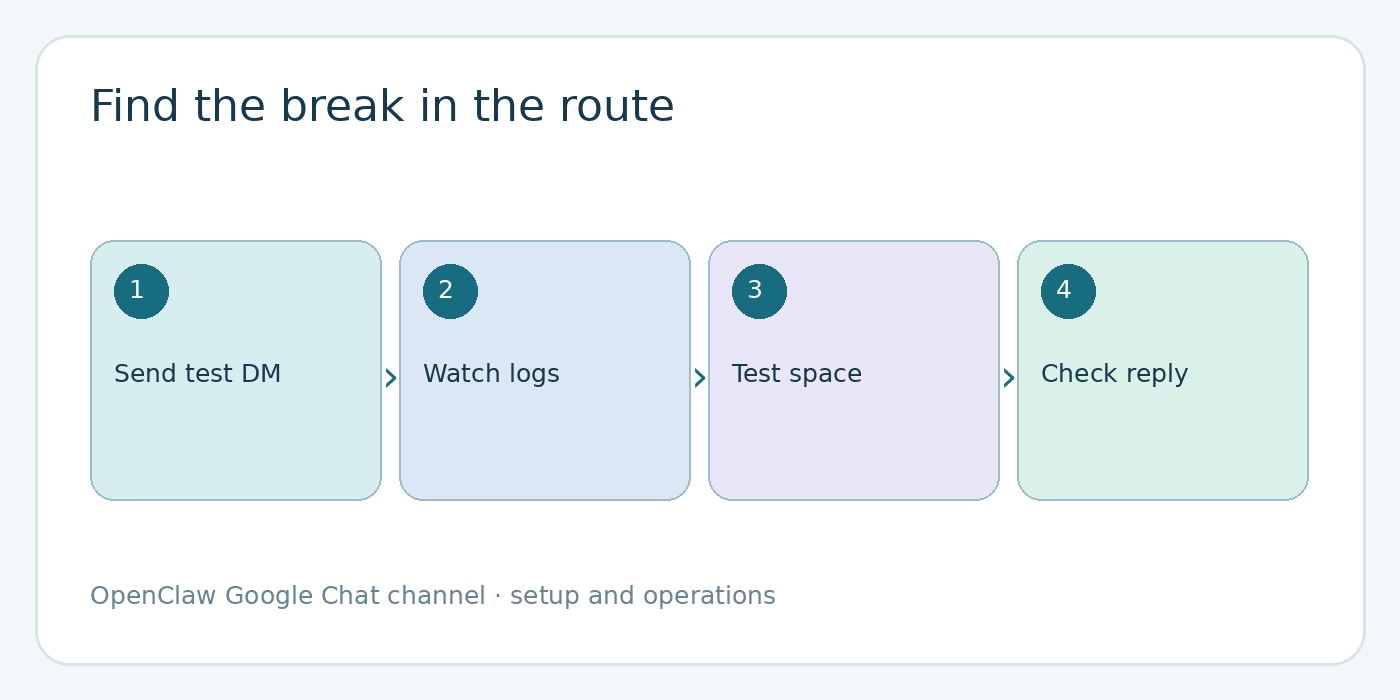
Start with one visible test: add the private Chat app by name, send it a DM, approve the pairing code if asked, and send another message. Then add it to a permitted space and @mention it. Watch Gateway logs during both tests. If you can see the inbound request and its reply in the expected conversation, you have tested the public route, Google token verification, access policy and outbound delivery together.
openclaw channels status --probe
openclaw logs --follow
A 405 Method Not Allowed in Google Cloud logs usually points to a webhook handler that is not registered. Check openclaw config get channels.googlechat, confirm the plugin is enabled, and confirm configuration changes were applied. If you changed the service environment rather than just the config file, restart the Gateway so the new environment is loaded. Then check openclaw channels status.
If no request appears in Gateway logs, inspect the Chat app’s HTTP endpoint URL, common-trigger setting, public HTTPS route and Live status. If requests arrive but the probe reports authentication trouble, check audienceType and audience; both are required. For an app URL audience, the value must be the public webhook URL, not a localhost address. If DMs work but a space does not, return to its allowlist and mention settings. This order is faster than editing prompts while the transport is broken.
Current OpenClaw docs say authenticated Google Chat MESSAGE events are durably queued before the webhook returns 200. A persistence failure returns 503 so Google can retry. That durability guarantee is for message events; non-message actions do not all use the same queue. It also does not mean every turn can run exactly once after a crash. Keep your own tool actions idempotent where a duplicate would matter.
Understand message and file limits
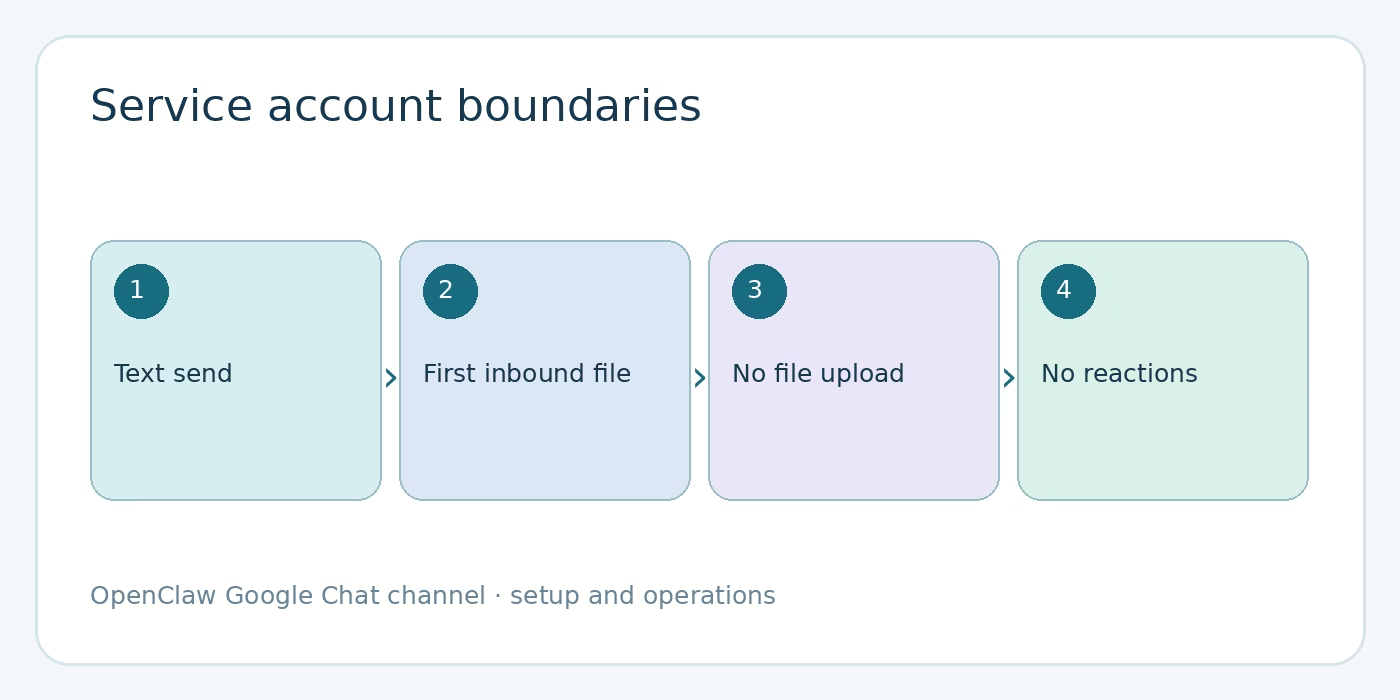
Service-account authentication explains several common surprises. Google Chat reaction actions are not exposed because the relevant API endpoints require user authentication. Outbound attachment upload is not exposed for the same reason; message actions support text send. A missing upload tool is therefore a channel capability limit, not something to fix by adding a random OAuth scope to the service account.
On inbound messages, OpenClaw downloads the first supported attachment through the Chat API, subject to mediaMaxMb (20 MB by default). Google Drive files are not downloaded; the agent receives an unavailable-attachment notice and can ask for a direct file upload. Multiple attachments produce a notice about the extra files not processed. Explain that to users before they treat a silent second attachment as an agent reasoning failure.
By default, the typing indicator is a temporary text message that gets edited into the first reply. Setting typingIndicator: "none" disables it. The "reaction" option cannot work as a true reaction under service-account authentication and falls back to the text behavior with a logged error. Automatic replies in spaces are top-level by default; replyToMode: "first" or "all" keeps them in the inbound thread. Space sessions are separate by space, while DMs use the agent’s main session by default unless you set session.dmScope. Our channel routing guide goes deeper on conversation scope.
FAQ about the OpenClaw Google Chat channel
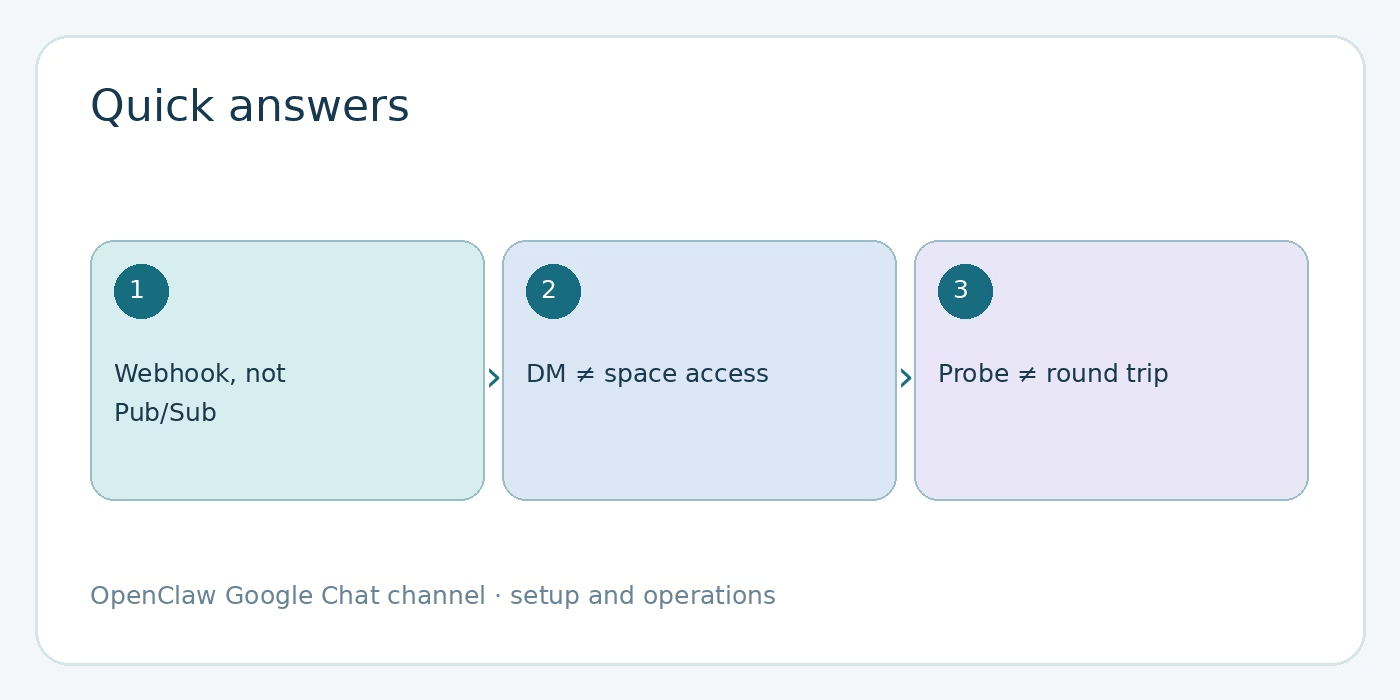
Can I use Pub/Sub instead of a public webhook?
Not with the documented official plugin. It uses a Google Chat API HTTP endpoint webhook. Put only /googlechat on public HTTPS and keep the dashboard private.
Why can I DM the bot but not use it in a space?
DM pairing and space authorization are separate. Add the bot to the space, admit its stable spaces/<id> key, and @mention it. Check botUser if mention detection is failing.
Why can’t the agent upload a file or react?
The plugin uses service-account authentication. The documented outbound file-upload and reaction endpoints need user authentication, so those actions are not exposed by this channel.
Does a successful channel probe prove the bot will answer?
No. It checks configuration and authentication conditions, but it does not replace a real DM and space test through your public webhook and access policy.
A sensible rollout checklist
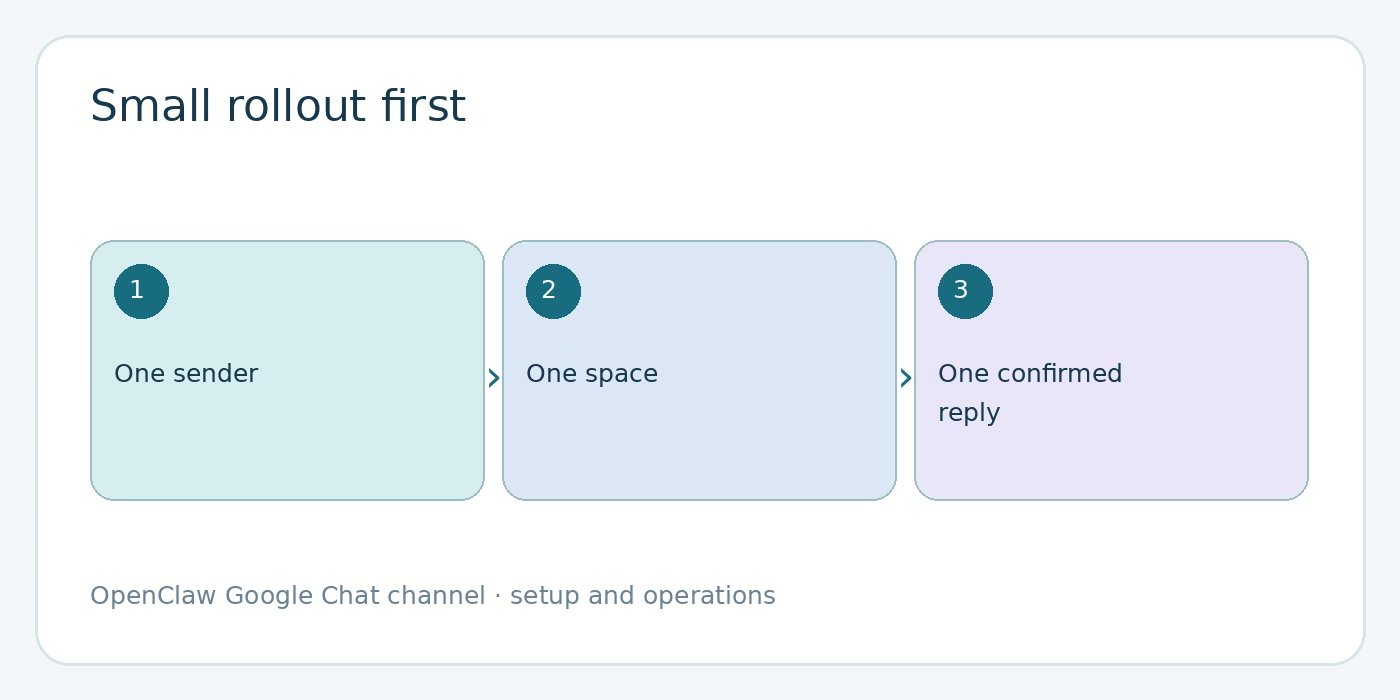
Install the plugin, configure the Chat app and service account, expose just the webhook path, then run the probe. Pair one test DM sender and admit one space with @mentions still required. Watch the logs as you send both messages. Once both replies land where expected, document the service-account limits for your team and expand visibility deliberately. The official channel page remains the place to check current keys and behavior before you change a production setup.
Visual note: this post uses AI-generated editorial imagery and original diagrams, not screenshots of a Google Chat account.