

The OpenClaw Microsoft Teams channel lets a self-hosted agent answer Teams DMs, group chats and channel posts. The setup has three separate checks: Microsoft must deliver an authenticated bot activity to your Gateway, the Teams app must have the right scope and consent, and OpenClaw must admit the sender and conversation. A bot that answers a DM but ignores a channel has often passed the first check already. Treating every silence as a broken webhook wastes time.
This guide follows a narrow first test: one DM, then one standard channel text reply. After that, add media, history or private-channel experiments only if the workflow needs them. The current OpenClaw Teams documentation is split across setup, access, permissions, messaging and troubleshooting pages; those pages are the source for the configuration below.
OpenClaw Microsoft Teams channel: three checks before setup
First, Teams needs a registered bot and app with a messaging endpoint it can reach over HTTPS. The Gateway serves the Bot Framework webhook at /api/messages on its configured port, normally 18789 for a new installation. The Teams SDK validates incoming requests. A tunnel or reverse proxy can expose that path for development; Teams cannot call your machine’s localhost.
Second, the app manifest defines where the bot can appear and what resource-specific consent, or RSC, it requests. Installing the app in a team is not the same as granting it tenant-wide Microsoft Graph access. RSC handles live messages in the installed scope; Graph becomes relevant for history and some file or image retrieval.
Third, OpenClaw applies its own DM, sender, team and channel rules. A valid Teams activity can reach the Gateway and still be skipped because the sender is not on the allowlist or because a channel message did not mention the bot. Our group chat controls guide covers that admission-versus-activation split across channels.
Register the Teams bot and connect the Gateway
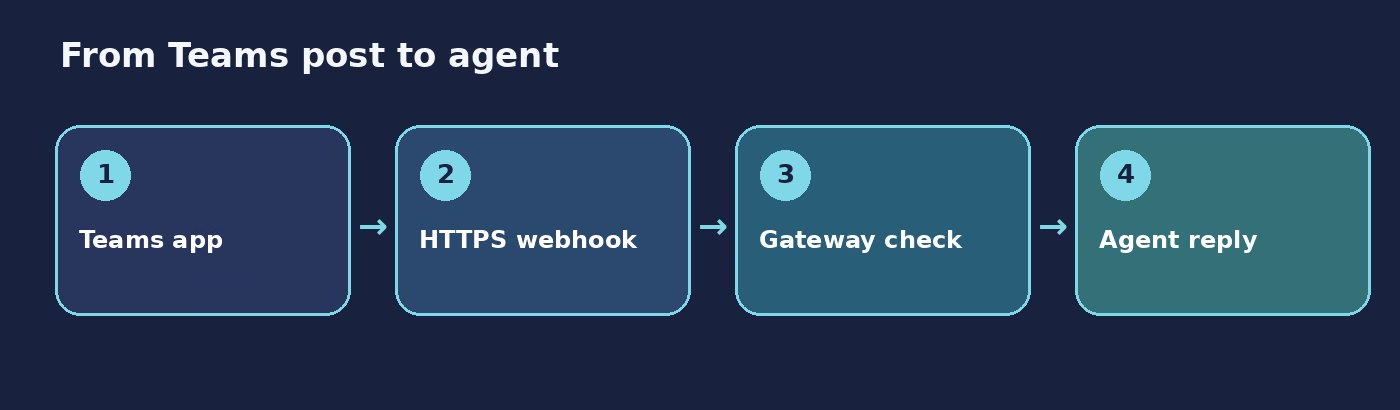
Use the current bundled plugin path
Microsoft Teams ships as a bundled plugin in current OpenClaw releases, so a normal packaged installation does not need a separate plugin command. Older or custom builds without the bundle can install @openclaw/msteams. Check your installed build before adding a second copy.
The official quick setup uses the preview Microsoft Teams CLI to register the bot, create the app manifest and generate credentials:
npm install -g @microsoft/teams.cli@preview
teams login
teams status
teams app create --name "OpenClaw" --endpoint "https://gateway.example.com/api/messages"
The CLI is published under a preview tag, so its flags may change. Its output includes the client ID, client secret, tenant ID and Teams App ID. The client ID is the bot app ID in OpenClaw; the Teams App ID identifies the package installed in Teams. Keep the secret out of chat transcripts and screenshots.
The documented account-based configuration looks like this, with placeholders:
{
  bindings: [{ agentId: "main", match: { channel: "msteams", accountId: "default" } }],
  channels: {
    msteams: {
      enabled: true,
      tenantId: "TENANT_ID",
      webhook: { path: "/api/messages" },
      accounts: {
        default: {
          appId: "CLIENT_ID",
          appPassword: "CLIENT_SECRET",
        },
      },
    },
  },
}
Install the Teams app in the personal scope for a DM test or in the intended team for channel tests. Run teams app doctor <teamsAppId> for registration, manifest and SSO diagnostics. Then send a real Teams message and inspect Gateway logs. A hand-written HTTP request is not an equivalent test: without the Azure JWT, a 401 Unauthorized means the endpoint was reached but authentication failed.
Handle tunnels and older webhook ports
For local development, a tunnel such as devtunnel, ngrok or Tailscale Funnel gives Teams a public HTTPS address. Point it at the Gateway port and expose only the webhook path behind a reverse proxy where possible. If the tunnel URL changes, update the bot endpoint. The quick setup shows teams app update <teamsAppId> --endpoint "https://new-host/api/messages".
Existing installations may still have a compatibility listener on port 3978 through legacyWebhook. New installs use the Gateway port. If a previously working bot goes silent after an upgrade or after removing that pin, check both the Azure Bot endpoint and reverse-proxy target before changing access policies.
Admit DMs and channel senders
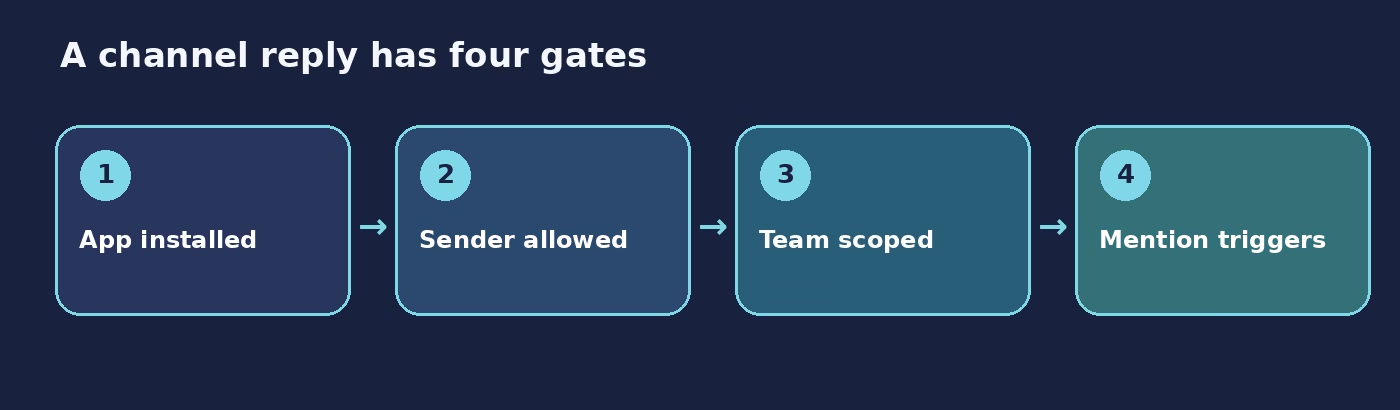
Pair a direct-message sender
Teams DMs default to dmPolicy: "pairing". Unknown senders are ignored until approved. Use the normal OpenClaw pairing flow for the intended user:
openclaw pairing list msteams
openclaw pairing approve msteams <CODE>
Use stable Microsoft Entra object IDs in allowFrom when maintaining an explicit allowlist. User principal names and display names can change, so direct name matching is disabled by default. Opening DMs to everyone requires both dmPolicy: "open" and an effective allowFrom containing "*". That is not necessary for a first test.
Allow the group sender and require a mention
Group chats and channels default to groupPolicy: "allowlist". Add allowed sender IDs or supported conversation IDs to groupAllowFrom. Team and channel entries can narrow where the bot replies. A paired DM does not authorize the same person in every channel. For a first channel test, install the app in a standard channel, allow one sender and @mention the bot.
{
  channels: {
    msteams: {
      groupPolicy: "allowlist",
      groupAllowFrom: ["00000000-0000-0000-0000-000000000000"],
    },
  },
}
Setting groupPolicy: "open" admits any group member, though mention gating remains the default. It also broadens delegated read reach compared with a scoped team/channel route. Use the Teams access-control guide to choose the narrowest policy that matches your use case.
Use the right team and channel IDs
Teams links contain more than one ID. The groupId query parameter is a Microsoft Entra group ID; it is not the Bot Framework conversation ID OpenClaw expects for a team key. Copy the URL-decoded path segment after /team/. For a channel key, copy the decoded segment after /channel/. These often look like 19:...@thread.tacv2. Preserve their exact casing.
This is a quiet failure mode. A configuration can look precise while matching no incoming activity because it uses the wrong identifier. The setup wizard can accept Team/Channel entries and store the resolved IDs. If you are configuring by hand, verify the actual IDs against the Teams link before concluding the bot has a mention problem.
Private channels deserve a separate test. OpenClaw’s Teams docs describe limited bot installation and real-time message support there; RSC behavior may also differ. Prove the bot in a standard channel before using a private channel as your acceptance test. If the private channel still fails, a DM or standard channel may be the right interaction surface, with Graph used only for permitted historical reads.
Understand RSC, Graph and media
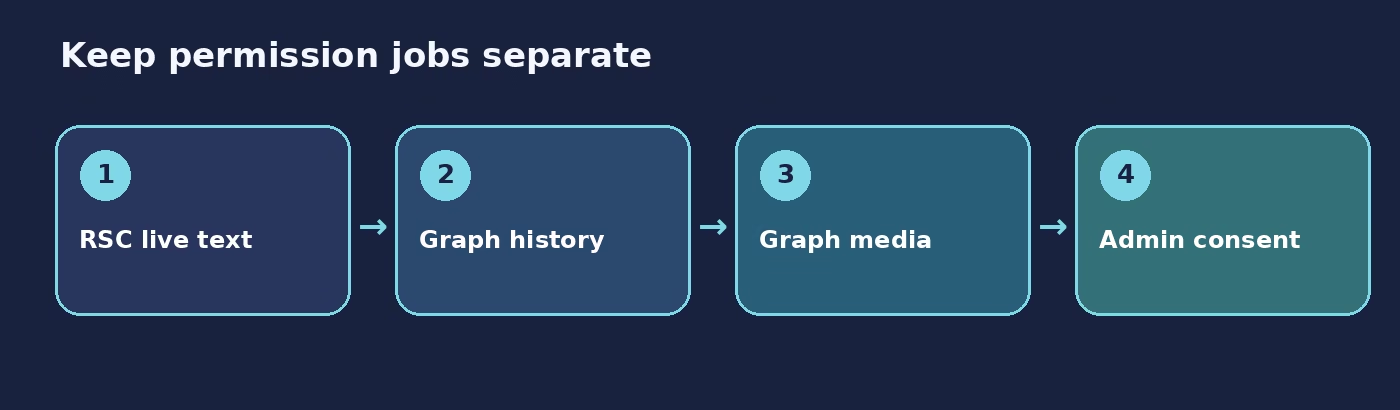
RSC permissions live in the Teams app manifest and apply in the team or chat where the app is installed. The documented manifest includes ChannelMessage.Read.Group for receiving channel messages without an @mention and ChatMessage.Read.Chat for group-chat messages. Microsoft’s RSC guidance explains the receive-all behavior. If you change the manifest, re-upload the app, reinstall it in the team, and fully quit and reopen Teams to clear cached app metadata.
Graph application permissions solve a different problem. RSC can support live channel text, but channel or group image and file contents, SharePoint/OneDrive downloads, and message history need Graph permissions with tenant admin consent. The OpenClaw permissions guide names ChannelMessage.Read.All for channel attachments or history, Chat.Read.All for group-chat attachments or history, and Files.Read.All when file bytes must be fetched from storage. Do not request all three by habit if your bot only answers text.
The current overview says text and DM attachments work, while sending files in channels or group chats requires sharePointSiteId and Graph permissions. An image missing from a channel activity is therefore not proof the webhook failed. Check which permission layer the media path needs. The optional graphMediaFallback performs a Graph lookup when an HTML activity lacks a downloadable media marker; it is off by default because it adds requests and permission dependencies.
RSC permissions are also relevant to mention gating. If you want unmentioned channel messages to reach the app so OpenClaw can apply custom rules, the manifest must grant the appropriate read permission. A Gateway setting cannot process an event Teams never delivered.
Diagnose a silent Teams bot
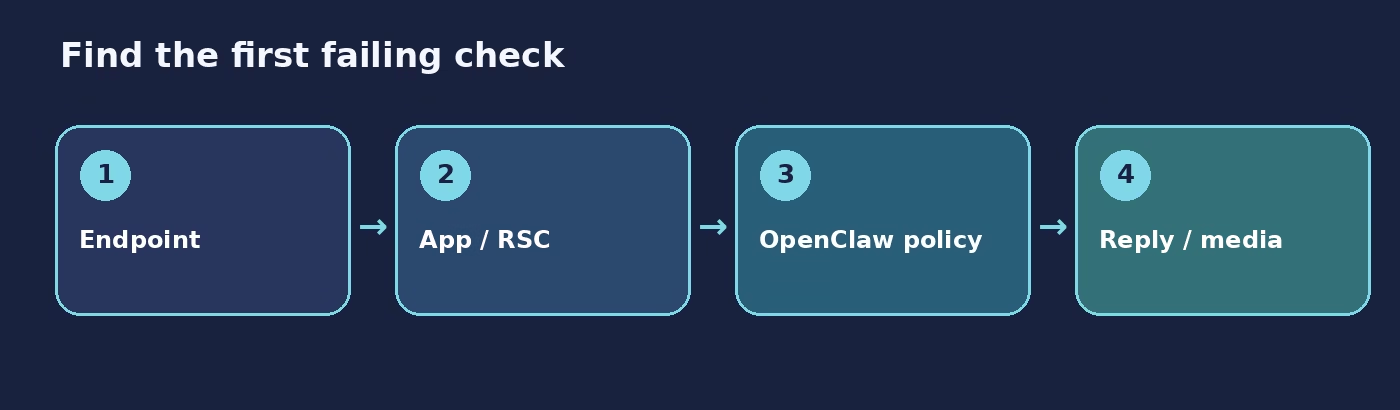
Trace one message from the Teams client to the reply. Start with a DM and a standard channel text message so media and private-channel differences do not obscure the result:
- Endpoint: Confirm the bot registration points to the current HTTPS
/api/messagesroute and the reverse proxy uses the Gateway port, not an old3978listener unless intentionally pinned. - Authentication: Run
teams app doctor <teamsAppId>. A manual unsigned request returning 401 only proves reachability; send a real Teams activity to test JWT validation. - Installation and scope: Verify the app is installed for personal DMs or in the intended team. Check the manifest scopes and RSC consent if channel posts never arrive.
- OpenClaw admission: Inspect DM pairing,
groupAllowFrom, team/channel entries and the exact conversation IDs. Then @mention the bot in a standard channel. - Reply and media: If text works but images or files do not, check Graph consent and the relevant media setting. If the turn ran but no answer appears, inspect logs and the reply/thread target.
One more useful clue: a manifest update can be valid on the server while the Teams client still shows old metadata. Reinstalling the app in the team and fully relaunching Teams is part of the documented update path, not superstition. The official troubleshooting page lists manifest upload and RSC failure checks.
FAQ about the OpenClaw Microsoft Teams channel
Do current OpenClaw builds need a separate Teams plugin install?
Usually no. Teams is bundled in current packaged releases. Older or custom builds that exclude it can install @openclaw/msteams.
Why does the bot answer a DM but stay silent in a channel?
Check that the app is installed in the team, the channel activity reaches the Gateway, the sender or conversation is allowed by OpenClaw, and the bot was @mentioned. DM pairing does not grant channel access.
Which ID goes in the teams configuration?
Use the URL-decoded conversation IDs from the path of the Teams link: after /team/ for the team and after /channel/ for the channel. Do not use the groupId query parameter as the team key.
Does a 401 from a manual webhook request mean the bot is broken?
Not by itself. OpenClaw expects an authenticated Azure Bot activity. A request without the Azure JWT can reach the route and correctly receive 401.
Why can the bot read text but not channel images?
Live text via RSC and image or file retrieval via Graph are different capabilities. Check the Graph application permissions, tenant admin consent, app reinstall, and whether the message’s media reference needs the optional Graph fallback.
Next step: prove one DM and one channel reply
Register the bot and app, expose the current Gateway webhook, install the app, and test a paired DM. Then allow one sender in one standard channel and send an explicit @mention. Only after those two text paths work should you add Graph-based media or history access. This sequence gives you a clean baseline and a precise place to look when something fails. Keep the current setup guide open while you configure it.