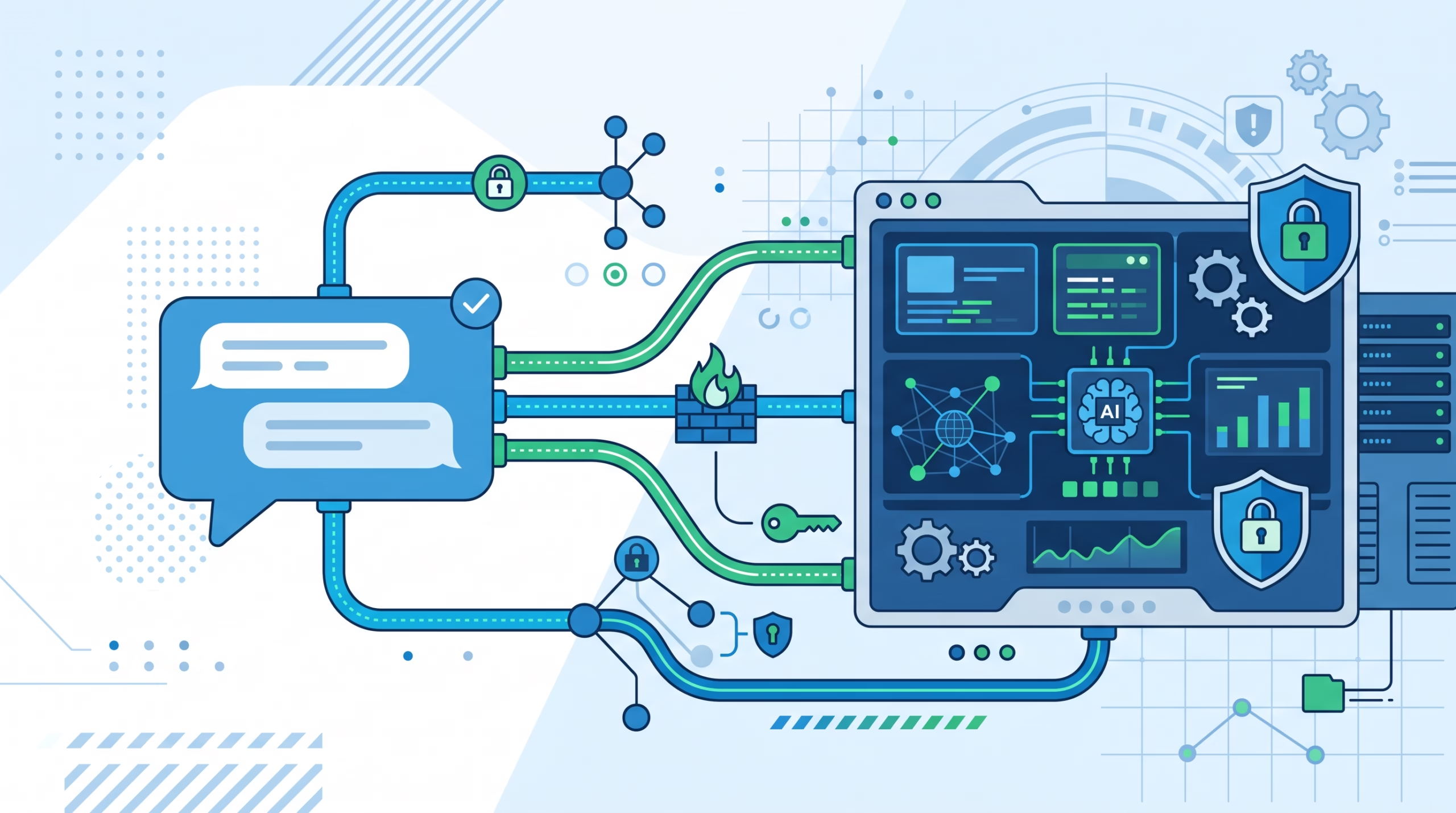

Connect Telegram to your AI agent and the first win is obvious: your agent stops living only in a terminal or web UI. It can answer from a normal Telegram DM, sit inside a group, receive files, and keep the same OpenClaw routing rules as the rest of your channels.
The trap is thinking this is just a bot-token setup. It is not. The token gets Telegram talking to OpenClaw, but the real design work is access control: who can DM the bot, which groups are allowed, which users inside those groups can trigger the agent, and whether the bot should wake up on every group message or only when mentioned.
This guide walks through the practical setup for OpenClaw’s Telegram channel, including BotFather, DM pairing, groups, privacy mode, long polling, optional webhooks, the Dashboard Mini App, and the failure modes that usually waste an afternoon.
What OpenClaw’s Telegram channel gives you
OpenClaw’s Telegram channel is production-ready for bot DMs and groups. Under the hood, it uses grammY, the Telegram bot framework, and runs inside the OpenClaw Gateway process. That matters because Telegram is not a side script bolted to the agent. It becomes one more channel in the same Gateway-managed loop.
The routing model stays boring in the best possible way. A message that comes in through Telegram replies through Telegram. The model does not choose the channel. OpenClaw normalizes inbound Telegram messages into its shared channel envelope, keeps reply metadata, and applies the configured agent and tool policies before the turn reaches the model.
The useful part is breadth. You can run one-owner DMs, approved group bots, topic-specific group behavior, media handling, reactions, approval flows, and a Telegram Dashboard Mini App. The risky part is the same breadth. A bot in a group has a much bigger blast radius than a private CLI session, so the setup should start with a narrow policy and open up only when you know why.
Before you touch config, decide who the bot is for
OpenClaw gives you several Telegram access modes, but the right one depends on the job.
For a personal operator bot, use a small allowlist. Put your numeric Telegram user ID in the config and make the bot answer only you. For a private team bot, allow the specific group and decide whether everyone in that group can talk to it or only named users. For a public bot, use open access only if the agent has tightly limited tools and no sensitive memory or command surface.
The dangerous setting is easy to spot: dmPolicy: "open" with allowFrom: ["*"]. That lets any Telegram account that finds or guesses the bot username command the bot. There are real use cases for public bots, but a normal self-hosted AI assistant is not one of them.
Also separate three kinds of identity in your head:
- DM access: who may talk to the bot in a direct chat.
- Group access: which groups are allowed and which senders inside them may trigger the bot.
- Owner access: who may run owner-only commands or approvals.
DM pairing does not mean “this person can do everything everywhere.” It grants DM access. Group sender authorization still comes from explicit Telegram group and sender config.
Create the bot token in BotFather
Telegram bot setup starts in BotFather, Telegram’s official bot-management bot. You can use the chat flow or the newer BotFather web app. In the chat flow, open Telegram, message @BotFather, run /newbot, choose the display name and username, and copy the authentication token it returns.
Keep that token quiet. It is the credential OpenClaw uses to call the Telegram Bot API as your bot. If it leaks, regenerate it in BotFather and update OpenClaw immediately.
OpenClaw does not use openclaw channels login telegram. There is no OAuth-style login step. You create the bot token, place it in config or an environment variable, and start the Gateway.
For a single default account, the environment fallback is TELEGRAM_BOT_TOKEN. For named accounts, use botToken or tokenFile. OpenClaw resolves tokens in an account-aware order: tokenFile beats botToken, and botToken beats the default-account environment variable.
Configure OpenClaw for Telegram DMs
A clean first setup uses pairing for DMs and mention-required behavior for groups. It keeps the first run friendly without making the bot public.
{
  channels: {
    telegram: {
      enabled: true,
      botToken: "123:abc",
      dmPolicy: "pairing",
      groups: { "*": { requireMention: true } }
    }
  }
}
Then start the Gateway and approve the first DM:
openclaw gateway
openclaw pairing list telegram
openclaw pairing approve telegram <CODE>
Pairing codes expire after 1 hour. That is a good default because the first touch from a random Telegram account should not silently become permanent access. If the code expires, send the bot another DM and approve the fresh one.
For a tighter one-owner setup, move from pairing to an allowlist once you know your numeric Telegram user ID:
{
  channels: {
    telegram: {
      enabled: true,
      botToken: "123:abc",
      dmPolicy: "allowlist",
      allowFrom: ["603767951"]
    }
  }
}
You can get that user ID from OpenClaw logs after messaging the bot, from Telegram’s Bot API getUpdates, or from an ID helper bot if you are comfortable using one. I prefer the logs path for private setups because it avoids handing metadata to a third-party helper.
Add Telegram groups without opening the door too wide
Groups are where most Telegram agent setups get messy. Telegram has user IDs and chat IDs, and they do not belong in the same place.
Your Telegram user ID goes in allowFrom or groupAllowFrom. A group or supergroup chat ID goes under channels.telegram.groups. Negative supergroup IDs often start with -100; those are group chat IDs, not sender IDs.
A practical one-owner group setup looks like this:
{
  channels: {
    telegram: {
      enabled: true,
      dmPolicy: "pairing",
      allowFrom: ["<YOUR_TELEGRAM_USER_ID>"],
      groupPolicy: "allowlist",
      groups: {
        "<GROUP_CHAT_ID>": {
          requireMention: true
        }
      }
    }
  }
}
With requireMention: true, a plain group message does not wake the agent. Mention the bot username, for example @my_bot ping, when you want a reply. That is usually what you want in a busy group. An always-on group bot sounds clever until it starts reading every side conversation as context.
If you want any member of one allowed group to talk to the bot, put the openness on that group, not across the whole Telegram account:
{
  channels: {
    telegram: {
      groups: {
        "-1001234567890": {
          groupPolicy: "open",
          requireMention: false
        }
      }
    }
  }
}
Telegram’s own privacy mode still matters. By default, bots in groups run with Privacy Mode, which limits the messages they receive. To see all group messages, disable privacy mode in BotFather with /setprivacy or make the bot a group admin. After changing privacy mode, remove and re-add the bot so Telegram applies the new setting.
Long polling versus webhooks in OpenClaw Telegram
OpenClaw defaults to long polling. That is the right default for most self-hosted operators because it avoids a public HTTPS endpoint. The bot keeps asking Telegram for updates, and Telegram holds the request until something arrives. grammY’s own docs recommend long polling when you do not have a strong reason to use webhooks because it is simpler and easier to debug.
Webhooks flip the direction. Telegram sends each update to your HTTPS endpoint. That can be a better fit for serverless platforms or public infrastructure that already has stable TLS and routing. It is also easier to misconfigure.
Telegram’s Bot API requires an HTTPS URL for setWebhook. It also supports only ports 443, 80, 88, and 8443 for webhooks. If you use a webhook secret, Telegram sends it in the X-Telegram-Bot-Api-Secret-Token header; the token may be 1 to 256 characters and can contain letters, digits, the _ character, and hyphens.
In OpenClaw, webhook mode uses settings such as webhookUrl, webhookSecret, webhookPath, webhookHost, webhookPort, and webhookCertPath. The local listener binds to 127.0.0.1:8787 by default, so public ingress normally means putting a reverse proxy in front of it.
The simple recommendation: start with long polling. Move to webhooks only when your deployment shape asks for it.
Dashboard Mini App: useful, but stricter than normal chat
OpenClaw’s Telegram Dashboard Mini App opens the Control UI inside Telegram. Run /dashboard in a DM with the bot, then tap Open dashboard. There is no separate Mini App flag when the Telegram plugin is active.
The Mini App has stricter requirements than a normal bot reply. OpenClaw needs gateway.tailscale.mode: "serve" or "funnel" so it can produce a published HTTPS URL. The request must come from a DM. A group /dashboard request replies that you should open it in a DM and sends no button.
Owner access also checks numeric Telegram user IDs. Wildcards and usernames do not grant Mini App owner access. That is the right trade: a dashboard is a control surface, not just another chat response.
Docker installs have one extra wrinkle. Tailscale Serve or Funnel needs the Gateway to bind loopback next to tailscaled. Bridge networking with published ports cannot satisfy that. The OpenClaw docs recommend host networking and mounting the host Tailscale socket and CLI into the container for this path.
Troubleshooting Telegram agent setup
If the Gateway fails with getMe returned 401, Telegram rejected the configured bot token. Re-copy or regenerate the token in BotFather, then update botToken, tokenFile, an account token, or TELEGRAM_BOT_TOKEN for the default account.
If the bot answers in DMs but stays silent in a group, check four things. Is the group ID under channels.telegram.groups? Is the sender allowed by allowFrom or groupAllowFrom? Does the group require a mention? Is Telegram Privacy Mode preventing the bot from seeing ordinary messages?
If webhook mode behaves strangely, check the public URL, TLS, supported port, reverse proxy path, and webhook secret. Remember that Telegram’s getUpdates will not work while an outgoing webhook is set. If you switch back to polling, remove the webhook first.
If /dashboard says the Mini App needs an HTTPS Gateway URL, set Tailscale Serve or Funnel, make sure Tailscale is running on the Gateway host, and retry from a DM.
If you are still hardening the Gateway itself, pair this setup with the wcblog.in guide to OpenClaw Gateway security hardening. If you want the bigger mental model first, read OpenClaw architecture explained before adding more public channels.
Security checklist before you leave it running
Telegram is convenient enough that people leave bots wider open than they meant to. Before you treat the setup as done, run this checklist.
- Use
dmPolicy: "allowlist"for one-owner bots once setup is complete. - Keep numeric user IDs in sender allowlists, not usernames.
- Put negative group chat IDs under
groups, notgroupAllowFrom. - Require mentions in busy groups unless always-on behavior is truly needed.
- Do not use wildcard DM access for a personal agent.
- Keep the bot token out of chat logs, screenshots, and public repos.
- Regenerate the token immediately if it leaks.
- Use webhook secrets when running webhook mode.
- Keep owner-only commands tied to explicit owner IDs.
- Review tool policy for Telegram sessions before exposing write or exec-style tools.
FAQ about connecting Telegram to an AI agent
Does OpenClaw need a Telegram login command?
No. Telegram uses a BotFather token, not openclaw channels login telegram. Add the token to OpenClaw config or the default TELEGRAM_BOT_TOKEN environment variable, then start the Gateway.
Should I use long polling or webhooks?
Use long polling first. It is OpenClaw’s default and grammY’s simpler deployment path. Use webhooks when you already have public HTTPS ingress or a hosting model that fits incoming requests better than a long-running polling process.
Why does my Telegram group bot only reply when mentioned?
That is usually requireMention: true, Telegram Privacy Mode, or both. Mention-required behavior is an OpenClaw group setting. Privacy Mode is a Telegram-side setting controlled in BotFather or by making the bot an admin.
Can I let anyone DM my OpenClaw Telegram bot?
Yes, but be careful. dmPolicy: "open" plus allowFrom: ["*"] makes the bot public to anyone who finds the username. For most personal or team agents, an allowlist is the better default.
Where do I put a Telegram supergroup ID?
Put it under channels.telegram.groups. Supergroup IDs are often negative and start with -100. They are chat IDs, not user IDs, so they do not belong in groupAllowFrom.
Final take
OpenClaw makes Telegram a serious channel for an AI agent, not a toy notification hook. DMs, groups, media, mentions, pairing, owner checks, and the Dashboard Mini App all fit into the same Gateway model.
Still, the best Telegram setup is intentionally narrow. Create the bot in BotFather. Start with pairing or an allowlist. Keep groups explicit. Require mentions unless you need always-on behavior. Use long polling until webhooks solve a real deployment problem. The token gets the bot online; the access policy keeps it from becoming a mistake.