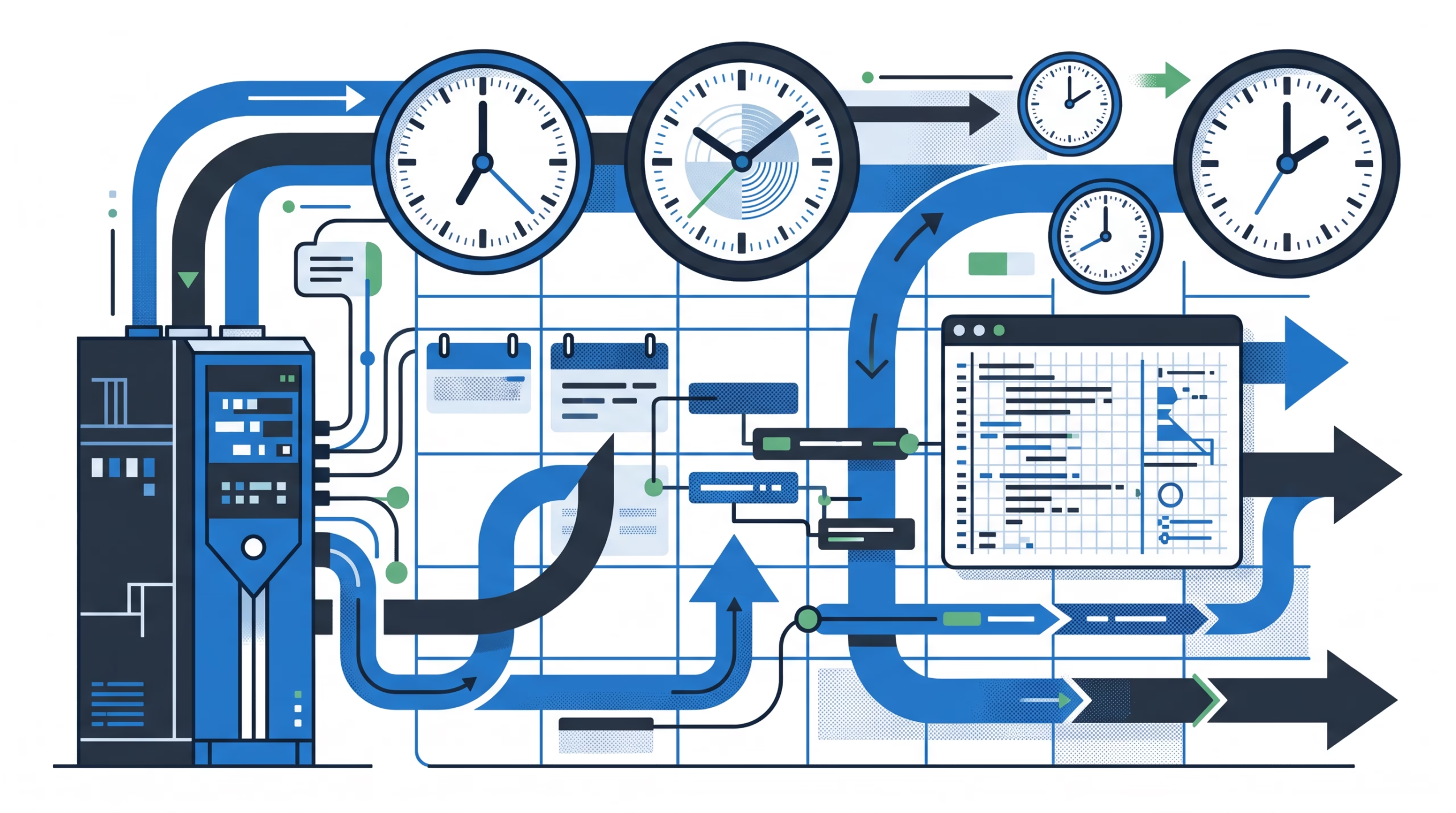

OpenClaw cron schedules decide when unattended agent work is allowed to wake up. That sounds like a small detail until a daily digest runs in the wrong timezone, a “Monday the 15th” job fires five times in a month, or twenty jobs all hit the Gateway at 09:00 sharp.
The schedule is not the whole automation. The payload says what runs. Delivery says where the result goes. The runtime decides how the job is admitted, timed out, logged, and recovered. But the schedule is the first contract. It answers the operator question: “What kind of event should make this work happen?”
That is why the OpenClaw schedule page is worth reading as an operator guide, not a syntax cheat sheet. It covers one-shot timestamps, fixed intervals, cron expressions, command-exit triggers, stream-driven triggers, adaptive pacing, timezone handling, and condition watchers. Those choices map to different failure modes.
OpenClaw cron schedules are more than a cron string
OpenClaw automations run inside the Gateway process. Job definitions, runtime state, and run history persist in the shared SQLite state database, so a restart does not erase the job list. The Gateway still has to be running for schedules to fire, and every run creates a background task record.
That runtime model matters because a schedule is not a model memory. It is stored Gateway state. The model may help create or edit it, but the scheduler owns the timing. A recurring job keeps checking time even when no chat is active. A stream job keeps watching its supervised process. A one-shot job can auto-delete after a successful run, depending on how it was created.
In daily use, that means you should name the schedule in plain operational terms before you reach for syntax. “Every weekday at 07:00 Asia/Kolkata, summarize overnight updates” is clearer than “0 7 * * 1-5”. The cron expression is just the encoding.
The five schedule types and when to use each
OpenClaw supports five schedule kinds: at, every, cron, on-exit, and stream. The same schedule flags work with openclaw automations add and openclaw automations edit <job-id>, so changing the wakeup shape does not require rebuilding the whole job.
at: one exact appointment
Use --at when the job should happen once: a reminder, a release check, a follow-up, a deferred cleanup. OpenClaw accepts ISO 8601 timestamps and relative values such as 20m.
The important detail is timezone handling. An --at timestamp without a timezone is treated as UTC. If you want an offset-less datetime to mean local time in a specific region, add --tz with an IANA timezone, such as Asia/Kolkata or America/New_York.
openclaw automations add \
  --name "Calendar check" \
  --at "20m" \
  --session main \
  --system-event "Next heartbeat: check calendar." \
  --wake now
One-shot jobs are also the easiest schedules to reason about. There is one due time, one payload, and often one expected result. Use them when you do not actually need a recurring routine.
every: fixed interval, no calendar meaning
Use --every for simple intervals such as 10m, 1h, or 1d. This is the right fit for checks where the exact clock face does not matter: poll a queue every 15 minutes, inspect a feed every hour, run a maintenance note once a day.
Do not attach --tz to every. It is an interval, not a wall-clock calendar rule. If the job must happen at 09:00 in a named timezone, use cron.
cron: calendar rules with timezone support
Use --cron when the calendar matters: every weekday morning, first day of the month, every Monday at 06:00, or every 15 minutes during a workday. OpenClaw accepts 5-field or 6-field cron expressions, with optional --tz for timezone-aware evaluation.
openclaw automations create "0 7 * * *" \
  "Summarize overnight updates." \
  --name "Morning brief" \
  --tz "Asia/Kolkata" \
  --session isolated \
  --announce
Cron schedules are powerful because they line up with human calendars. That same power is why they deserve more care. If a job wakes a model, reads tools, posts to chat, or runs a host command, a small expression mistake can become noisy fast.
on-exit: fire when a watched command exits
on-exit is an event trigger. OpenClaw watches an operator-authored command and fires the payload once when that command exits. The watch survives turn teardown, and you can set a working directory with --on-exit-cwd.
This is a good fit for “tell me when this long command is done” work. It is not a recurring interval. After an on-exit job queues its payload, the job disables itself. Re-enable it to watch again. That behavior is deliberate: a command exit is an event, not a schedule that should keep replaying forever.
stream: fire from batched process output
A stream schedule keeps a long-running command under Gateway supervision and fires from stdout or stderr lines. It can accept every line, or only lines matching a regex. Batches close after a quiet window or a byte cap, then the batch is appended to the fired message or system event.
openclaw automations add \
  --name "Build event stream" \
  --stream-command '["node","scripts/build-events.mjs"]' \
  --stream-mode match \
  --stream-match '^(failed|recovered):' \
  --stream-batch-ms 250 \
  --session isolated \
  --message "Investigate these build events."
Stream schedules are useful when the source of truth is not the clock. Build events, deployment logs, status feeds, and adapter output all fit this shape. They also deserve stricter review because the Gateway keeps an operator-authored process running unattended.
Timezone rules that prevent quiet failures
Most schedule bugs are boring. They are timezone bugs, and boring bugs are the ones that quietly waste the most time.
OpenClaw has a few rules worth memorizing:
--attimestamps without timezone information are UTC.--cronexpressions without--tzuse the Gateway host timezone.--tzworks with--atand--cron.--tzis not valid with--everyor--on-exit.
OpenClaw also has a broader timezone model. Message envelopes, tool payloads, and the system prompt each carry time in different ways. The scheduler-specific rule is simpler: if the job is calendar-based, make the calendar explicit. Put the intended IANA timezone on the job unless you truly want host-local time.
This is extra important on VPS installs. The server timezone may not match the owner, the audience, or the channel where the result lands. A morning brief meant for India should say --tz "Asia/Kolkata". A US workday monitor should name the relevant US timezone. Do not make future-you infer it from the machine.
Cron expression traps: seconds, OR logic, and top-of-hour staggering
OpenClaw uses Croner to parse cron expressions. Croner supports common cron syntax plus useful extensions, including an optional seconds field, timezone targeting, L for last, W for nearest weekday, # for nth weekday, and + for explicit AND logic between day-of-month and day-of-week.
The trap to tattoo on the inside of your eyelids: when both day-of-month and day-of-week are non-wildcard, OpenClaw follows standard Vixie cron behavior through Croner. The expression matches when either field matches, not when both match.
# Intended: 9 AM on the 15th, only if it is Monday
# Actual:   9 AM on every 15th, and 9 AM on every Monday
0 9 15 * 1
That fires roughly five or six times in a typical month, not zero or one. If you really mean “the 15th and Monday”, use Croner’s + day-of-week modifier:
0 9 15 * +1
There is another OpenClaw-specific behavior that is easy to miss. Recurring top-of-hour cron expressions, meaning minute 0 with a wildcard hour field, are automatically staggered by up to 5 minutes. That reduces load spikes when many jobs would otherwise wake together. If exact timing matters, use --exact. If you want a specific spread, use a cron-only stagger window such as --stagger 30s.
The operator instinct should be simple: let OpenClaw stagger routine work, force exact timing only when the outside world cares. A status digest can tolerate a few minutes. A market-open check, incident handoff, or external SLA reminder might not.
Dynamic cadence with pacing and /loop
Not every recurring job should keep the same interval forever. OpenClaw supports pacing bounds for recurring jobs through pacing.min and pacing.max, exposed in the CLI as --pacing-min and --pacing-max. A running agent-turn job can propose its next check with automations action next_check, and OpenClaw silently clamps that proposal to the saved bounds.
This is a better fit for work that has natural variation. A queue monitor might check again in 5 minutes when the queue is hot and in 45 minutes when it is empty. A research watcher might slow down after several quiet checks. The schedule defines the allowed window; the agent can choose inside it after seeing current state.
The chat shortcut /loop [interval] <prompt> creates a recurring agent-turn job bound to the conversation. If you provide an interval, it uses fixed cadence. If you omit the interval, the loop can self-pace between 1 minute and 1 hour with next_check. Use /loop status to see loops and /loop stop [name] to remove them.
Use this for conversational routines, not core infrastructure. For production-like checks, create a named automation with explicit schedule, delivery, and tool policy so it is easier to audit later.
Schedule choice examples
Here is the practical version.
- Use
atfor one reminder or one delayed run. - Use
everyfor fixed polling where wall-clock time does not matter. - Use
cronfor calendar rules and human work rhythms. - Use
on-exitwhen a command finishing is the event. - Use
streamwhen lines from a supervised process are the event. - Use pacing when the job can make a smarter next-check decision after it runs.
For a daily blog draft at 07:00 IST, use cron with --tz "Asia/Kolkata". For a temporary “check this in 20 minutes”, use at. For a CI watcher that should react only when output changes, use stream with a match regex and a clear payload. For a health probe that can back off when things are quiet, use a recurring schedule with pacing bounds.
The wrong choice usually shows up later as noise. A stream problem forced into a one-minute poll wastes runs. A calendar problem forced into every 24h drifts away from the human time you meant. A one-shot reminder created as a recurring cron job becomes another stale task somebody has to notice.
Troubleshooting when a schedule does not fire
OpenClaw’s troubleshooting page gives a direct command ladder:
openclaw status
openclaw gateway status
openclaw automations status
openclaw automations list
openclaw automations runs <jobId> --limit 20
openclaw system heartbeat last
openclaw logs --follow
openclaw doctor
Start with the boring checks. Is cron.enabled true? Is OPENCLAW_SKIP_CRON absent from the Gateway launch environment? Is the Gateway running continuously? Is the job enabled? Does the job have a next run? Did a manual --due test return not-due because the next occurrence simply has not arrived?
Then check timezone. For cron schedules, compare the saved --tz against the host timezone. For at schedules, look for offset-less values that were interpreted as UTC. If the job fired but nothing arrived, switch from schedule debugging to delivery debugging: delivery mode, target, channel credentials, suppression reason, and run history all matter.
A good habit is to inspect one stored job as JSON before changing it:
openclaw automations get <jobId>
openclaw automations runs <jobId> --limit 20
That keeps you from “fixing” the wrong layer. If the run never became due, edit the schedule. If the run executed and delivery failed, edit delivery. If the payload failed, fix the payload or its tool authority.
FAQ about OpenClaw cron schedules
What is the difference between every and cron?
every is a fixed interval such as 10m or 1h. cron is a calendar expression such as weekdays at 07:00. Use cron when wall-clock time or a named timezone matters.
Does OpenClaw use UTC for all schedules?
No. Offset-less --at timestamps are UTC. Cron expressions without --tz use the Gateway host timezone. Add --tz to make calendar intent explicit.
Why did my “Monday the 15th” cron job fire on Mondays and the 15th?
Because day-of-month and day-of-week use OR logic when both fields are set. Use Croner’s + modifier in the day-of-week field when you need AND logic.
Why did my top-of-hour job not fire at the exact minute?
OpenClaw automatically staggers recurring top-of-hour cron expressions by up to 5 minutes to reduce load spikes. Use --exact when the job truly needs exact timing.
Are stream schedules the same as command payloads?
No. A stream schedule watches output from a long-running command and uses that output as the trigger. A command payload is what the automation runs after a schedule fires. OpenClaw rejects command payloads for stream schedules because source command ownership and payload command ownership would be ambiguous.
Final take
The best OpenClaw cron schedule is the one that matches the real trigger. If the trigger is a date, use at. If it is a plain interval, use every. If it is a human calendar, use cron with a named timezone. If it is a process finishing or output changing, use on-exit or stream.
Before you save the job, say the schedule back in plain English. Then check the timezone, the day-of-month/day-of-week logic, and whether exact timing really matters. That small pause prevents most of the strange automation bugs operators end up chasing later.
Need a deeper automation setup? Read the OpenClaw docs on automation payloads next, then pair the schedule with the right payload and delivery route before you leave it unattended.