
OpenClaw managing cron jobs is not just a matter of remembering the right CLI verbs. The useful habit is simpler and more operator-shaped: inspect the job, read its run history, separate execution from delivery, then make the smallest change that fixes the problem.
That sounds slower than firing off an edit command. It is also how you avoid making a good automation worse. OpenClaw jobs carry schedule state, payload settings, delivery routes, model overrides, failure policy, run history, and sometimes preserved session context. A cron job can look broken from chat while the payload actually ran cleanly and only delivery failed. Or it can look quiet because the job was disabled when a session was archived.
The docs give you a lot of commands. The operator skill is knowing which one to run first.
OpenClaw managing cron jobs starts with evidence
OpenClaw automations live in the Gateway, and the Gateway keeps the job definition, runtime state, and history in its shared SQLite state database. That makes management different from editing a line in a crontab. You are working with a stored object that has both configuration and evidence.
The most useful first command is usually not edit. It is one of these:
openclaw automations list
openclaw automations list --all
openclaw automations show <jobId>
openclaw automations runs <jobId> --limit 50
list tells you what is enabled and due. list --all catches disabled jobs that the default view hides. show gives a human-readable view, including the resolved delivery route. runs tells you what happened instead of what you hoped happened.
That order matters. A job that was auto-disabled after repeated failures does not need a new prompt first. It needs the failure cause. A job with successful execution and failed delivery does not need a model change. It needs route, webhook, channel, or delivery policy work.
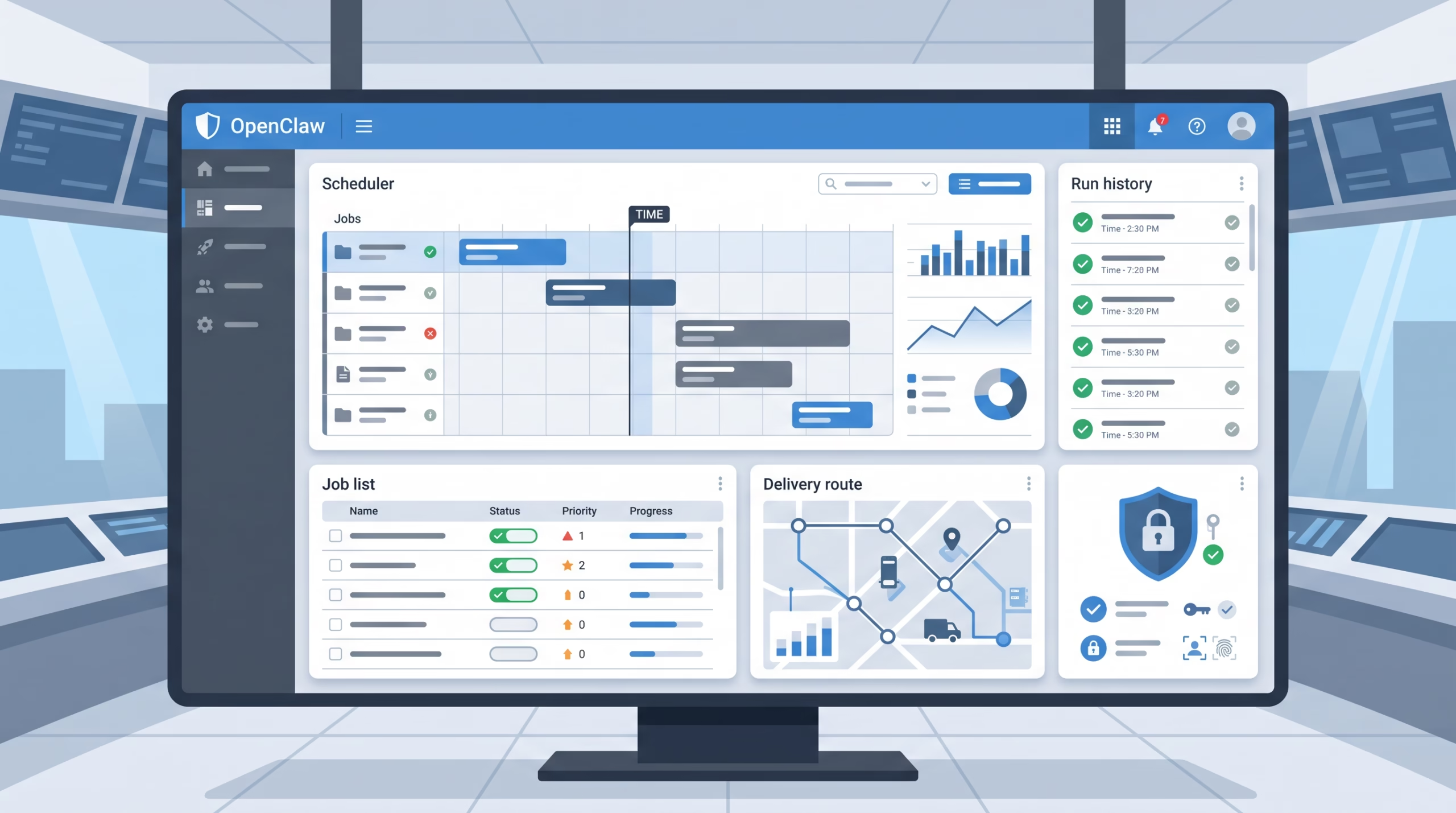
OpenClaw’s Control UI follows the same general idea. When an automation is open, runtime updates refresh next-run time and condition activity without wiping unsaved settings. That is a small detail, but a good one: the UI is trying to show live scheduler state without trampling the draft edit you are making.
The command ladder: list, show, run, history, edit
The management commands are plain enough:
openclaw automations listlists enabled jobs.openclaw automations list --allincludes disabled jobs.openclaw automations get <jobId>returns one stored job as JSON.openclaw automations show <jobId>shows one job with resolved delivery information.openclaw automations enable <jobId>anddisabletoggle the job without deleting it.openclaw automations edit <jobId>changes saved fields such as message, model, route, timeout, schedule, or failure policy.openclaw automations run <jobId>forces a manual run.openclaw automations runs <jobId>reads run history.openclaw automations remove <jobId>deletes the job.
The mistake is treating that list as a menu where every item is equally casual. disable is reversible. edit changes the future. remove throws away the job. Use them with different levels of confidence.
Use get for raw shape and show for routes
get is the raw truth. It is the right tool when you need exact stored JSON, want to compare declarations, or are debugging an API-level patch.
show is the operator view. It is better when you are asking, “Where will this output go?” The management docs call out resolved delivery routes for a reason. Chat delivery, webhook delivery, missing channel routes, preserved session targets, and failure destinations are where many automation surprises hide.
I would reach for show first during a normal incident, then get when the display view does not answer the question.
Run now is not the same as due
openclaw automations run <jobId> enqueues a manual run and returns after that enqueue succeeds. It does not wait for the payload and delivery to finish unless you ask it to:
openclaw automations run <jobId> --wait --wait-timeout 10m --poll-interval 2sWith --wait, the CLI polls the returned runId. It exits successfully only when the run’s completionStatus is "succeeded". Failed completion, unknown completion, and wait timeouts exit non-zero.
There is also --due, which only runs the job if it is due. That is useful when an operator or script wants to respect the scheduler instead of forcing an out-of-band execution.
A manual run does not rewrite the job’s recurring cadence or future one-shot occurrence. Run-now delivery measures lateness from when the manual request was accepted. Automatic due runs keep their original scheduled time for lateness checks. That distinction keeps manual tests from poisoning the scheduler’s idea of the next natural run.
Conversational management is admin power, not casual chat
OpenClaw lets an admitted owner or administrator manage automations conversationally. That is useful. It is also a control-plane surface.
An authenticated channel sender listed in commands.ownerAllowFrom, or a Control UI administrator with operator.admin, can ask the agent to list, inspect, update, run, or remove existing automations on that Gateway. The docs explicitly say this can apply across creator and channel boundaries. For example, an owner can ask the agent to disable a reminder created in Telegram.
The guardrails are specific:
- The Gateway grants authority from the authenticated turn’s admission facts.
- Each operation uses a one-use grant.
- The grant expires after 60 seconds.
- The grant is bound to the exact active run.
- Channel owner membership is checked again before a mutation commits.
- Channel allowlists, wildcard entries, display names, account IDs, and session routes do not establish ownership.
That is the right shape. An allowlisted chat target is not the same thing as an operator. A display name is not identity. A delivery route is not authority.
There is one continuation case worth knowing. If an admitted owner or administrator turn uses sessions_yield to wait for subagents, the verified requester continuation keeps automation management for that task and receives fresh grants for the new run. But the continuation is still management-only. It does not capture new creator execution authority. Removing the sender from the global owner list, cancellation, session reset or archive, a new direct user turn, and Gateway restart invalidate the handoff.
For operators, the practical rule is simple: use conversational management for deliberate admin work, not for vague “clean up my automations” requests. Ask for the list first. Inspect the target. Then mutate.
Read run history before changing the job
Run history is where OpenClaw stops being a black box. The management docs separate two layers:
statusis payload execution:ok,error, orskipped.completionStatusis the whole run outcome:succeeded,failed, orunknown.
This split saves real debugging time. A job can execute successfully and still fail completion because required delivery failed. In that case, execution can be status: "ok" while completionStatus is "failed". OpenClaw does not count that as an execution error or put the job into execution retry backoff, because the payload was not the failing part.
That means the fix should match the failure layer:
- If execution is
error, inspect the payload, model, tools, command, script, timeout, or local endpoint. - If execution is
skipped, check why the scheduler skipped it, such as local model preflight or due-only behavior. - If execution is
okbut completion failed, inspect delivery. - If completion is
unknown, look for ambiguous adapter sends, missing delivery identity, or incomplete evidence before retrying.
Intentional silence has its own shape. NO_REPLY, intentionally empty output, heartbeat acknowledgments, and channel reply transforms can record a deliverySuppressionReason without claiming ordinary delivery or triggering delivery-failure alerts. That is different from a transport hook veto or a stale output problem.
This is why a run log is better than a hunch. It tells you whether the job failed, stayed quiet on purpose, delivered nowhere by design, or fell over after doing the actual work.
Delivery failures are their own class of problem
OpenClaw delivery modes are announce, webhook, and none. They answer a separate question from “what does the job do?” They answer “where does the finished result go?”
For chat delivery, an isolated job may announce to a configured channel and target. On hosts with multiple configured channels, isolated announce jobs generally need an explicit --channel unless a provider-prefixed target or preserved session route selects the channel. --best-effort-deliver is a conscious trade: unresolved fallback delivery becomes acceptable, and a delivery failure does not fail the job.
For webhook delivery, the URL is subject to a strict outbound policy. Loopback, private/internal, link-local, and other special-use targets are refused by default. If you intentionally deliver to a trusted local receiver, configure a narrow cron.webhookSsrfPolicy.allowedHostnames entry. The broad private-network opt-in exists, but it should make you pause. Scheduled webhooks are unattended outbound traffic; treat them that way.
The authentication shape is also clear: cron.webhookToken is sent as an Authorization: Bearer token on automation webhook POSTs. Do not put embedded username and password credentials in webhook URLs.
A good management routine checks delivery as a first-class concern:
- Does the job require delivery, or is
nonecorrect? - If it announces, is the channel explicit enough?
- If it uses a webhook, is the SSRF policy intentionally allowing the receiver?
- If delivery is allowed to fail, is
bestEfforta conscious choice? - Where should failure alerts go if the primary route is broken?
That last question is not theoretical. A broken primary route is exactly when you most want the failure notice to land somewhere else.
Enable, disable, archive, or remove?
Not every bad job should be deleted. Deletion is clean only when you are sure the automation is obsolete and the history is no longer useful.
Use disable when you want the job to stop firing while you inspect or rewrite it. Disabled jobs are hidden from the default list, so pair this with list --all during audits.
Use enable after the cause is fixed. Re-enabling an auto-disabled job or an exhausted stream resets its failure counters. API clients reconciling a declarationKey can also reset with explicit enabled: true; routine declarations that omit enablement preserve stopped jobs.
Be careful with session archive behavior. Archiving a session disables enabled automation jobs bound to that session, including isolated cron:<jobId> sessions, session:<key> targets, or delivery and wake lanes tied to that session key. Restoring the session does not re-enable those jobs. You need to run openclaw automations enable <jobId> yourself.
That behavior is sensible. If a human archived the session, OpenClaw should not quietly revive jobs tied to it just because the session later came back.
Use remove last. If you are in an incident, keep the evidence until the cause is understood. A disabled job with history is more useful than a deleted job you later wish you could inspect.
Configuration keys worth knowing
Most daily management happens through the CLI and Control UI, but a few cron.* keys matter enough to keep in your head.
{
  cron: {
    enabled: true,
    triggers: {
      enabled: false,
    },
    webhookToken: "replace-with-dedicated-webhook-token",
    webhookSsrfPolicy: {
      allowedHostnames: ["127.0.0.1"]
    },
    sessionRetention: "24h"
  }
}
cron.enabled: false disables automations. The environment variable OPENCLAW_SKIP_CRON=1 does the same at process level. Those are blunt tools, but useful during maintenance.
cron.triggers.enabled controls condition-trigger scripts, stream schedules, and script payload creation/execution. That matters because those surfaces can run unattended code with the owning agent’s tool policy. If you do not want that class of automation, turn it off deliberately.
cron.skipMissedJobs: true changes startup catch-up for recurring cron and every jobs. When it is enabled, missed recurring slots after Gateway downtime are skipped and the jobs advance to their next future occurrence. The default is false, which means catch up. One-shot at jobs keep their normal catch-up behavior either way.
There is no universal right answer. A daily digest might tolerate skipping stale missed runs. A billing check might not. The important part is making the choice before an outage teaches you what the default means.
A sane operating routine
Here is the routine I would use on a real OpenClaw Gateway.
First, list the jobs:
openclaw automations list
openclaw automations list --all
Look for disabled jobs, suspicious next-run times, missing effective agent ownership, and names that no longer describe the work. Bad names are not cosmetic. They slow down incident response.
Second, inspect the target:
openclaw automations show <jobId>
openclaw automations runs <jobId> --limit 10
Read both configuration and evidence. If the delivery route looks wrong, fix delivery. If the last run failed before payload execution, fix the payload, model, tool policy, command, script, or runtime. If the job is disabled, find out whether an operator disabled it, auto-disable triggered, or a session archive caused it.
Third, test deliberately:
openclaw automations run <jobId> --wait --wait-timeout 10mUse --due when you want to respect the schedule. Use a forced run when you need a repair test now. Then read the new history instead of assuming the command line exit is the whole story.
Fourth, edit narrowly. Change the prompt, model, fallback list, thinking level, delivery route, timeout, or schedule that actually explains the failure. Do not rewrite five fields because one run failed. That only makes the next failure harder to reason about.
Finally, leave a breadcrumb. The scheduler records admin management requests in the Gateway’s cron: admin management log alongside the ordinary tool audit record. That audit trail is useful, but a clear job name and a small edit are still the best gifts you can give the next operator.
FAQ
What is the difference between `openclaw automations` and `openclaw cron`?
openclaw automations is the current CLI surface. openclaw cron remains an alias for the same commands, so older habits and scripts still work.
Should I delete a failed automation?
Usually not first. Disable it if it might cause damage, then read show and runs. Delete it after you understand the failure and know the job is obsolete.
Why did a job execute but still fail?
Because execution and completion delivery are separate. The payload can finish with status: "ok" while required delivery fails, leaving completionStatus: "failed".
Can I manage jobs from chat?
Yes, if the turn is admitted as an authenticated owner listed in commands.ownerAllowFrom, or as a Control UI administrator with operator.admin. The authority is scoped, short-lived, and rechecked before mutation.
What should I check after archiving a session?
Check automations bound to that session. Archiving disables enabled jobs tied to the session, and restoring the session does not re-enable them automatically.
Final take
Managing OpenClaw cron jobs well is mostly disciplined reading. Look at the job. Look at the route. Look at the run history. Decide whether the failure belongs to schedule, payload, execution, delivery, authority, or configuration. Then change one thing.
That may feel unglamorous, but it is exactly the point. A scheduler earns trust by leaving evidence and giving operators reversible controls. Use those controls in order: list, inspect, run, read, edit, and only then remove.