
The OpenClaw ClickClack channel puts an agent in a self-hosted ClickClack workspace as a bot user. The setup-code path is quick, but a successful claim is only the first check. A bot can connect to the workspace and still stay silent because the sender was filtered, a room requires a mention, or its token cannot send. This guide separates those failure points so you can test an actual conversation, not just a green connection indicator.
What the OpenClaw ClickClack channel does

ClickClack is a chat surface for OpenClaw, not a second agent runtime. The ClickClack bot token identifies the bot and gives it specific workspace permissions. OpenClaw receives messages over the channel, decides which agent and session should handle an admitted message, then routes the reply back to ClickClack. The OpenClaw routing reference spells out that the model does not choose the destination channel.
That distinction matters if you run several bots or agents. One ClickClack workspace can have multiple configured bot accounts, each with its own token and realtime connection. An account can pin inbound traffic to an agentId; normal agent bindings can also route by channel, account, or peer. Don’t assume a new bot identity automatically creates a new agent workspace. Check the route you configured.
For most teams, start with one bot and normal agent replies. Get a direct message and one room mention working before you add another account, bot-to-bot traffic, or session discussions.
Set up the OpenClaw ClickClack channel with a setup code

In ClickClack, open Workspace settings → Integrations → OpenClaw, create a bot with Setup code, and copy the command ClickClack gives you. A standard example looks like this:
openclaw channels add clickclack --code 'https://clickclack.example.com/#XXXX-XXXX-XXXX'Run the exact command generated for your server. Some installations use a separate API origin or a path-mounted API, so ClickClack may give you a full claim endpoint instead of the shorter workspace URL. Guessing the endpoint is an easy way to waste a code. The code works once and expires after 10 minutes, according to the official ClickClack channel guide. If it fails after you copied it into a terminal, generate a fresh one before debugging anything else.
OpenClaw exchanges the code for a newly minted bot token, saves the account and workspace settings, and checks the connection. It does not keep the setup code in its config. If the gateway is already running, the channel should connect without another command. Otherwise start it:
openclaw gatewayFor a split URL setup, OpenClaw also accepts the code and base URL as separate arguments. The claim must use HTTPS on a public server; plain HTTP is supported for loopback installations. Treat the setup code like a short-lived credential while it exists. Don’t paste a real one into a ticket or a public shell transcript.
Choose the right token and URL settings

The code path is the sensible default because it avoids hand-copying a permanent token. Manual setup is available if you need to manage the bot credential yourself:
openclaw channels add clickclack --base-url https://clickclack.example.com --token YOUR_BOT_TOKEN --workspace defaultHere, workspace may be a workspace ID, slug, or display name. You can also run openclaw onboard, select ClickClack, and enter the server, token, and workspace when prompted. Guided setup checks the saved settings, but a failed check does not silently delete them.
If you prefer an environment-backed token for the default account, set CLICKCLACK_BOT_TOKEN in the gateway’s environment and add the channel with --use-env. Named accounts need their own configured token or token file; the shared environment variable is limited to the default account. Keep token material out of screenshots and copied config examples. The same principle applies to the rest of your agent stack; our OpenClaw secrets guide covers practical storage choices.
A configured ClickClack account needs three things: baseUrl, a token source, and workspace. The public baseUrl is also used for browser-facing links. If your public hostname sits behind an authentication gateway while OpenClaw can reach a local ClickClack API, set apiBaseUrl to the internal endpoint. REST and realtime WebSocket traffic then use that internal address while links continue to use the public one. Don’t replace baseUrl with a loopback address just to make the bot connect; people would receive unusable links.
For ordinary chat, the current bot:write bundle covers reading and sending, including messages, threads, DMs, uploads, and command-menu publishing. bot:read alone won’t let the agent reply. A missing command menu is a separate issue: check commandMenu, the server’s command endpoint, and commands:write. Menu sync is best effort at gateway startup, so a missing menu does not prove that realtime chat is broken.
Control who can trigger your bot in rooms

ClickClack’s default group behavior deserves attention: every group message can dispatch to every enabled ClickClack account in the same workspace. If you meant to build a mention-only helper, set requireMention: true on the account. Direct messages are never blocked by that mention gate.
{
  channels: {
    clickclack: {
      requireMention: true,
      allowFrom: ["usr_123"],
      groups: {
        "chn_team": { requireMention: false }
      }
    }
  }
}
Replace the IDs with real ClickClack IDs. An exact channel entry wins over a wildcard group entry, which wins over the account setting. A mention gate and an allowlist solve different problems: the first asks whether the message addressed this bot; the second asks whether its author may trigger it. Turning on requireMention does not narrow allowFrom.
The bot’s actual ClickClack @handle counts as a mention. A plain display name does not, unless you add a matching mentionPatterns regular expression. If you want users to continue a thread the bot started without repeating its mention, requireMentionInBotThreads: false permits that only when OpenClaw can verify the thread’s root was authored by this bot. A reply in somebody else’s thread keeps the normal rule.
Other ClickClack bots are ignored by default. To permit them, set allowBots to true or to "mentions" for mention-gated group traffic, and list each sender bot ID explicitly in allowFrom. The wildcard does not authorize bot authors. Self-authored messages are always ignored, and admitted bot messages still pass the shared bot-pair loop guard. Start without bot-to-bot traffic unless there is a clear job for it; otherwise troubleshooting becomes much harder. Our Gateway security guide explains why a narrow message boundary matters.
Do you need ClickClack session discussions?
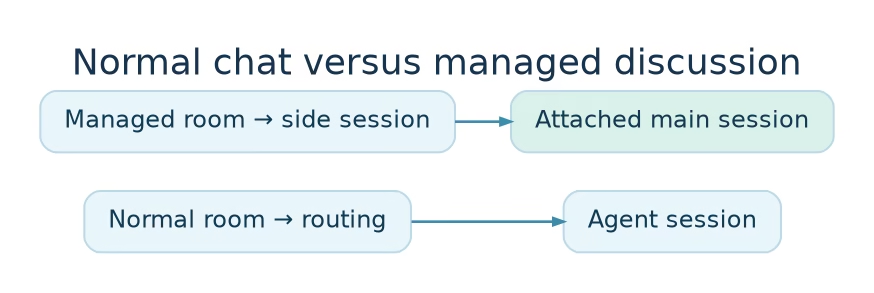
Normal channel chat and session discussions are different products inside the same plugin. In normal chat, a room message reaches an agent through ordinary channel routing. A session discussion creates a managed ClickClack channel attached to a particular OpenClaw session. It is useful when people need a persistent room around one running task, not merely a place to message a bot.
Discussion setup needs a token with channels:write. The usual bot:write token cannot create or synchronize those channels; the bot:admin bundle includes the needed creation permission. Enable discussions on exactly one ClickClack account. The gateway rejects multiple enabled discussion accounts rather than picking one for you.
Think through the room’s lifespan before enabling it. ClickClack owns the channel’s archive and restore state. Resetting, archiving, or deleting an OpenClaw session does not automatically archive or replace the ClickClack channel. The attachment can change while the room URL and history remain. That is useful for continuity, but it means operators must manage room cleanup on the ClickClack side.
A managed room also has a separate side session under the attached agent. It can observe the main session through scoped session tools and relay a person’s explicit request to steer it. This is narrower than treating everyone in the room as an operator. If you don’t need that collaboration pattern, leave discussions off. Ordinary chat has fewer permissions and fewer lifecycle questions.
Test a real round trip

A successful setup claim confirms the credential and initial connection check. It does not prove that the person you care about can trigger a reply in the room you care about. Test one stage at a time.
- Run
openclaw channels status --probeand check the ClickClack account. Confirm the gateway is running and the channel reports a usable connection. - Send a message from an allowed human account to the bot in a DM. This bypasses room mention gating and tests realtime inbound, agent routing, and reply delivery.
- In a channel, mention the bot’s actual
@handleifrequireMentionis enabled. Check the reply in that same channel or thread. - Test outbound delivery directly with
openclaw message send --channel clickclack --target channel:general --message "ClickClack delivery test". Use a real destination channel and account selection for your installation. - Inspect
openclaw logs --followif any stage fails. A rejected sender, a missing mention, an agent error, and a send-scope failure are different fixes.
ClickClack also accepts dm:usr_... and thread:msg_... outbound targets. A bare target defaults to a channel target. If you have multiple accounts, set an explicit default account or specify the account for the test; otherwise you may verify the wrong bot. OpenClaw’s routing rules send ordinary replies back to the origin, so an outbound CLI test and an inbound round trip are both necessary.
Fix common ClickClack channel failures

The account says it is not configured
Check that this account has a baseUrl, token source, and workspace. A token in an interactive terminal is not necessarily present in the running gateway’s environment. For a named account, don’t rely on the default account’s CLICKCLACK_BOT_TOKEN.
The workspace cannot be found
Check the workspace ID, slug, or display name against ClickClack. If the API is behind a different internal origin, confirm apiBaseUrl points to the reachable server-to-server endpoint and baseUrl remains the correct public address.
The bot is connected but says nothing
Try the allowed-human DM first. In a group, check allowFrom, requireMention, the bot handle, and any exact-channel override. Messages from the bot itself are ignored. Messages from another bot need both allowBots and an explicit sender ID. Also check which agent an account or binding selects; connection status cannot prove the chosen agent completed a run.
Replies fail or discussion channels cannot be created
Check workspace membership and bot:write for normal sends. For managed discussions, check channels:write and server support for managed-channel fields. Those are not the same permission failure. If the command menu alone is missing, check commands:write and the server’s menu endpoint rather than rebuilding a working chat integration.
For stubborn cases, use the general channel diagnostic ladder: openclaw status, openclaw gateway status, logs, openclaw doctor, and openclaw channels status --probe. Change one setting, then repeat the same failed message test. Randomly changing token, routing, and mention rules together hides the cause.
FAQ about OpenClaw and ClickClack

Is ClickClack setup the same as pairing a DM sender?
No. The setup code claims a ClickClack bot identity for OpenClaw. Sender admission is a separate question handled by the channel’s allowlist and room policies. Don’t confuse a successful bot claim with permission for every person or bot to trigger it.
Can I use several ClickClack bots in one workspace?
Yes. Configure multiple accounts with separate tokens. Each opens its own realtime connection and evaluates group mention policy independently. Give them clear identities and narrow triggers so one room message does not start several unwanted runs.
Should I use agent mode or model mode?
Use the default replyMode: "agent" when you want normal agent sessions, tools, and routing. replyMode: "model" sends a direct completion and skips the normal agent pipeline. It has a separate trust setting for selecting the resolved bot agent ID. That is a deliberate architecture choice, not a quick fix for an agent-mode connection failure.
Does the bot need admin scope?
Not for ordinary chat. Current bot:write is enough for normal replies and command-menu sync. Managed discussion channel creation needs channels:write, which the bot:admin bundle includes. Grant the permission for the feature you actually use.
Make the first test boring

Create one bot with a setup code, keep normal agent mode, test an allowed-human DM, then test a mention in one room. Only after those two round trips work should you add more bot accounts or managed discussions. If the bot goes quiet later, repeat the same tests in order: credential, transport, admission, agent run, delivery. It is less glamorous than flipping config switches, and much faster at finding the fault.
Visuals in this article are original AI-generated or locally rendered illustrations. Technical details were checked against the ClickClack reference, routing reference, and channel troubleshooting guide.