
The OpenClaw Feishu channel connects an OpenClaw agent to Feishu or Lark as a bot. Getting the bot online is straightforward. Getting the right people into the right conversations takes a little more care. A green connection check does not tell you whether Feishu is sending message events, whether OpenClaw admits a particular sender, or whether a group requires an @mention. This guide walks through those checks in order, using the current OpenClaw Feishu documentation as its source.
What the OpenClaw Feishu channel actually connects
Feishu is the conversation surface; the OpenClaw Gateway remains the agent runtime. The official @openclaw/feishu plugin handles bot direct messages and groups. It also offers streaming card replies and separate tools for Feishu documents, wiki, Drive and Bitable. Those workspace tools are useful, but you do not need to configure them to prove basic chat works.
The default event transport is WebSocket, so a first installation does not need a public callback URL. Webhook mode is available when your deployment calls for it. The current webhook route uses the Gateway’s HTTP port, normally 18789, at /feishu/events. If you are migrating an older webhook installation, read the webhook migration guidance before changing the callback. Do not assume a new installation opens a separate Feishu port.
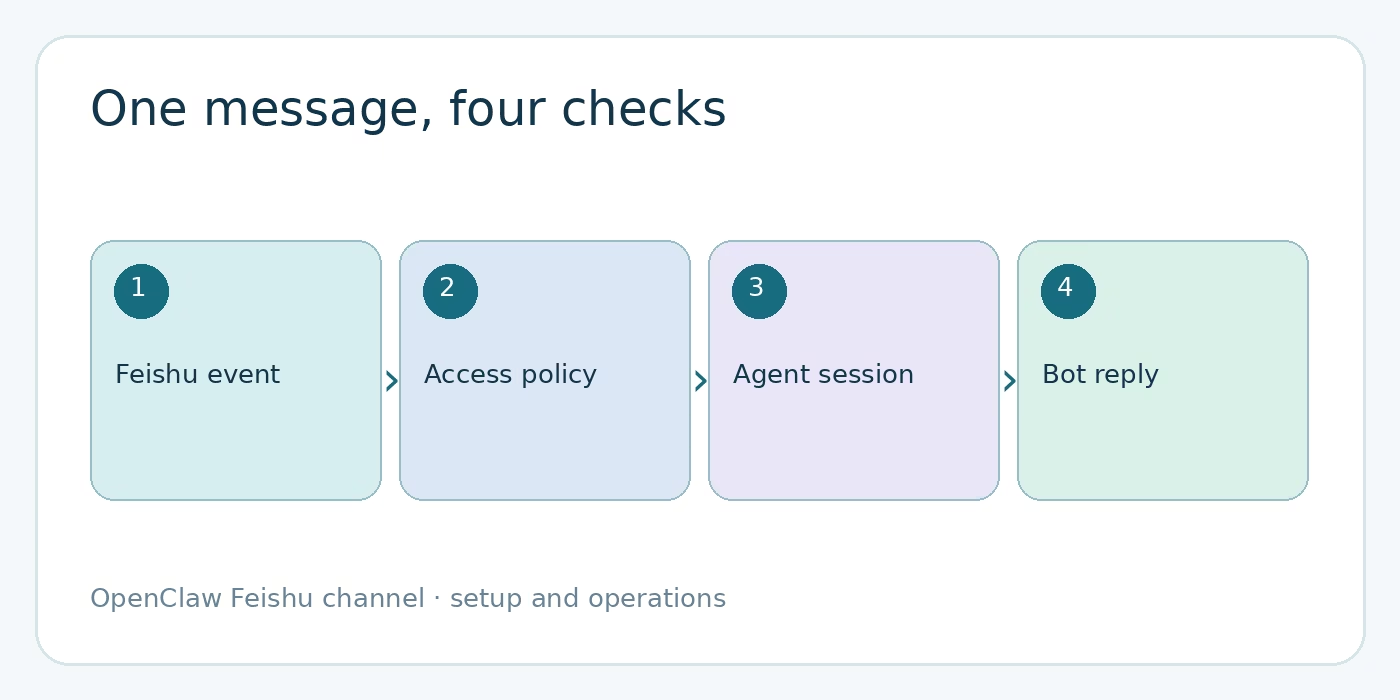
Think of a message’s trip in four parts: Feishu delivers an event, OpenClaw checks whether that sender and chat are allowed, an agent receives the admitted turn, and the bot sends a reply. Keeping those parts separate makes a silent bot much less mysterious. It also stops you from loosening access controls when the real fault is an unpublished Feishu app.
Set up the OpenClaw Feishu channel
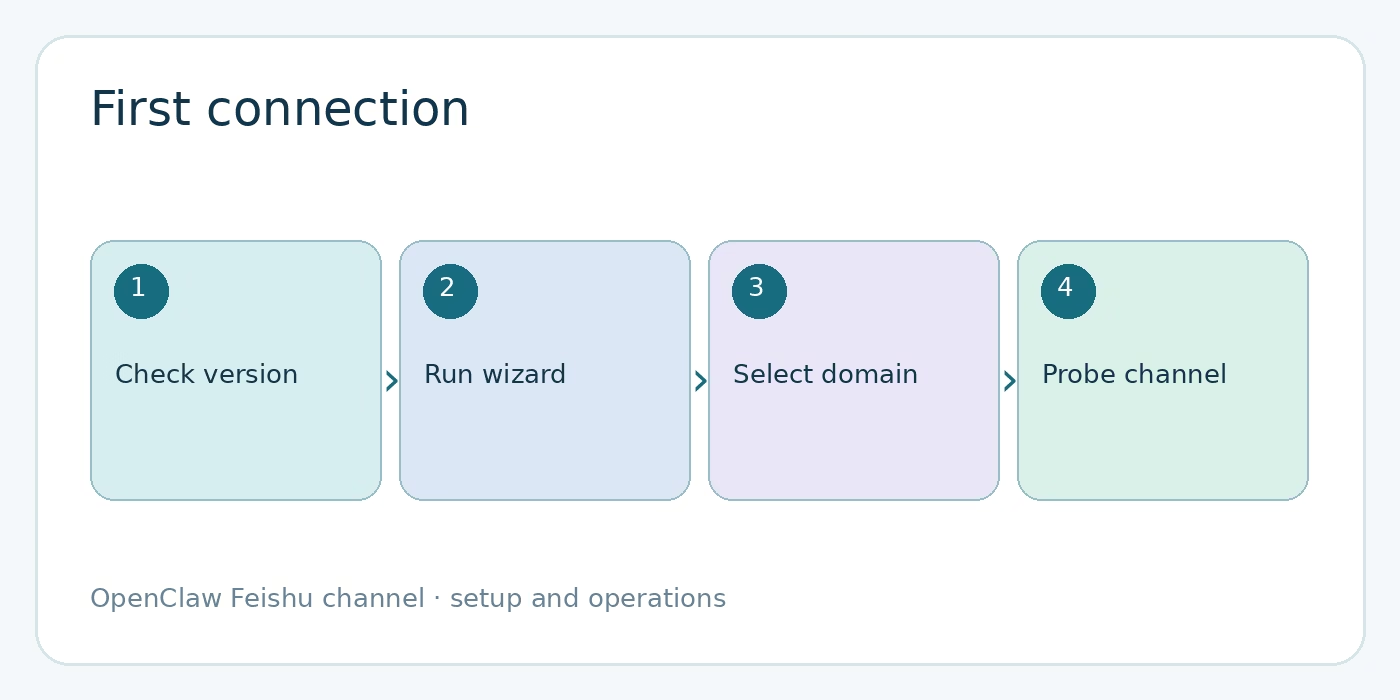
Check your OpenClaw version first. The current setup guide requires version 2026.5.29 or newer. Update if needed, then run the channel wizard:
openclaw --version
openclaw channels login --channel feishu
The wizard installs the plugin if it is missing. It offers a QR path and a manual path. QR setup uses the Feishu app to create a bot and locks direct messages to the account that scanned the code. That is convenient for a personal bot. It is also why a teammate may not receive a pairing prompt later: QR setup chooses an allowlist policy for your own Feishu open_id.
Manual setup asks for an App ID and App Secret from Feishu Open Platform or Lark Developer. Choose the corresponding Feishu or Lark API domain in the wizard. Store the secret as a credential, not in a screenshot or a copied article snippet. If the domestic Feishu mobile app does nothing when you scan the wizard’s QR code, the official advice is to rerun the wizard and choose manual setup.
After setup, check the channel:
openclaw channels status --probeStart the Gateway if it is offline. Configuration changes follow OpenClaw’s hot-reload behavior, so the setup guide does not require a blanket restart after every edit. A probe is the first check, not the last one. Next, send a DM to the bot and watch for an actual response.
For manual Feishu apps, a missing event usually sits outside the agent itself. The app must be published and approved, subscribe to im.message.receive_v1, use the selected persistent connection for WebSocket mode, and have the required scopes. Verify those in the developer console before changing prompts or agent bindings. The official troubleshooting page lists these checks together.
Keep DM and group access deliberate
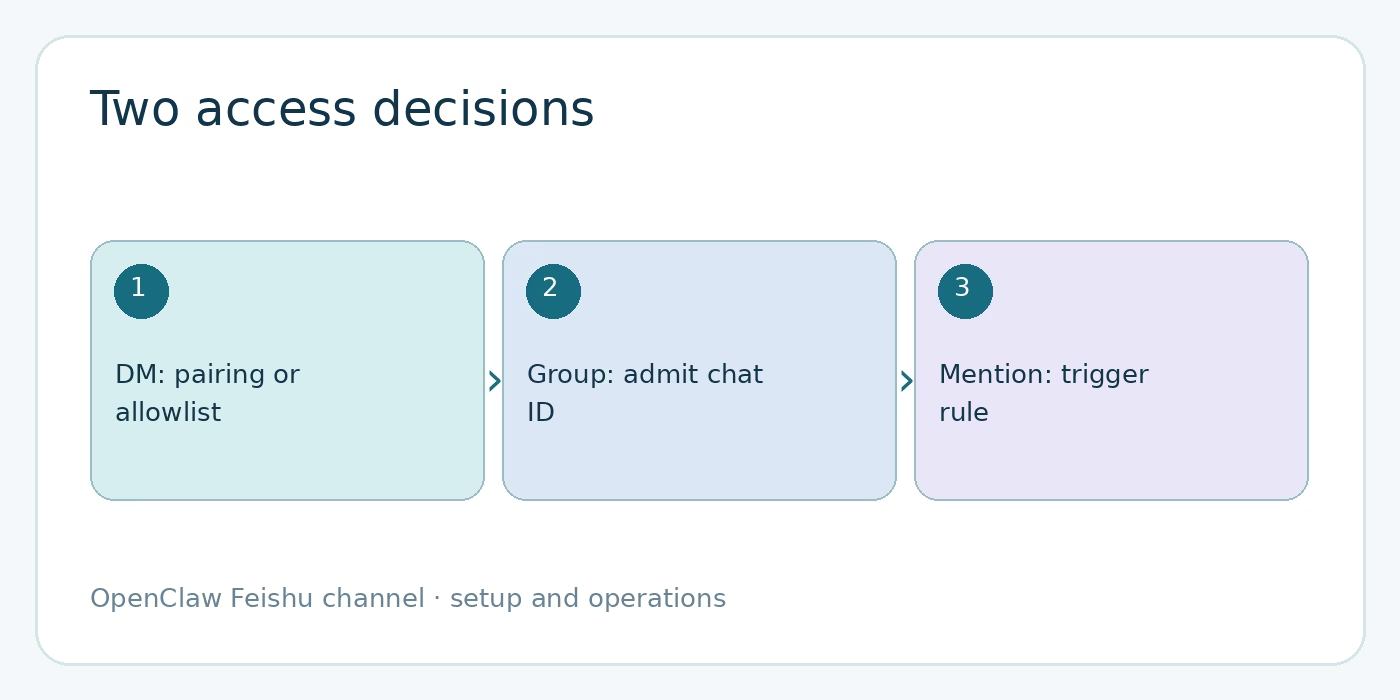
Direct messages and group chats have different policies. The default channels.feishu.dmPolicy is pairing. An unknown DM sender gets a code; an operator can list and approve it:
openclaw pairing list feishu
openclaw pairing approve feishu <CODE>
allowlist accepts only IDs in allowFrom. open permits public DMs only when the configuration includes the required wildcard. QR setup is the notable exception to the usual pairing starting point: it writes an allowlist for the scanning account. Check the effective policy before telling another person to wait for a code that will never arrive.
Groups default to groupPolicy: "allowlist". Add a specific chat ID to groupAllowFrom, or configure that group explicitly under groups.<chat_id>. A group ID starts with oc_; a user’s open ID starts with ou_. One is not a substitute for the other. Find the chat ID in the group’s Feishu settings, and find a sender’s open ID in Gateway logs or pending pairing requests, as described in the access-control reference.
{
  channels: {
    feishu: {
      groupPolicy: "allowlist",
      groupAllowFrom: ["oc_your_group_id"],
      requireMention: true
    }
  }
}
In an allowlisted group, a direct @mention is required by default. The rule changes when you set the effective group policy to open: its default mention requirement becomes false. If you want all groups admitted but only explicit mentions to trigger the bot, set requireMention: true yourself. That distinction is easy to miss, and the result can be far more group traffic than you intended.
Group admission and sender admission are separate again. A per-group allowFrom or shared groupSenderAllowFrom can restrict which people may trigger an admitted group. An explicit group entry does not override groupPolicy: "disabled". Nor does a wildcard group configuration admit every group on its own. For a team rollout, start with one named group and one test sender, then widen only after the behavior is clear.
Bot-authored messages are ignored by default. OpenClaw can permit bot-to-bot group traffic, but Feishu needs additional scopes and OpenClaw still applies its group and loop-protection rules. That is an advanced setup, not a shortcut for testing a human conversation.
Test a real round trip
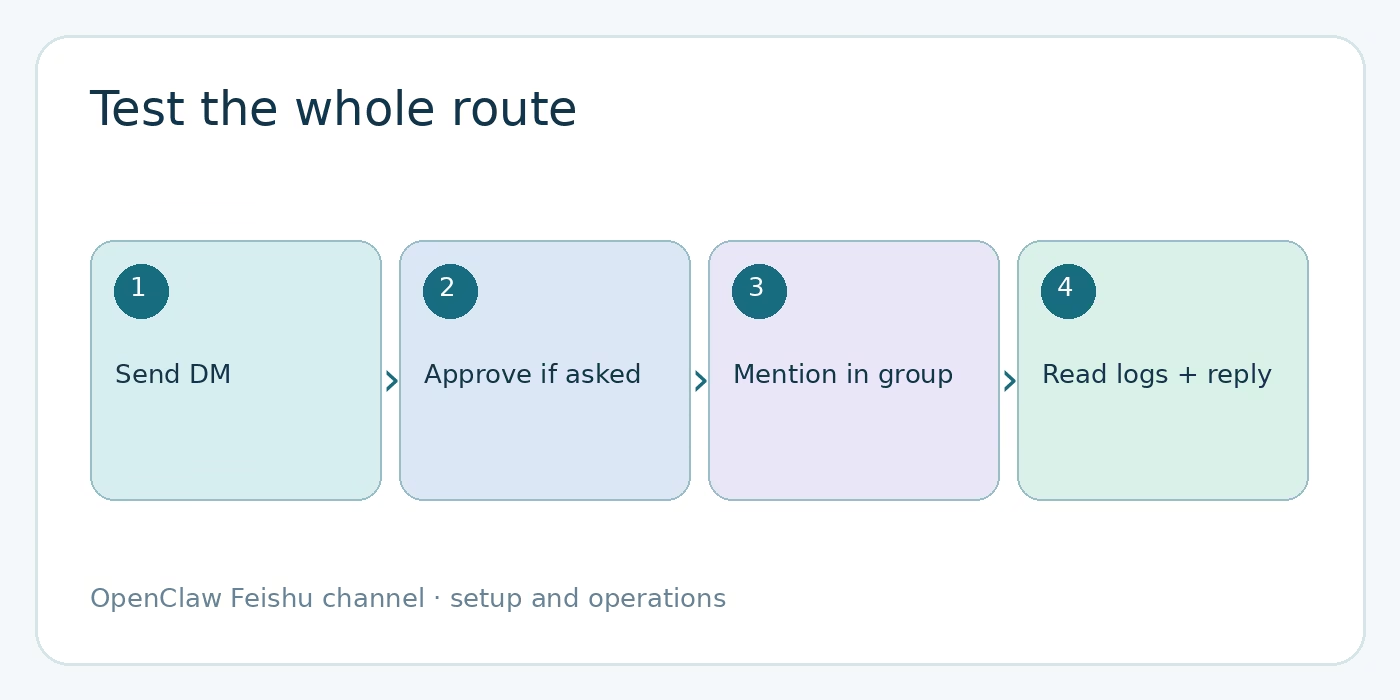
Use a short test sequence instead of relying on a status badge. First, send a DM from an allowed Feishu account. If you see a pairing code, approve it and send a second DM. Next, add the bot to the intended group, allow that group’s oc_ ID, and send a direct @mention. Finally, verify that the answer appears in the same conversation. A successful outbound reply is evidence that more of the path works than a probe alone can show.
Keep a terminal on the Gateway logs while you test:
openclaw gateway status
openclaw channels status --probe
openclaw logs --follow
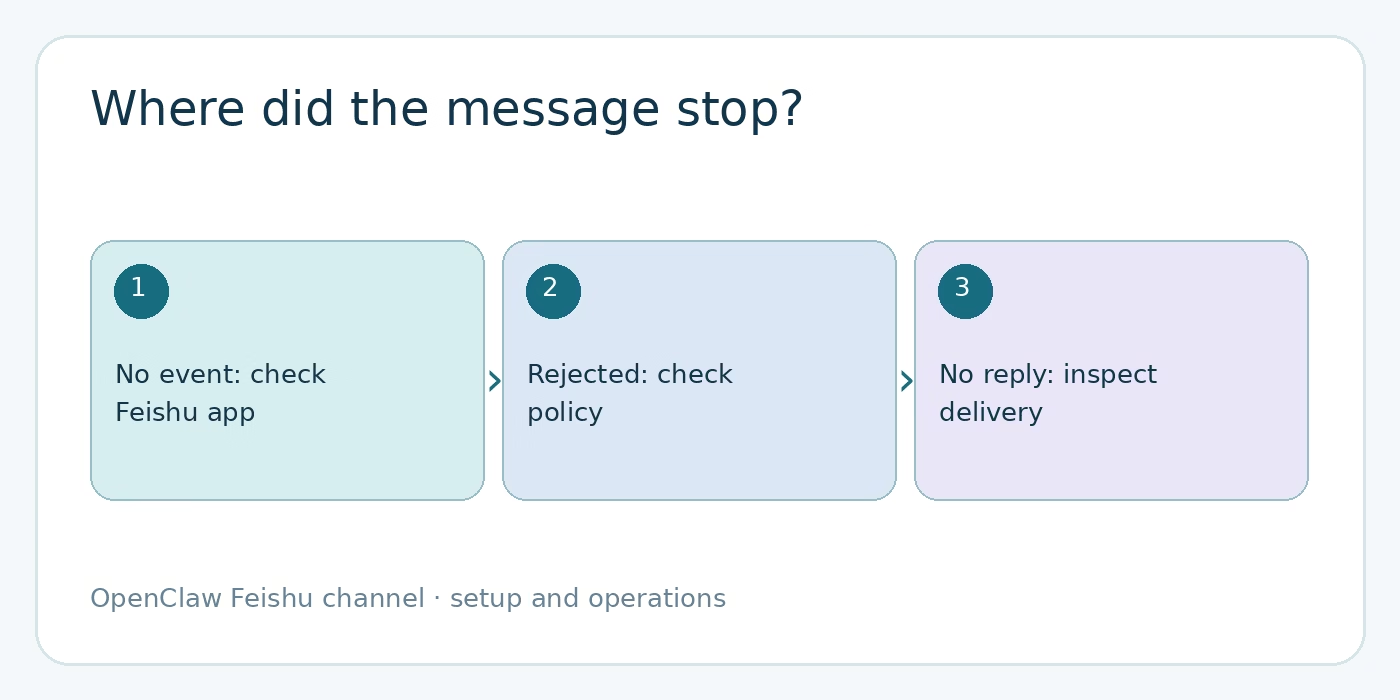
If the Gateway never logs the message, look at Feishu app publication, permissions, event subscription and transport. If the event reaches the Gateway but the sender is rejected, inspect DM pairing or group allowlists. If the agent handles a turn but the bot cannot reply, check channel credentials and the delivery error in logs. This is an operational troubleshooting order, not a claim that every failure prints the same log message.
OpenClaw durably queues authenticated Feishu message envelopes before agent dispatch, according to the setup documentation. That does not make an unconfigured app or an unauthorized sender work. It addresses accepted inbound events. Other event types do not all receive the same durability guarantee, so avoid describing the entire Feishu integration as a universal retry queue.
Choose session and workspace options only when needed
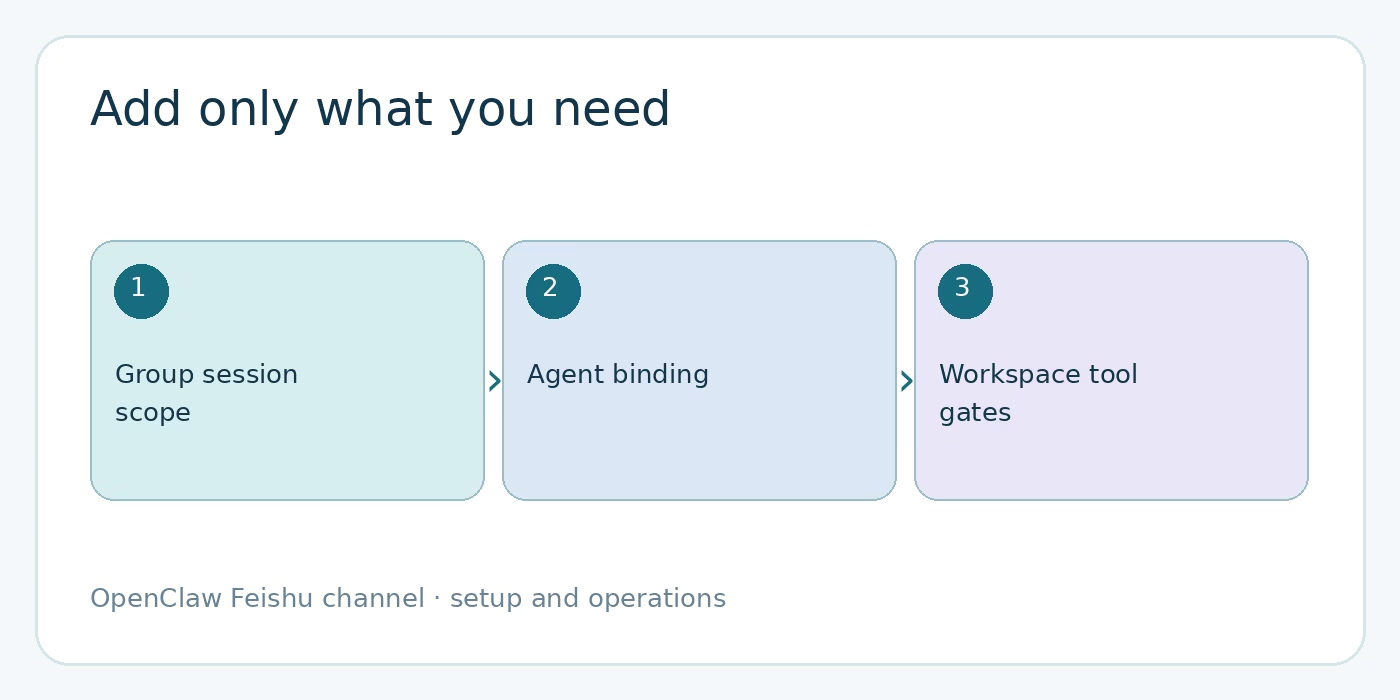
One group session per chat is the default. That is sensible for a shared team room, but it means people in that room share a conversation context. If each person needs a separate context, the advanced configuration offers group_sender. Topic-based scopes can separate native Feishu topic threads, with documented fallbacks when a topic ID is absent. Choose the scope for the conversation you want, not for the appearance of the chat UI.
The same advanced guide supports bindings that route Feishu DMs or groups to different agents. A binding can match the channel and a peer: ou_ for a person, oc_ for a group. This is useful when a support bot and an internal research bot should have different workspaces. It is not required for a single-agent installation. For the wider routing model, see our OpenClaw channel routing guide.
Feishu workspace tools also have their own gates. Document, chat, wiki, Drive, scope diagnostics and Bitable gates default on in the current docs, while permission-management tools default off because they are sensitive. A configured tool gate is not a substitute for granting the Feishu app the needed scope. Treat chat connectivity and document access as two separate tests. Our secrets management guide covers the related credential-handling decisions.
Streaming replies use interactive cards by default in partial mode. If your team prefers a completed reply, set streaming.mode: "off"; if you render raw text, streaming cards are disabled. None of these display settings fix a missing inbound event. Get delivery and access right first.
Troubleshoot the quiet Feishu bot
The bot works in DMs but not in a group
Confirm that the bot is a member of the group. Check that groupPolicy is not disabled, the group is admitted under your allowlist, and your test message directly @mentions the bot when required. A DM pairing approval does not authorize a group.
The bot receives nothing anywhere
Check app publication and approval, required scopes, the im.message.receive_v1 subscription, persistent connection selection, Gateway status and logs. If QR setup failed, try the manual App ID/Secret path and confirm you selected the correct regional API domain.
Webhook mode reports an invalid signature
Check the configured Encrypt Key, callback route and Gateway host clock. Current docs say webhook callbacks more than one hour away from the host’s time are rejected as a replay defense. WebSocket mode is not subject to that timestamp window. If an App Secret leaked, rotate it in the Feishu developer console, update OpenClaw, and probe the channel again.
FAQ about the OpenClaw Feishu channel
Do I need a public HTTPS endpoint?
Not for the default WebSocket transport. Optional webhook mode needs a reachable callback and uses the Gateway HTTP route at /feishu/events. Check migration guidance before changing an existing webhook setup.
Why didn’t my teammate get a pairing code?
Check dmPolicy. The normal default is pairing, but QR setup locks DMs to the scanning account with an allowlist. Add the teammate deliberately or change the policy after reviewing who should have access.
Can a Feishu group have separate agent context per person?
Yes. The documented groupSessionScope setting includes group_sender, as well as group and topic variants. Pick it before asking several people to test the bot in a shared room.
Are document and Bitable tools required for chat?
No. They are separate workspace capabilities with their own gates and Feishu app permissions. Start with a working DM and group mention; add document access for a real use case.
Start with one working conversation
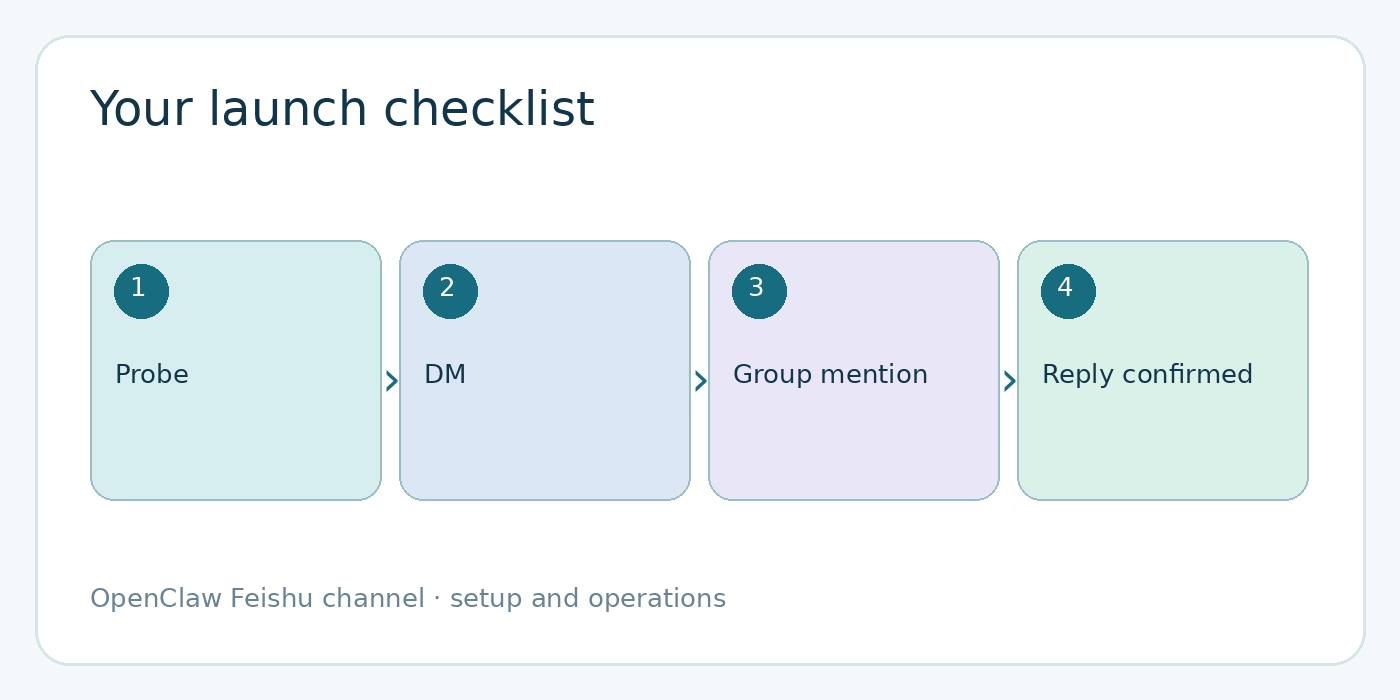
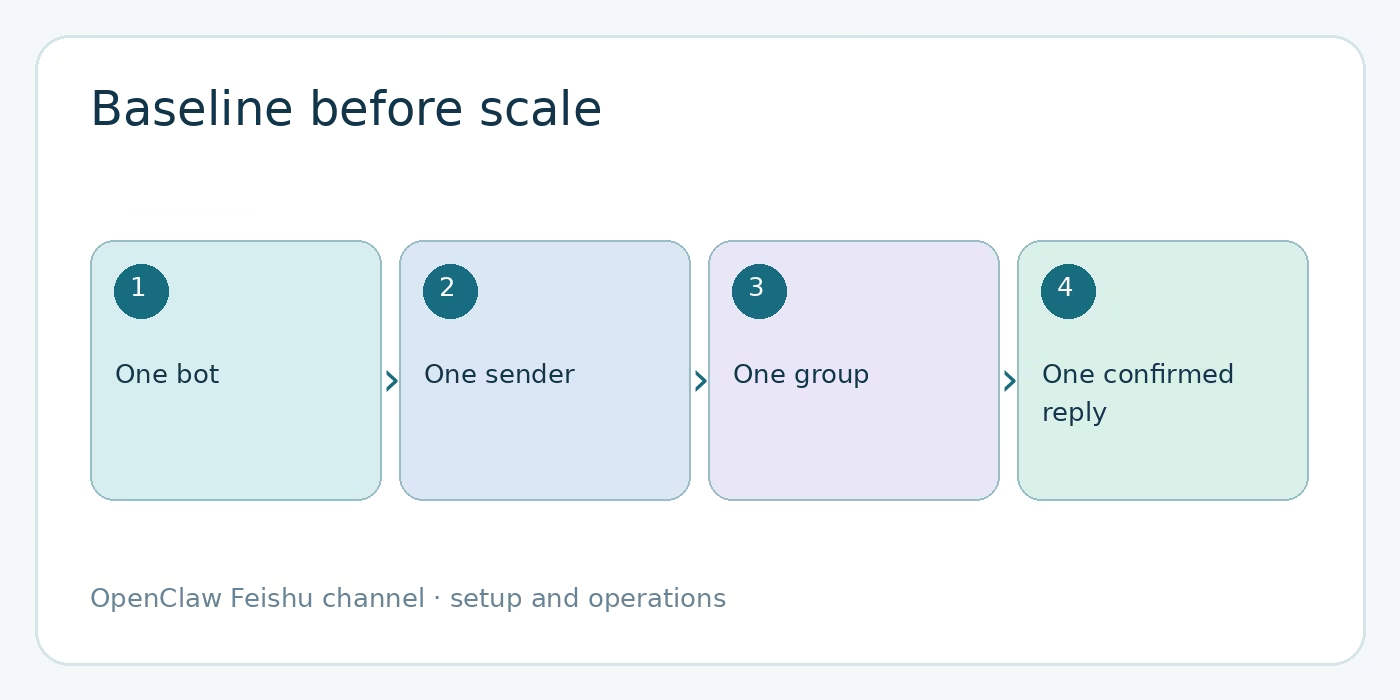
Run the wizard, probe the channel, approve one DM sender if pairing asks for it, and allow one group. Then test an @mention while watching logs. That small round trip gives you a trustworthy baseline before you change session scopes, enable workspace tools, or invite a whole team. Keep the official Feishu channel docs open while configuring; they are the source of truth for current keys and defaults.
Visual note: diagrams and the featured image for this article are AI-generated illustrations, not screenshots of a Feishu installation.