
An OpenClaw IRC channel is a good fit when your team already works in IRC and wants an agent in a familiar room. It is also easy to misread: a bot can connect, join #room, and still ignore every message. Connection, room access, sender access, and mention rules are separate checks. Work through them in that order and you can tell a broken login from a deliberate policy drop.
This guide uses the current official IRC plugin, a private test channel, and the safest useful defaults. The examples are JSON5 for ~/.openclaw/openclaw.json. Replace the sample server, nick, channel, and sender identity with your own values. If IRC is new to your team, our OpenClaw channels overview helps you decide whether it is the right surface at all.
What the OpenClaw IRC channel actually connects
The official IRC plugin connects the Gateway to a traditional IRC server. It can receive direct messages and messages in channels such as #openclaw. It sends text back through the same IRC connection. You do not need to make every person an OpenClaw operator just because they share the room; channel admission and tool permissions still matter.
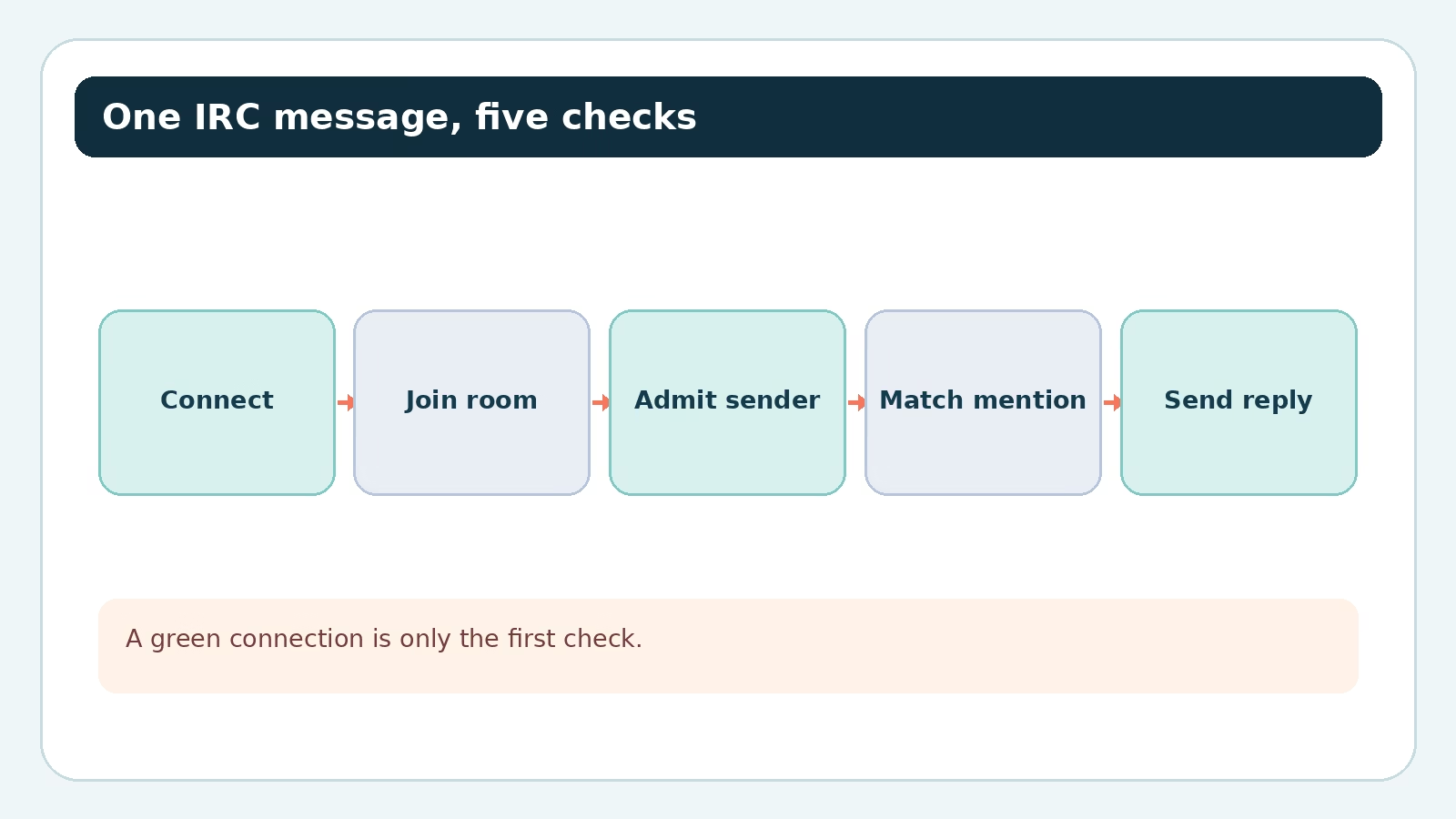
Think of the path as five checkpoints: the Gateway connects over TCP/TLS, the bot joins a channel, OpenClaw decides whether that channel and sender are allowed, the message satisfies the mention rule, and the agent’s answer is sent back. A green connection status proves only the first part. This is the central debugging habit for IRC.
Start on a private server or a deliberately small test room if you can. The official IRC documentation recommends a private server for bot coordination. A public room may be appropriate later, but it changes who can prompt the agent and what they may persuade it to do. That deserves a separate decision.
Set up the OpenClaw IRC channel
Install the plugin and supply connection details
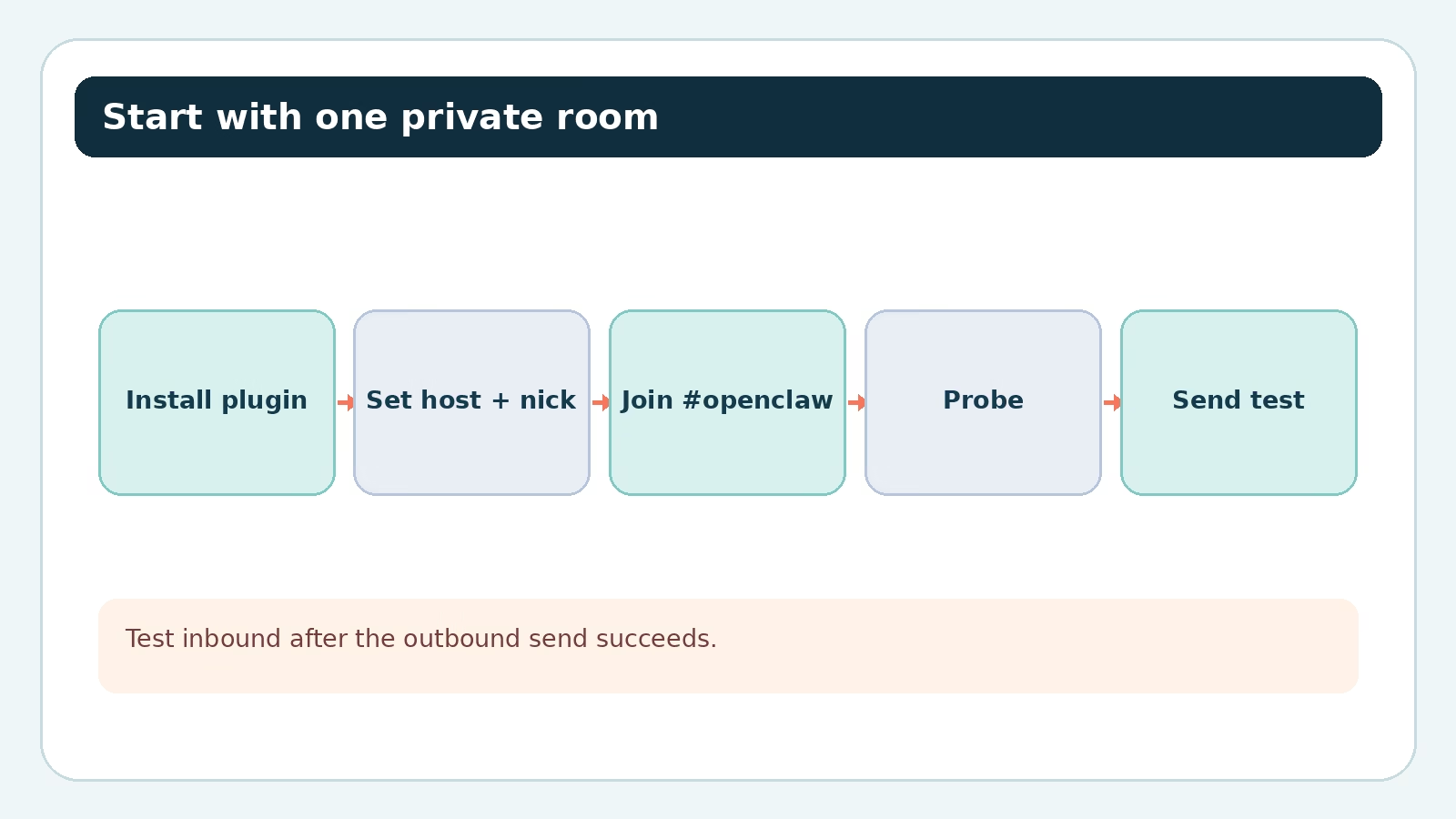
Install the official plugin first:
openclaw plugins install @openclaw/ircThen add the IRC channel to ~/.openclaw/openclaw.json. The required connection details are a host and nick; the channels list tells the bot where to join. This example makes TLS and the expected port explicit so the settings are easy to review:
{
  channels: {
    irc: {
      enabled: true,
      host: "irc.example.com",
      port: 6697,
      tls: true,
      nick: "openclaw-bot",
      channels: ["#openclaw"]
    }
  }
}
In the current docs, TLS defaults to true; its default port is 6697. Plaintext uses port 6667 when you intentionally disable TLS. Do not flip to plaintext as a casual response to a certificate problem. Check the server name, port, and certificate first. If your organization requires all outbound traffic through OpenClaw’s operator-managed forward proxy, note that IRC’s raw TCP/TLS socket does not use that proxy route. The docs say to leave IRC disabled unless direct egress is approved for that deployment.
Check the connection, then test the whole trip
Run the channel probe:
openclaw channels status --probeIf the Gateway is not running, start it with openclaw gateway run. Config changes follow OpenClaw’s hot-reload behavior, but a probe and an actual message are still worth doing after each edit. A useful outbound test is:
openclaw message send --channel irc --target '#openclaw' --message 'Hello from OpenClaw'That command tests sending to the channel. It does not prove that an incoming message will pass your room, sender, and mention policies. For that, send a message from an allowed IRC identity containing the connected bot nick, then watch openclaw logs --follow. Keep the first test dull and observable: one sender, one room, one short question.
Separate room access, sender access, and mentions
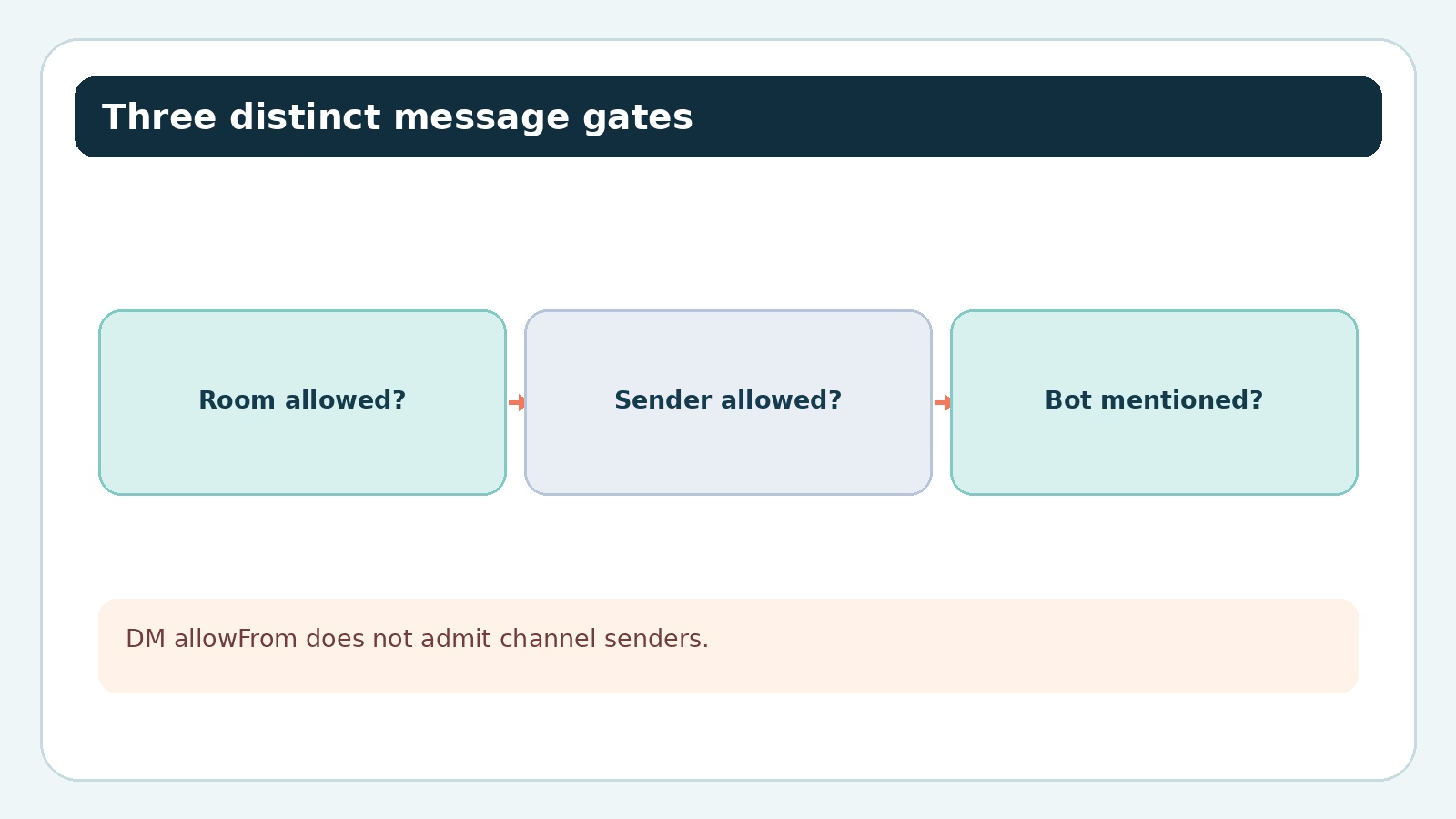
Three switches are easy to blur together. The IRC plugin’s groupPolicy defaults to allowlist, so name the rooms you will accept under groups. A sender allowlist then decides which people in that room may trigger the agent. Finally, group messages are mention-gated by default. The bot’s connected nick or a configured mention pattern must appear before it responds.
Here is a narrowly scoped starting point. It allows one sender identity in one room and still requires a mention:
{
  channels: {
    irc: {
      groupPolicy: "allowlist",
      groups: {
        "#openclaw": {
          allowFrom: ["alice!ident@host"],
          requireMention: true
        }
      }
    }
  }
}
The sender string is illustrative. Copy the actual identity from your logs or server information. The official docs recommend a nick!user@host identity because a bare nick can change owners. Bare-nick matching is off unless you explicitly enable dangerouslyAllowNameMatching. That option has an honest name; avoid it unless you understand the trust tradeoff on your network.
The DM allowlist does not open a channel
channels.irc.allowFrom is for direct messages. It will not fix a channel log line such as irc: drop group sender alice!ident@host (policy=allowlist). For channel senders, use channels.irc.groupAllowFrom across rooms or a room-specific groups["#openclaw"].allowFrom. Prefer the room-specific form when the people in one channel should not automatically get access in every other channel.
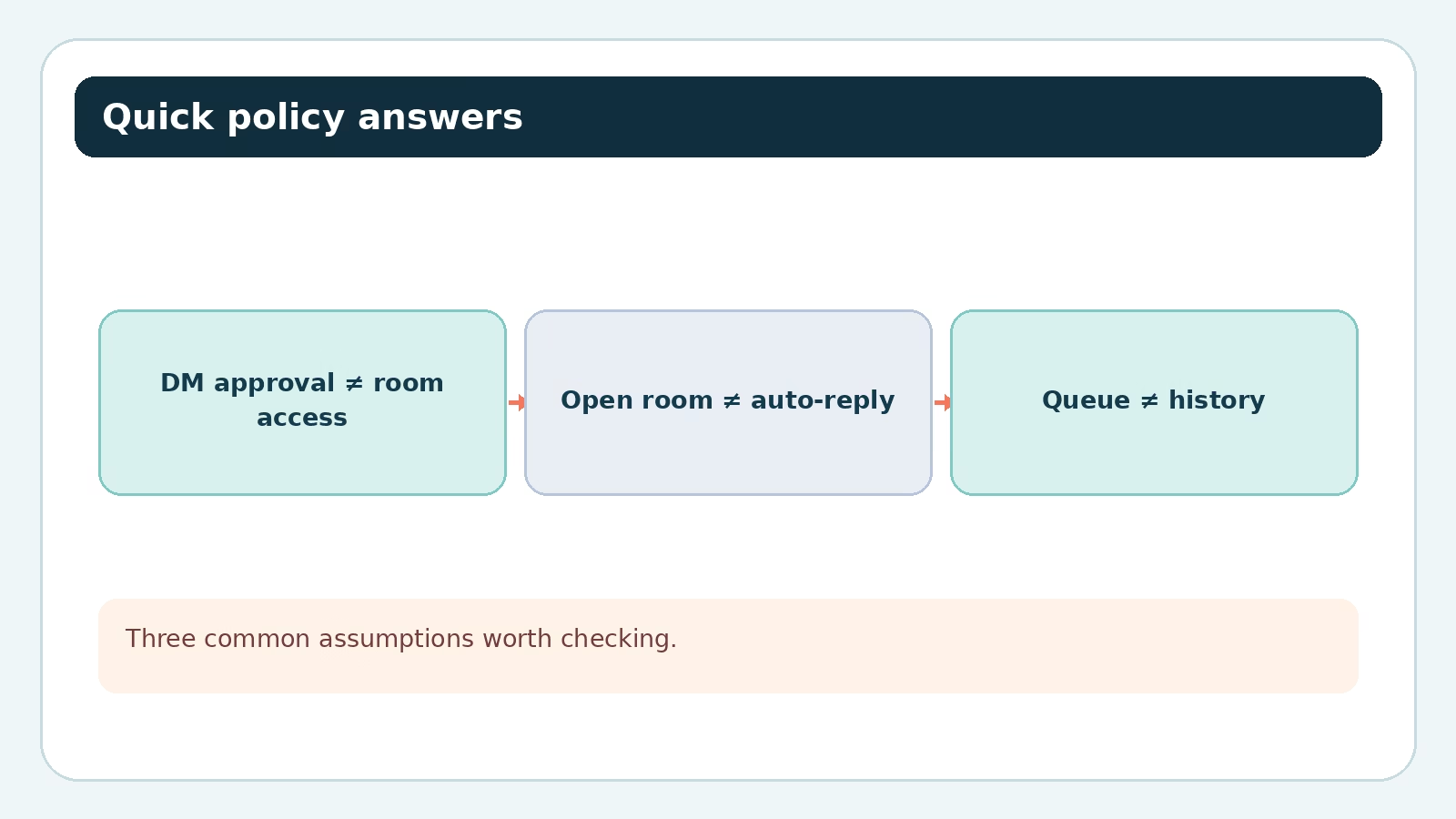
DMs are different again: dmPolicy defaults to pairing. An unknown sender gets a pairing request; the operator approves it with openclaw pairing approve irc <code>. The pairing guide is explicit that approving a DM does not grant channel access. The reverse is also true: listing a person in a channel sender allowlist is not an instruction to open your DMs.
When a channel should answer without a ping
If an admitted message reaches the room but the logs show missing-mention, the bot is doing what you asked. Mention its current nick, or set requireMention:false for that room. The latter is sensible for a tiny, dedicated bot room; it is noisy in a busy general chat. A channel configured with groupPolicy:"open" can accept unconfigured rooms, but it remains mention-gated by default. “Open” is not the same as “reply to everything.”
Our group chat controls guide explains the broader pattern across channels. For IRC, keep your mental model simple: room, sender, then mention. Check each independently before changing anything else.
Do not hand a public IRC room your tools
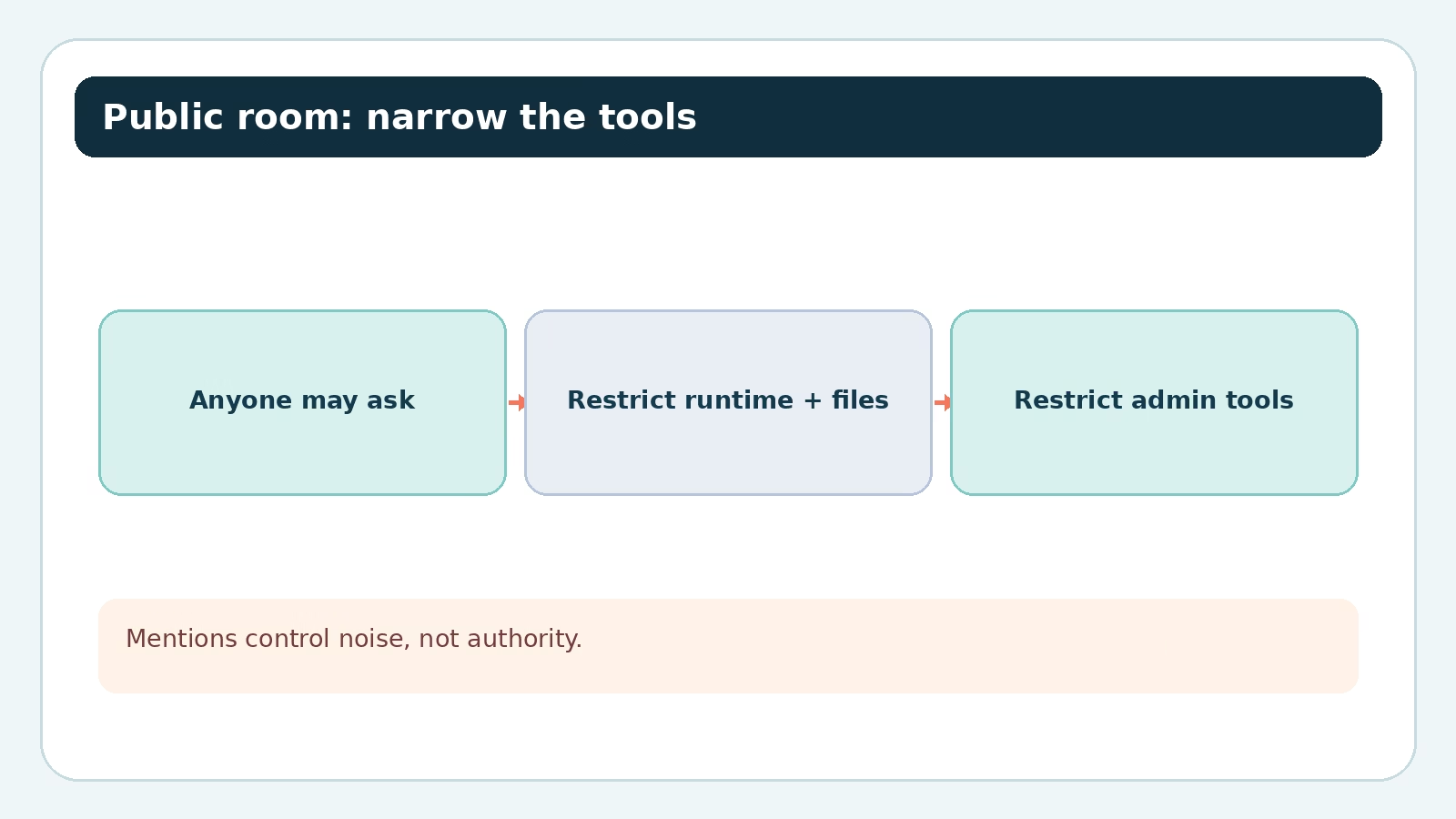
Sometimes you really do want anyone in a room to ask the bot a question. The official IRC example uses allowFrom:["*"] for that. On a public network, it also means anyone there can prompt the agent. If the agent can run shell commands, read files, manage the Gateway, or control nodes, a wildcard chat entry is too much authority.
The plugin supports room-level tools and per-sender toolsBySender restrictions. For an open question-and-answer room, start by denying the high-impact tool groups shown in the official docs:
{
  channels: {
    irc: {
      groups: {
        "#public-help": {
          allowFrom: ["*"],
          tools: {
            deny: ["group:runtime", "group:fs", "gateway", "nodes", "cron", "browser"]
          }
        }
      }
    }
  }
}
This is an example, not a promise that a bot is safe merely because one deny list exists. Check the tools your agent actually has. If the owner needs a different policy, toolsBySender can apply a specific rule to an id:-prefixed IRC sender and a wildcard fallback for everyone else. The docs say the first matching sender policy wins. Keep that distinction in the config rather than relying on the nick people see in the room.
OpenClaw also supports reusable sender lists across channels. If you have several rooms with the same trusted people, the access groups guide is useful. Reuse does not turn a sender list into a privileged role; tool policy and command ownership are still separate decisions.
Know what survives a disconnect
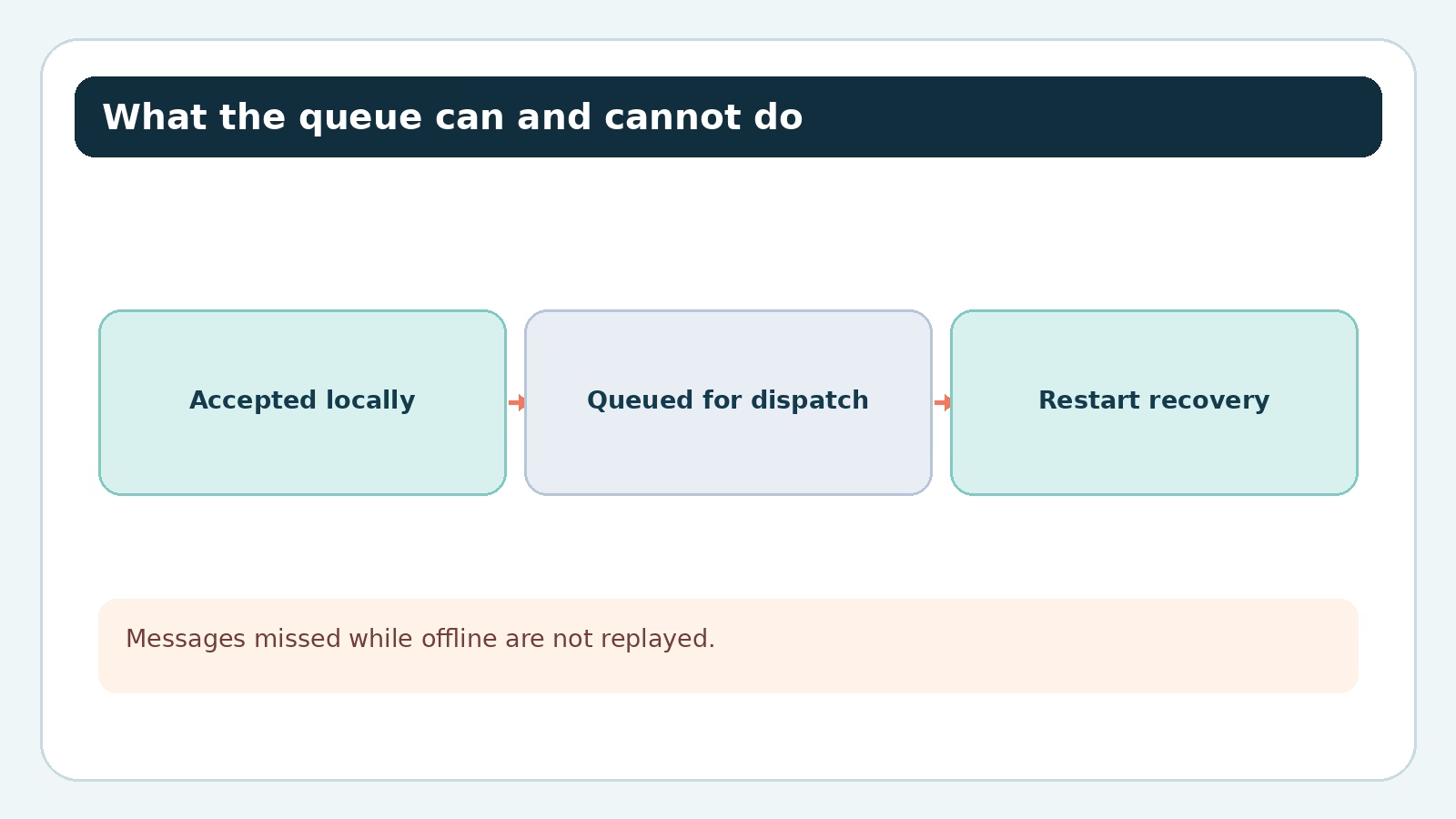
The IRC plugin writes each accepted PRIVMSG to a durable local ingress queue before normal policy checks and dispatch. Pending or retryable work can survive a Gateway restart and stays serialized for its channel or DM peer. That is valuable when the agent or Gateway restarts mid-processing.
But IRC is not a replayable inbox. The server does not give OpenClaw a delivery ID it can use to fetch messages missed while the client was disconnected. A message that never reached the Gateway cannot be restored by its queue. The locally assigned ID is stable only for the current TCP connection, so the queue cannot reliably deduplicate a server resend after reconnect either. “Durable” here means accepted locally, not “every message ever sent to the room.”
There is a related security detail on account restart: the docs say pending channel messages are recovered, while pending DMs from the old connection are discarded because IRC nicknames can change owners. That may surprise someone expecting the same recovery behavior for both. It is a deliberate boundary, not necessarily a lost database row to repair.
On a quiet but broken network path, OpenClaw sends a PING after two minutes without server traffic and closes and reconnects after four minutes of silence. Do not read those timers as a guarantee that every message during the outage will appear afterward. If message history is a hard requirement, use a chat platform with replay semantics rather than making IRC carry a job it was not built to carry.
Debug missing replies by checkpoint
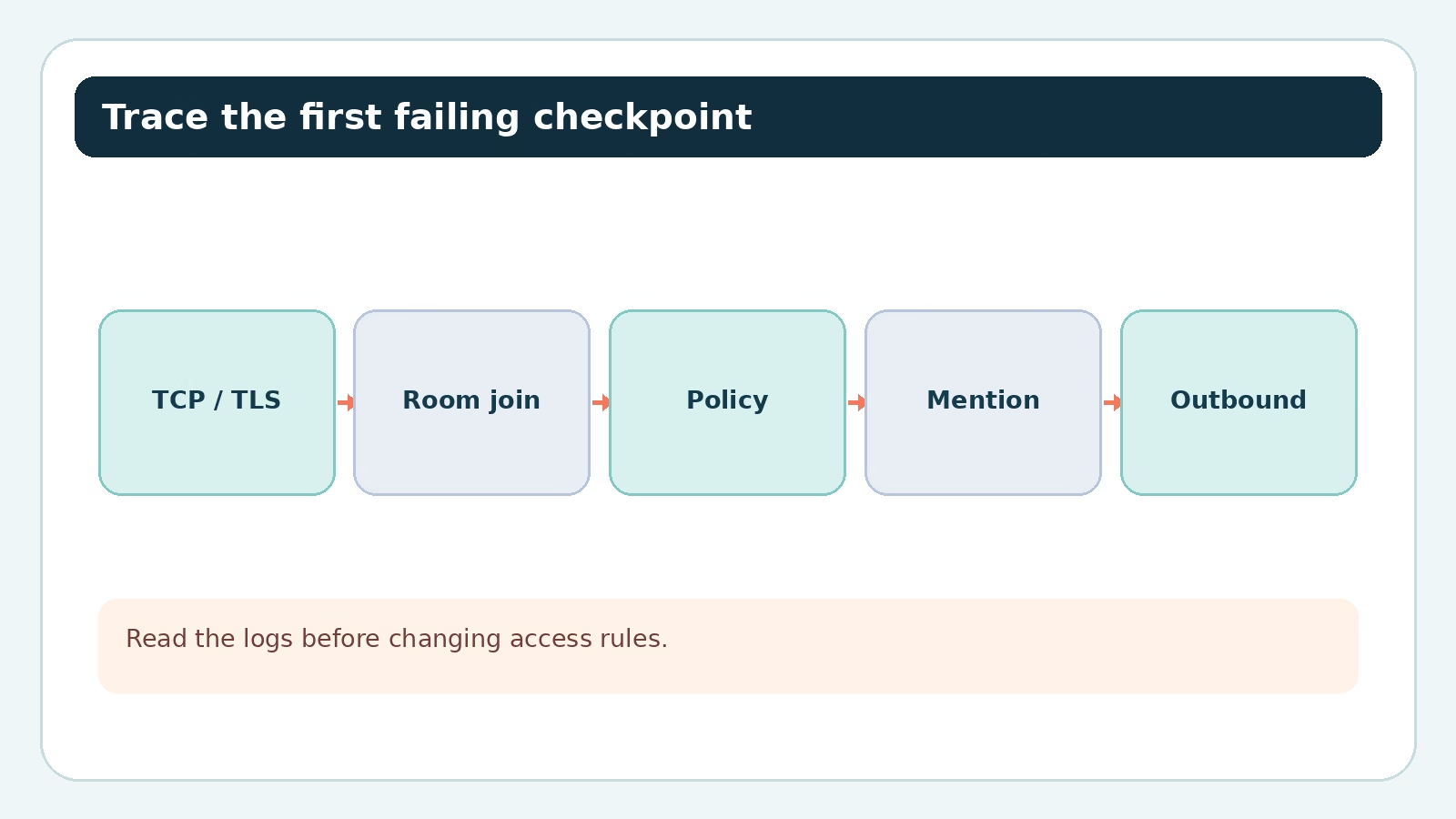
Start with openclaw channels status --probe and openclaw logs --follow. The general channel troubleshooting guide also suggests openclaw status, openclaw gateway status, and openclaw doctor. Then follow the symptom, not your guess.
- No connection: verify the host, port, TLS setting, server password if used, and whether the nick is available. A custom server’s certificate needs attention before you change transport security.
- Connected but not in the room: check the configured
channelslist and that the bot actually joined the intended#channel. Joining and message admission are different checks. - Room message dropped: confirm
groupPolicyand the room entry undergroups. With the default allowlist policy, an unlisted room is not a valid test. - Sender dropped: match the sender identity against
groupAllowFromor the room’sallowFrom. The DMallowFromis the wrong field. missing-mention: use the connected nick in the test message, check any mention patterns, or deliberately disable the gate for that one room.- Agent ran but no visible answer: try the direct
openclaw message sendcommand to isolate outbound IRC delivery, then inspect logs for formatting or socket errors.
IRC renders Markdown as plain text before splitting long replies into IRC messages. Code content and link destinations are preserved. If formatting or sanitization leaves nothing to send, OpenClaw reports a failure instead of claiming delivery. That is another reason a short, plain test is better than a long formatted answer when you are isolating a send problem.
If the message reaches an agent you did not expect, check your agent bindings and session scope next. Admission happens before routing. Our channel routing guide covers how a matched channel, account, or peer chooses the agent and session; changing the IRC room allowlist will not fix a binding to the wrong agent.
FAQ about OpenClaw on IRC
Does the IRC plugin need a public server?
No. It connects to the host you configure, including a private IRC server. The official docs prefer private servers for bot coordination. If you do use a public network, keep the accepted rooms and sender permissions deliberate.
Why does the bot reply to DMs but ignore my channel?
DM pairing and channel access are separate. Check that the channel is allowed under groupPolicy and groups, that the sender is allowed by a group sender rule, and that the message mentions the bot unless you disabled mention gating. A DM approval does not pass those channel checks.
Can I allow everyone in a channel but require mentions?
Yes. A room-level allowFrom:["*"] allows senders in that room, while the default mention gate still requires them to address the bot. On a public room, narrow the agent’s tools as well; mention gating is a noise control, not a permission boundary.
Will a queued IRC message always be answered after a restart?
No. The local queue can recover pending accepted channel messages across a Gateway restart. It cannot recover anything the IRC client missed while disconnected, and old-connection pending DMs are discarded on account restart because nick ownership can change.
Make one small room work first
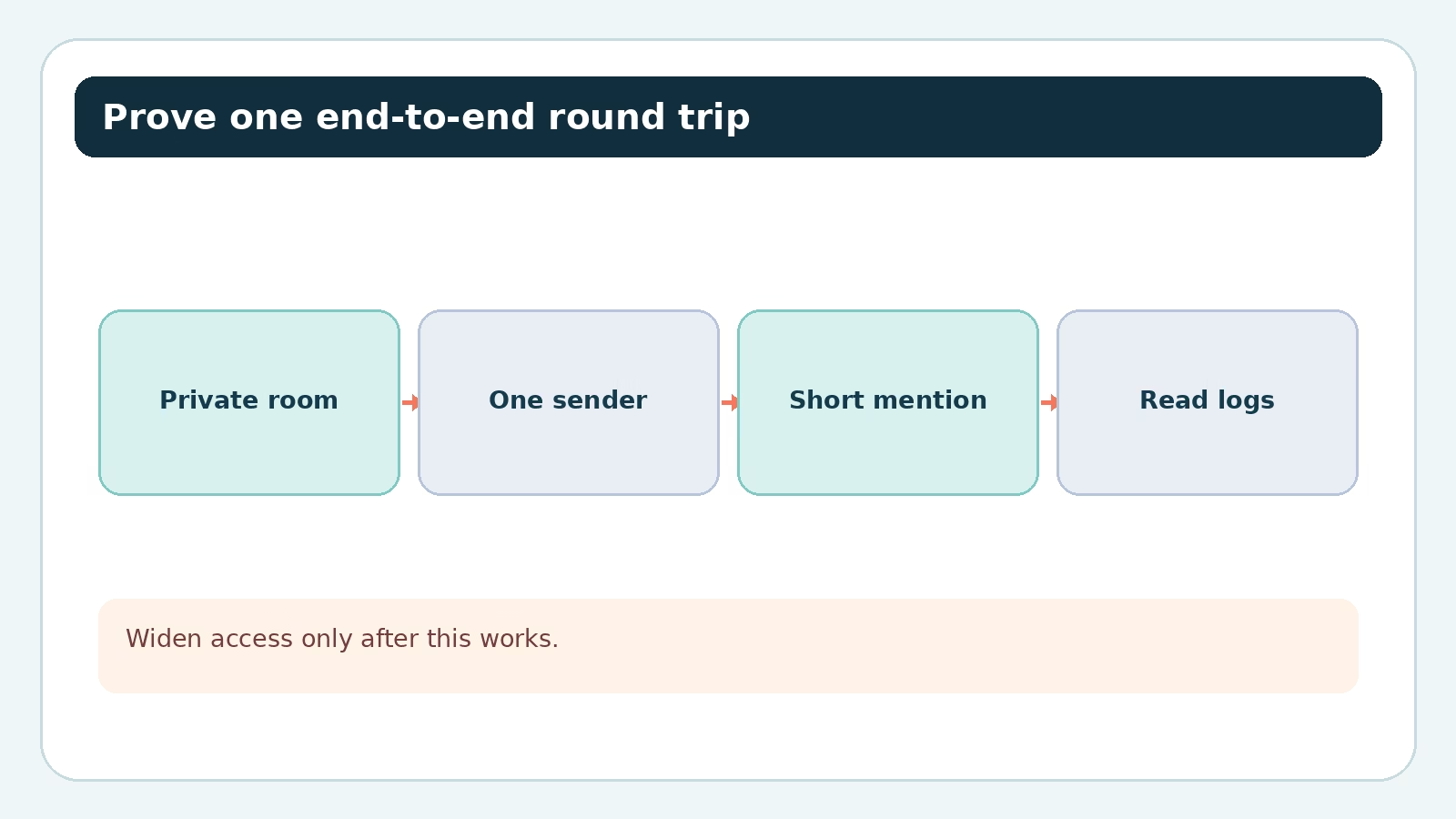
Install the plugin, join a private test channel, allow one stable sender identity, and send a short message containing the bot’s nick. Check the probe and logs at each boundary. Once that round trip works, decide whether you need wider room access, mention-free replies, NickServ identification, or multiple accounts. Each is a separate change you can test. The current IRC reference has the full setting list; keep it open while you make those edits.
Visuals in this guide are AI-generated illustrations and explanatory diagrams; configuration text remains selectable and copyable above.